
Canaux · WhatsApp Business profile
How do I change the picture of my business's WhatsApp number?
Edit what your customers see when they open your chat on WhatsApp — picture, about text, business category, description, address, email and websites — for each number, from inside Kauthar.
Pour qui : Propriétaire et responsable · Membres de l'équipe
Où : Sidebar → Channels & customers → Channels → the number's card → «WhatsApp profile»
Étapes
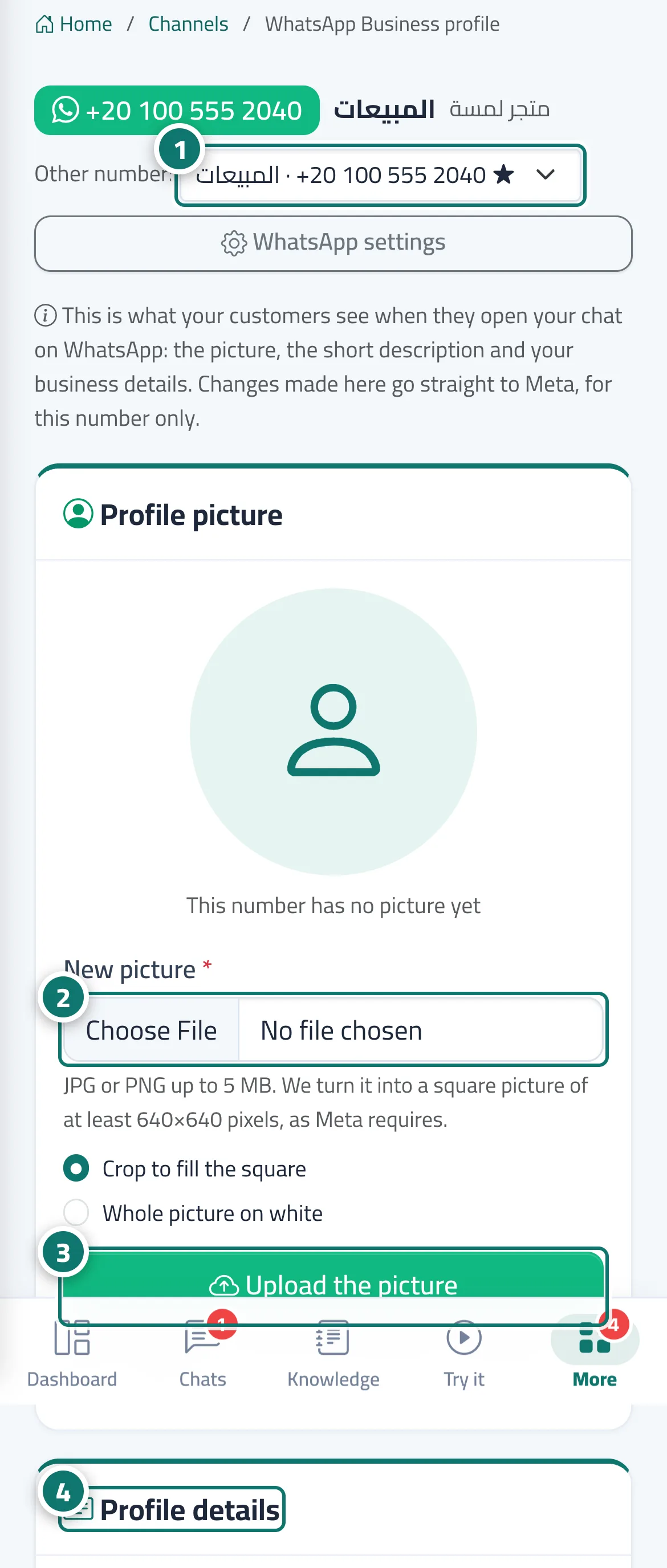
- On the number's card in «Channels», click «WhatsApp profile»; the other-number menu lets you switch to another number's profile. Numéro 1 sur l’image
- In «Profile picture», choose a new picture and how it fills the square. Numéro 2 sur l’image
- Click «Upload the picture» (or «Use my business logo» to use your business's logo). Numéro 3 sur l’image
- In «Profile details», edit the about text, category, description, address, email and websites, then click «Save to WhatsApp». Numéro 4 sur l’image
Étapes
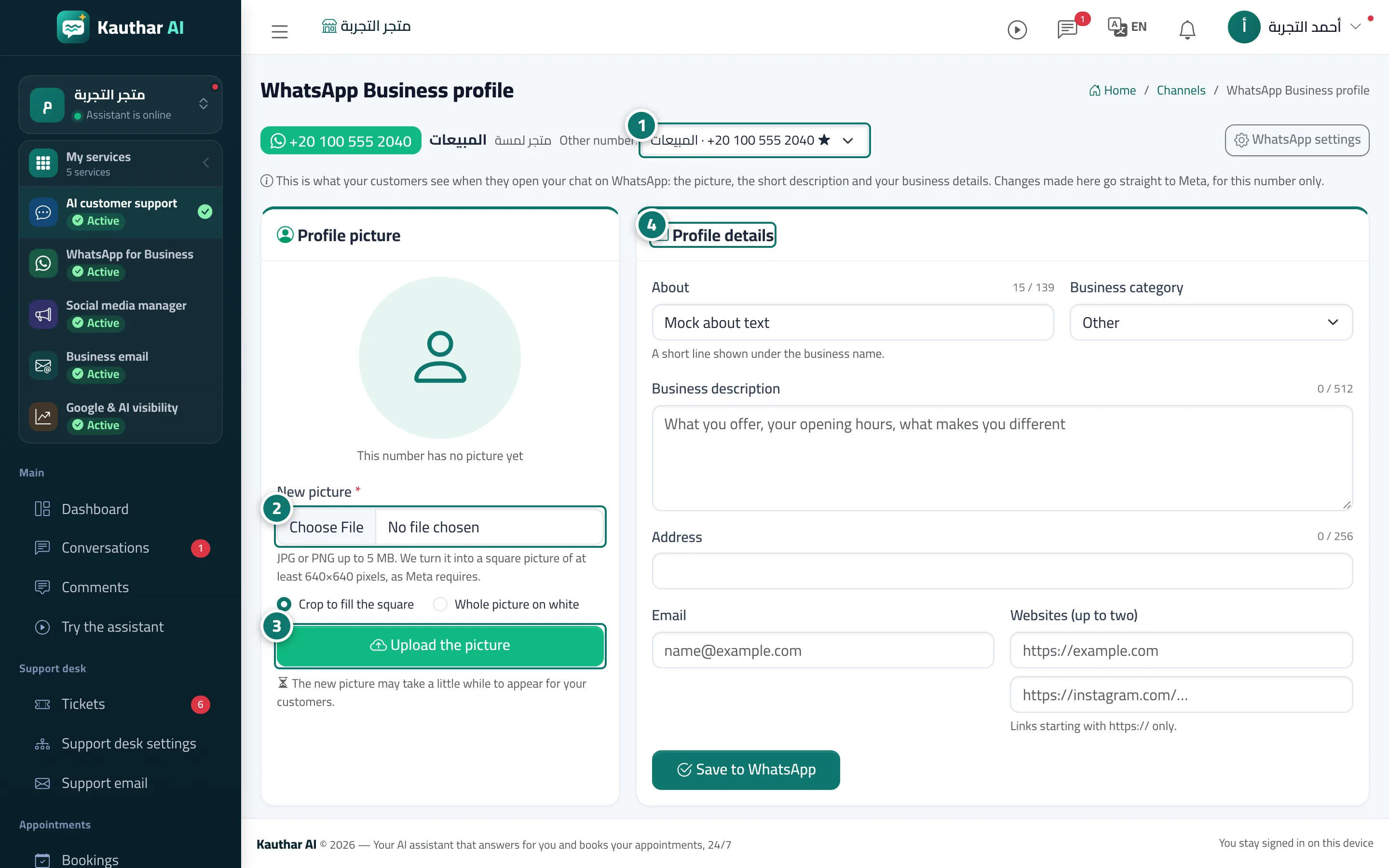
- On the number's card in «Channels», click «WhatsApp profile»; the other-number menu lets you switch to another number's profile. Numéro 1 sur l’image
- In «Profile picture», choose a new picture and how it fills the square. Numéro 2 sur l’image
- Click «Upload the picture» (or «Use my business logo» to use your business's logo). Numéro 3 sur l’image
- In «Profile details», edit the about text, category, description, address, email and websites, then click «Save to WhatsApp». Numéro 4 sur l’image