
Canaux · Send a WhatsApp message and message templates
How do I send a WhatsApp message to a customer from my business number?
Send a WhatsApp message from your business number to any number, and create message templates approved by Meta to start conversations after the 24-hour window.
Pour qui : Propriétaire et responsable · Membres de l'équipe
Où : Sidebar → Channels & customers → Channels → the number's card → «Templates & send»
Étapes
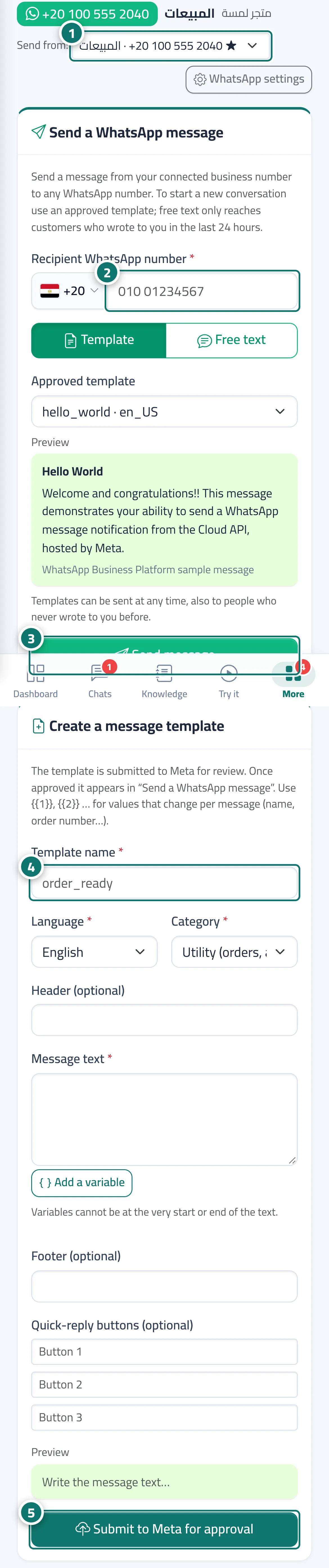
- Choose the number you're sending from in the «Send from:» list. Numéro 1 sur l’image
- In «Send a WhatsApp message», enter the recipient's number and choose «Template» or «Free text». Numéro 2 sur l’image
- Write the message or choose the approved template, then click «Send message». Numéro 3 sur l’image
- To create a new template, enter the template name, choose the language and category, and write the text. Numéro 4 sur l’image
- Click «Submit to Meta for approval» and follow its status in «Your message templates (from Meta)». Numéro 5 sur l’image
Étapes
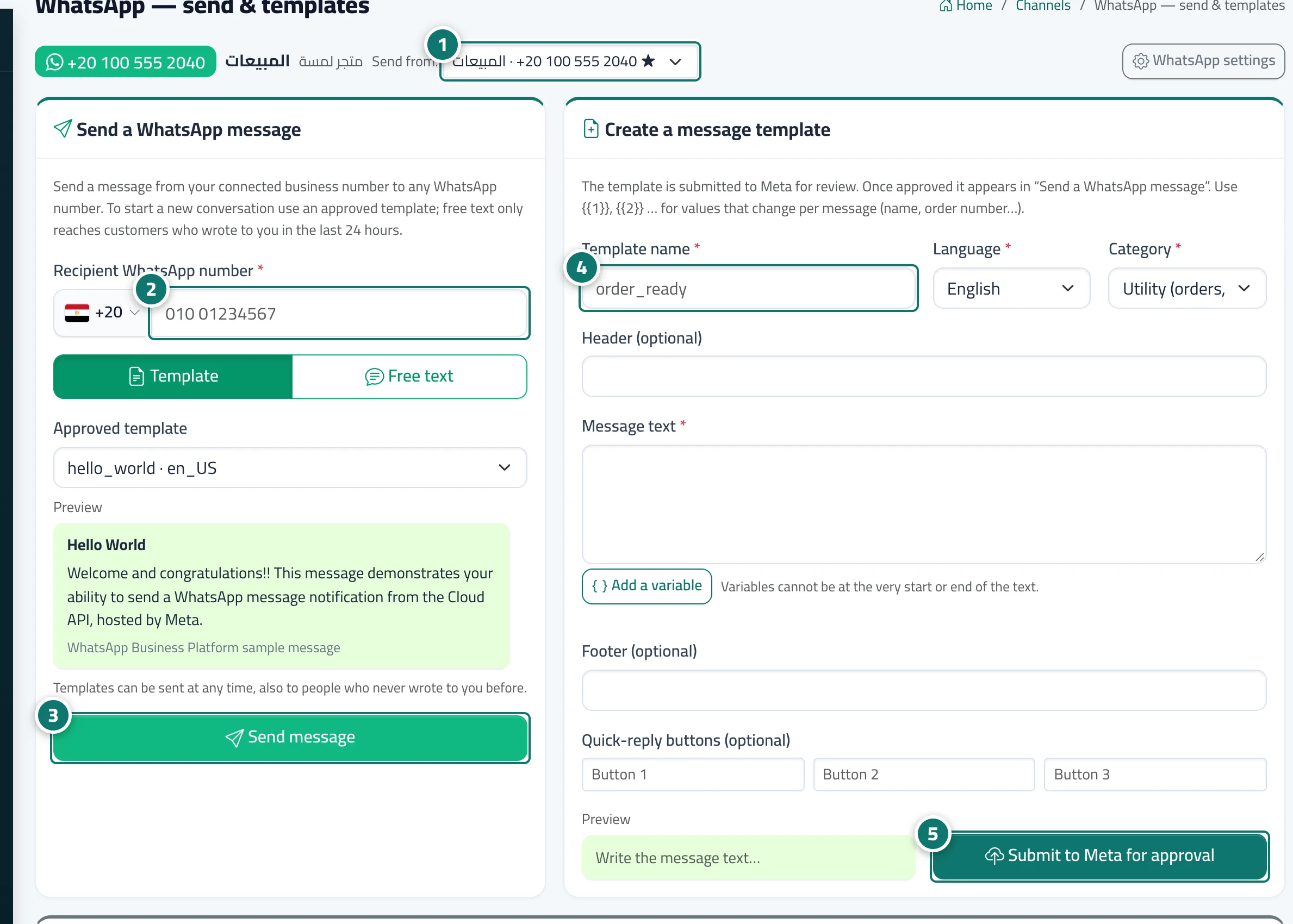
- Choose the number you're sending from in the «Send from:» list. Numéro 1 sur l’image
- In «Send a WhatsApp message», enter the recipient's number and choose «Template» or «Free text». Numéro 2 sur l’image
- Write the message or choose the approved template, then click «Send message». Numéro 3 sur l’image
- To create a new template, enter the template name, choose the language and category, and write the text. Numéro 4 sur l’image
- Click «Submit to Meta for approval» and follow its status in «Your message templates (from Meta)». Numéro 5 sur l’image