
Boutiques et intégrations · Ordering from inside the chat
How does a customer order a product from inside the chat?
The customer taps “Order now” on a product card, enters their address, and reviews and confirms the order without leaving the chat.
Pour qui : Vos clients
Où : The chat page and the chat window on your website, on the product cards of the connected store · turned on from the sidebar → Train your assistant → Connect your store → “Edit”
Étapes
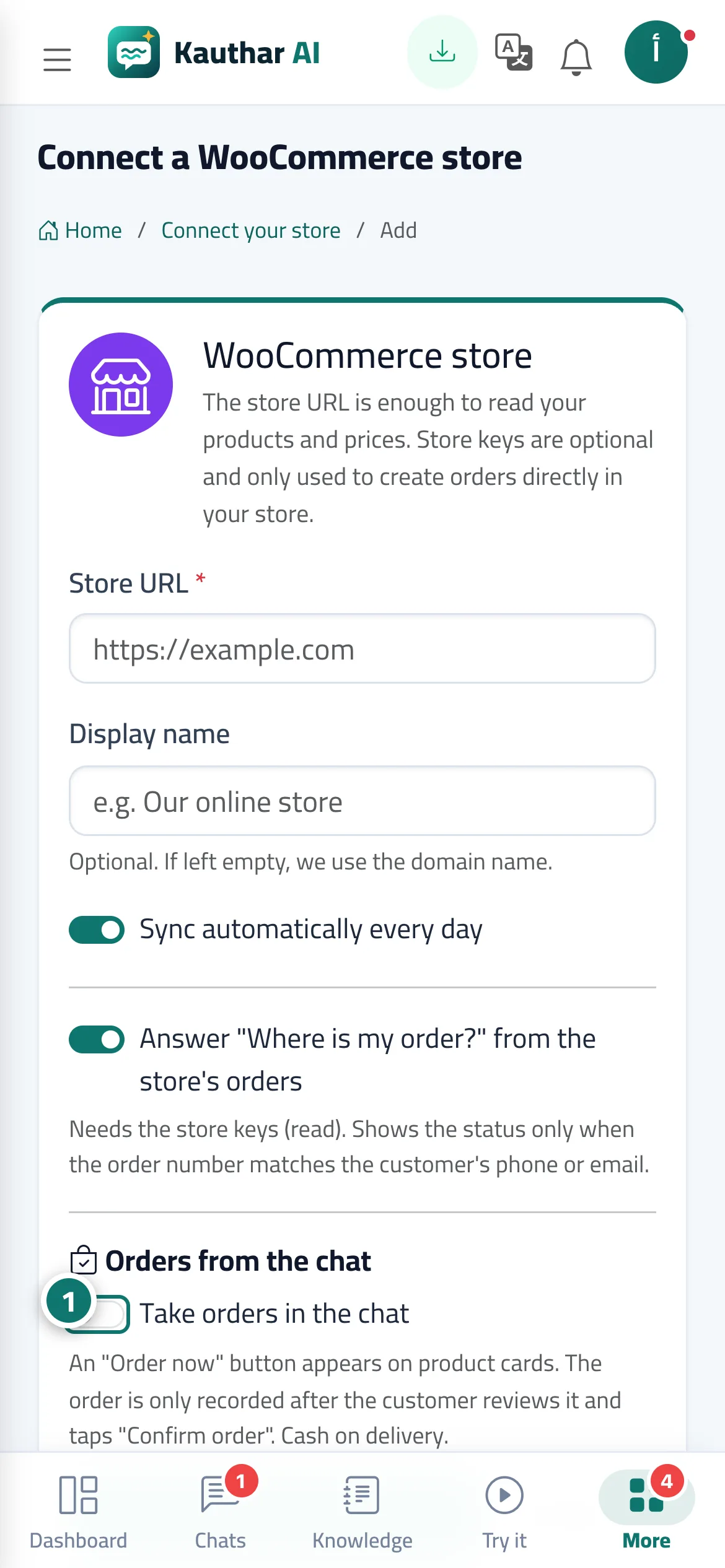
- Turn on “Take orders in the chat” in the WooCommerce store connection form (and add “Store keys (optional)” so orders are created in your store directly). Numéro 1 sur l’image
- A customer asks about a product, and the price appears with a product card and an “Order now” button.
- They tap “Order now”, choose the option and quantity, complete the address, then tap “Review order”.
- They review the order and the total, then tap “Confirm order”.
- They see “Your order #… has been placed” and you receive an order alert.
Étapes
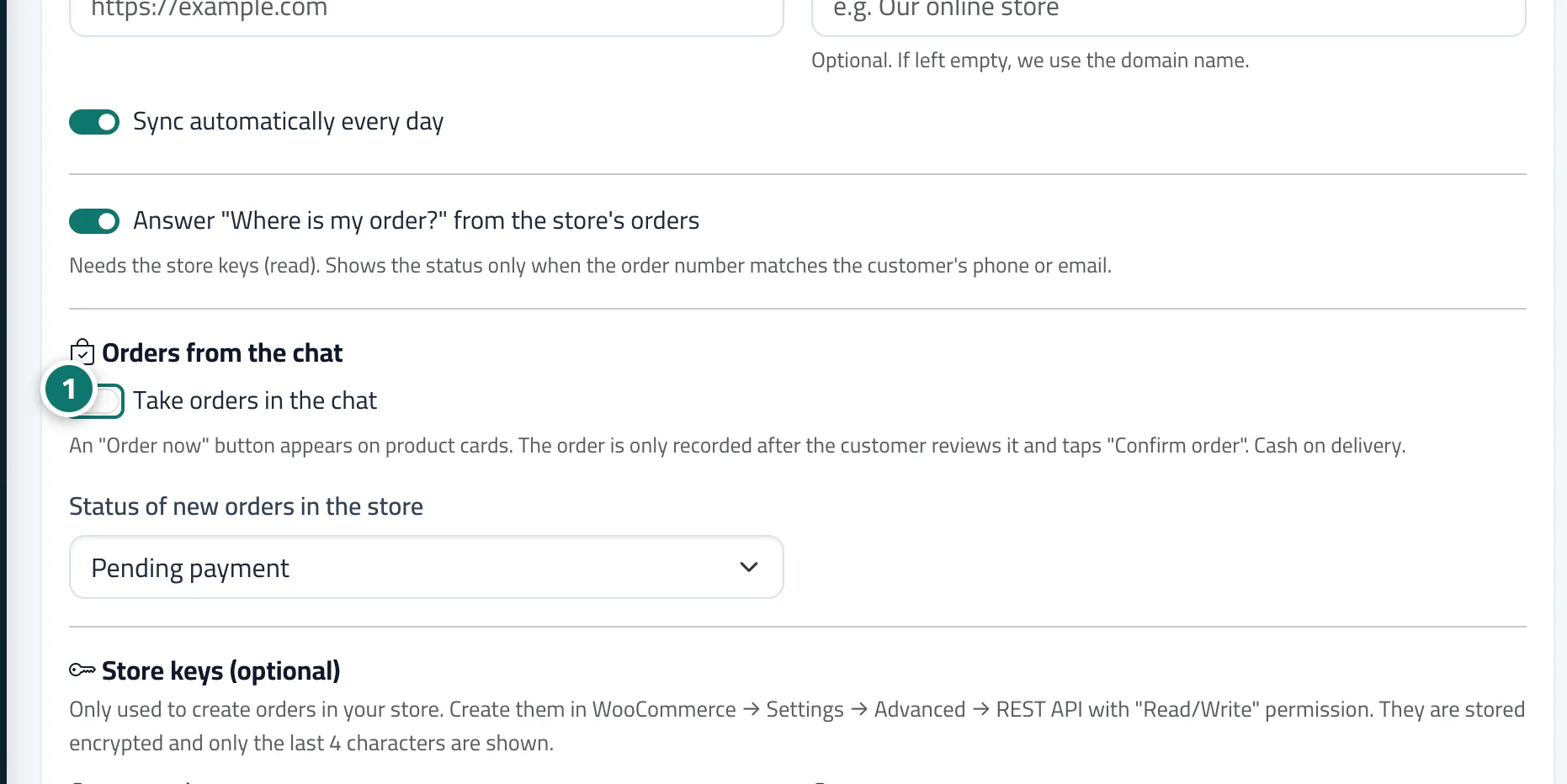
- Turn on “Take orders in the chat” in the WooCommerce store connection form (and add “Store keys (optional)” so orders are created in your store directly). Numéro 1 sur l’image
- A customer asks about a product, and the price appears with a product card and an “Order now” button.
- They tap “Order now”, choose the option and quantity, complete the address, then tap “Review order”.
- They review the order and the total, then tap “Confirm order”.
- They see “Your order #… has been placed” and you receive an order alert.