
E-mail professionnel · Connecting a mailbox: Gmail, Microsoft and IMAP
How do I connect my business Gmail to Kauthar?
Connect your existing email to Kauthar so your team answers it from one inbox: one click with Google or Microsoft, Gmail with an app password, your business mail on Kauthar, or any IMAP/SMTP server.
Pour qui : Propriétaire et responsable · Membres de l'équipe
Où : Sidebar → Business email → «Mail» → «Mailboxes»
Étapes
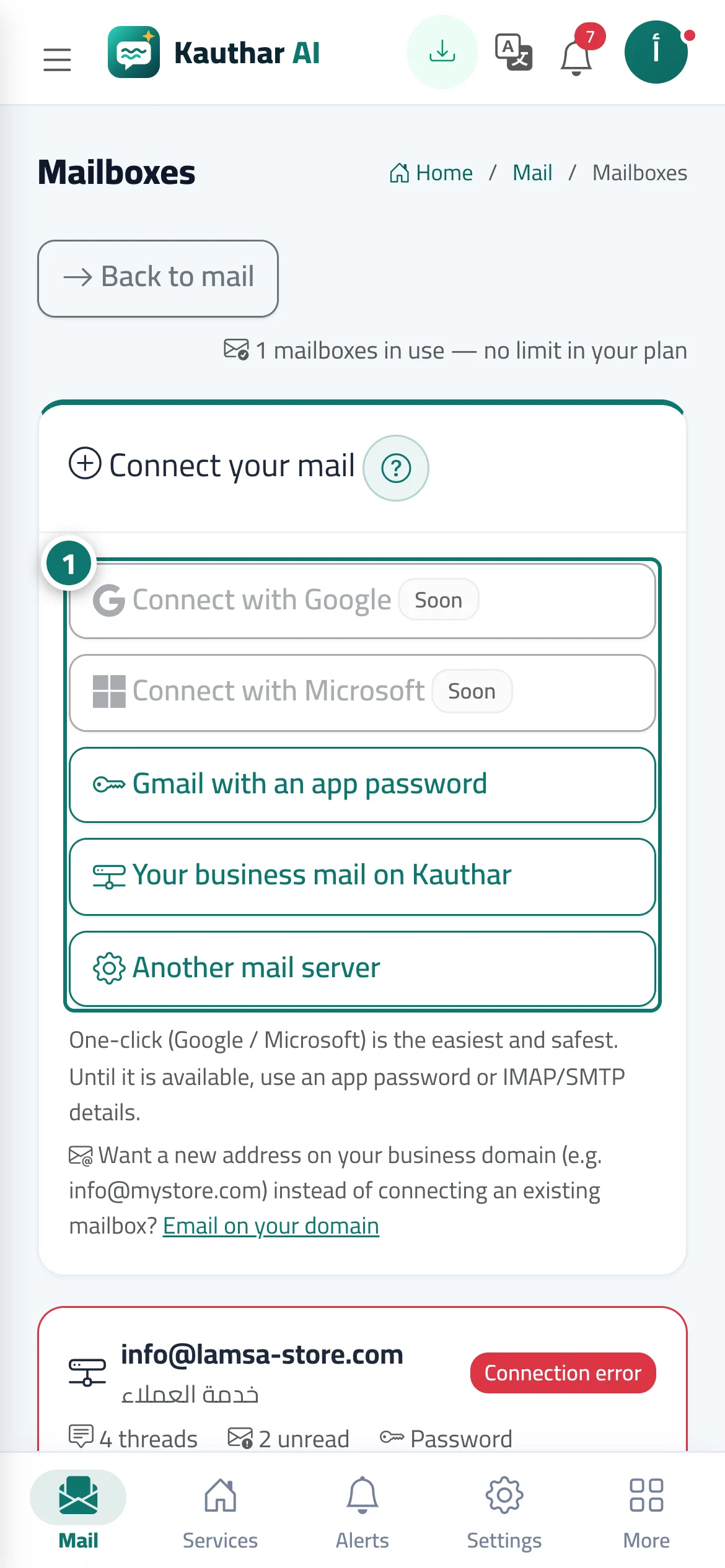
- Open «Mailboxes» and, in the «Connect your mail» card, choose how to connect: «Connect with Google» or «Connect with Microsoft» when available, or «Gmail with an app password» or «Another mail server». Numéro 1 sur l’image
- For Gmail with an app password: turn on 2-Step Verification in your Google account, then create an app password (16 letters) and copy it.
- Enter the «E-mail address» and the «Username» and paste the password; for «Another mail server» also enter the incoming server (IMAP), the outgoing server (SMTP) and their ports from your mail provider.
- Press «Test connection» until the success message for receiving and sending appears, then press «Connect and test».
- Watch the mailbox card: Kauthar starts fetching the last 90 days of mail, and you can press «Sync now» at any time.
Étapes
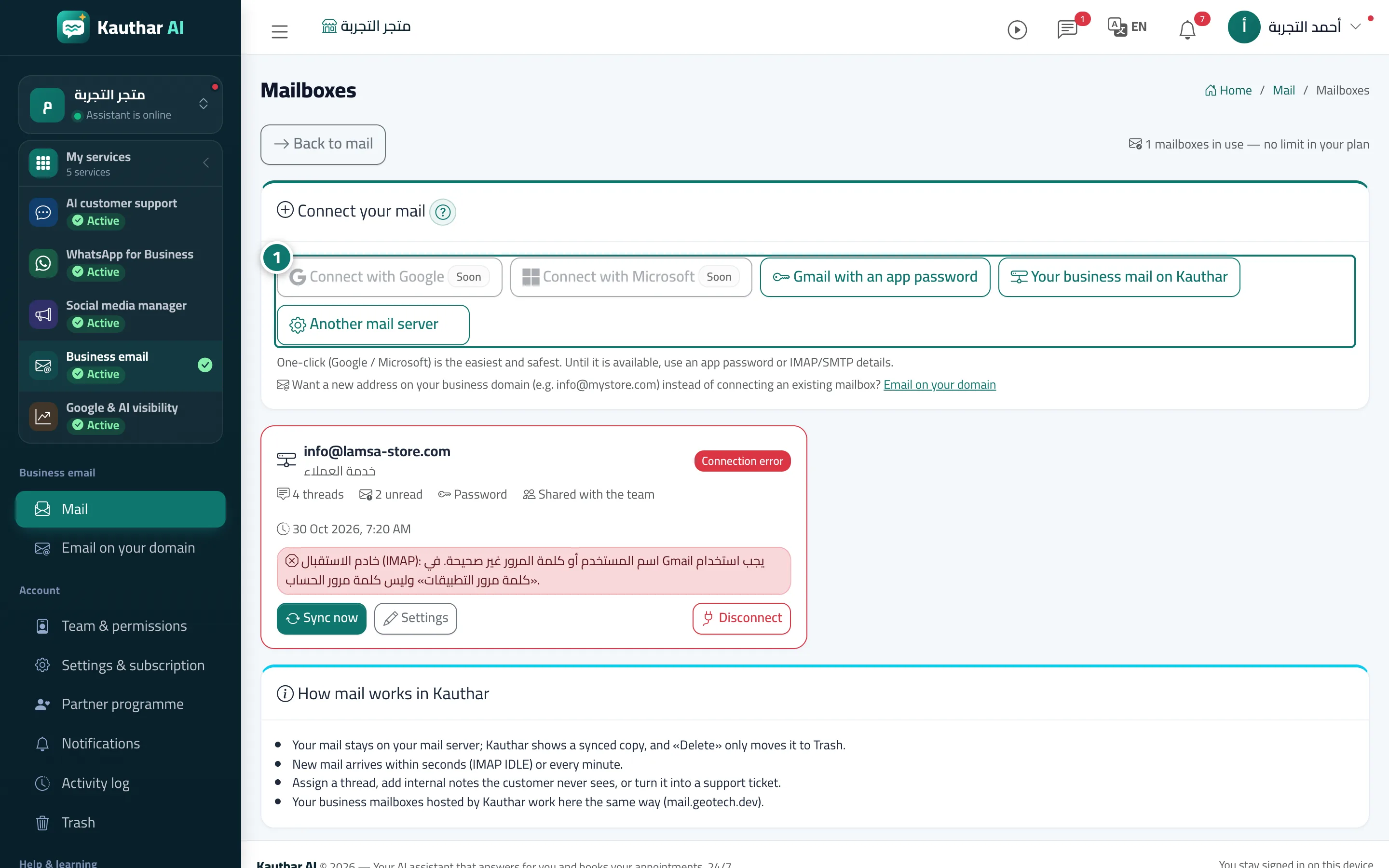
- Open «Mailboxes» and, in the «Connect your mail» card, choose how to connect: «Connect with Google» or «Connect with Microsoft» when available, or «Gmail with an app password» or «Another mail server». Numéro 1 sur l’image
- For Gmail with an app password: turn on 2-Step Verification in your Google account, then create an app password (16 letters) and copy it.
- Enter the «E-mail address» and the «Username» and paste the password; for «Another mail server» also enter the incoming server (IMAP), the outgoing server (SMTP) and their ports from your mail provider.
- Press «Test connection» until the success message for receiving and sending appears, then press «Connect and test».
- Watch the mailbox card: Kauthar starts fetching the last 90 days of mail, and you can press «Sync now» at any time.