
Réseaux sociaux · Post calendar and scheduling in bulk
How do I see all my scheduled posts?
All your posts as a list, a week or a month, coloured by status, with a channel filter, drag-to-move, and multi-select to schedule, unschedule or delete several posts together — plus Excel export and A4 printing.
Pour qui : Propriétaire et responsable · Membres de l'équipe
Où : Sidebar → Social media publishing → Post studio → “Calendar”
Étapes
- Open the “Calendar” tab.
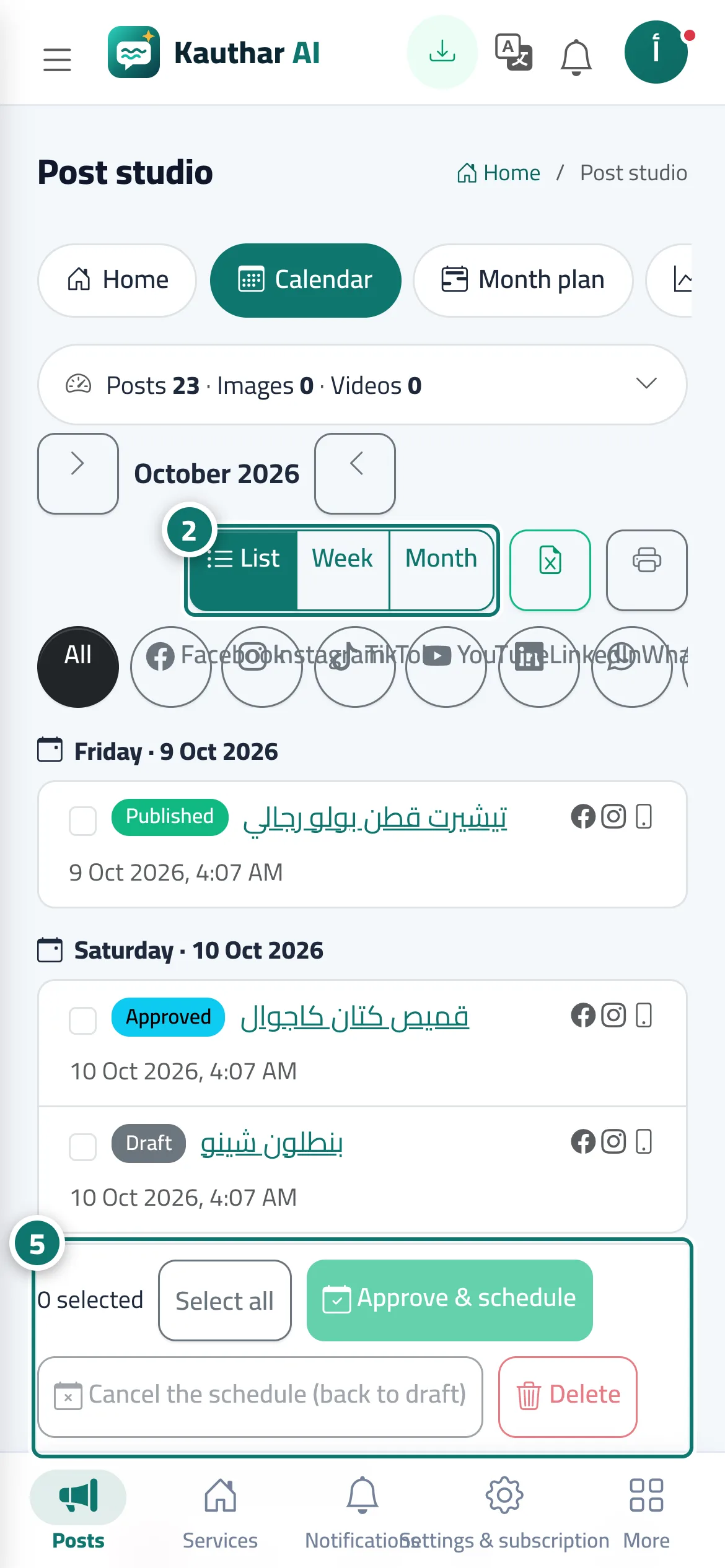
- Choose the view: “List”, “Week” or “Month”. Numéro 2 sur l’image
- Filter the posts by channel with the buttons above the calendar.
- Drag a post to another day to move it, or press “+” on an upcoming day for a new post on that day.
- Press “Select” and pick several posts, then “Approve & schedule”, “Cancel the schedule” or “Delete” in the bar below the list. Numéro 5 sur l’image
- Export the posts to Excel or print them on A4.
Étapes
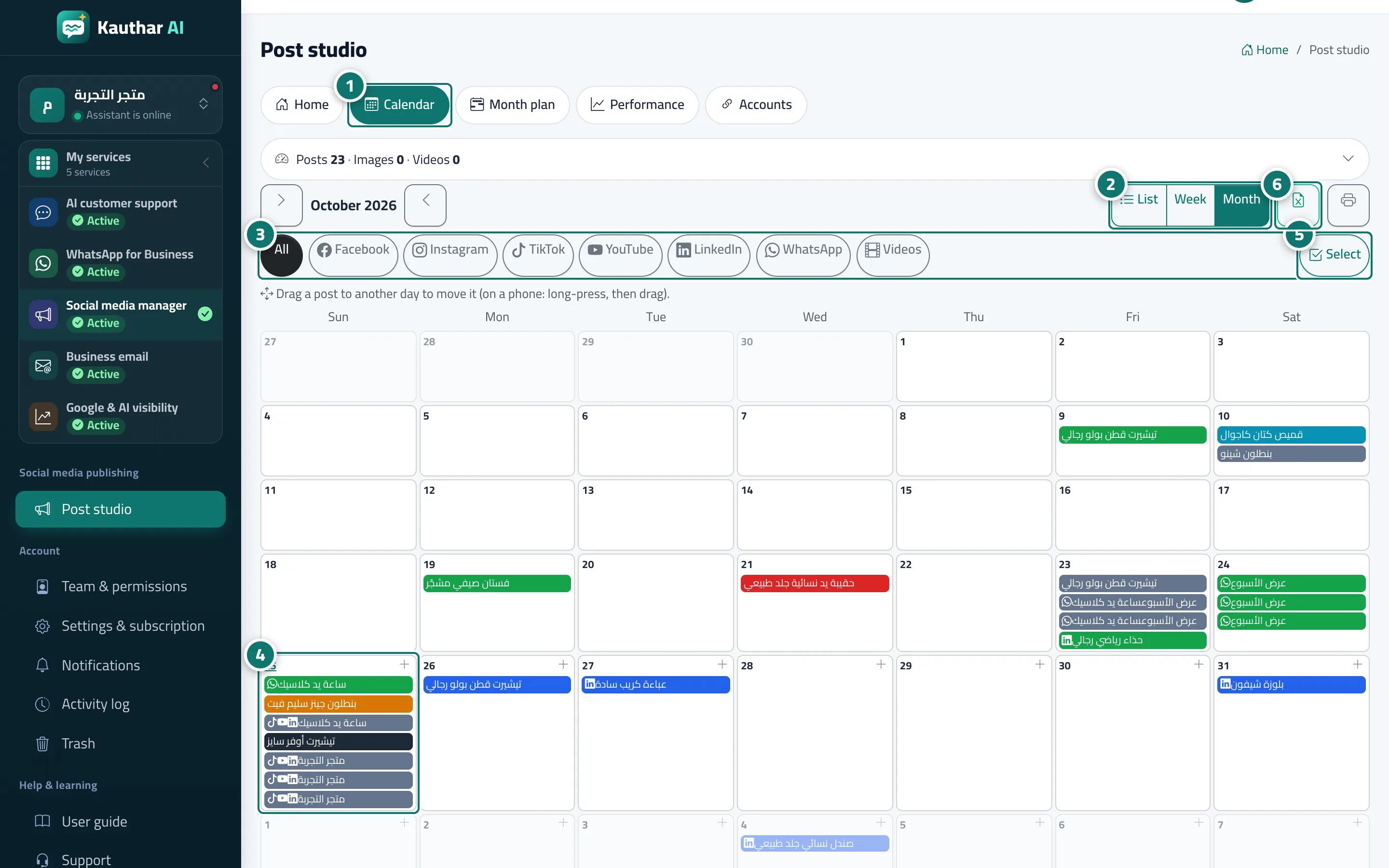
- Open the “Calendar” tab. Numéro 1 sur l’image
- Choose the view: “List”, “Week” or “Month”. Numéro 2 sur l’image
- Filter the posts by channel with the buttons above the calendar. Numéro 3 sur l’image
- Drag a post to another day to move it, or press “+” on an upcoming day for a new post on that day. Numéro 4 sur l’image
- Press “Select” and pick several posts, then “Approve & schedule”, “Cancel the schedule” or “Delete” in the bar below the list. Numéro 5 sur l’image
- Export the posts to Excel or print them on A4. Numéro 6 sur l’image