
WhatsApp Business et OTP · App settings and API keys
How do I get an API key to send verification codes?
On the app page you set the sending number and the fallback to the Kauthar number, protection limits, countries, IP addresses and the delivery callback URL, and you create and revoke live and sandbox keys.
Pour qui : Propriétaire et responsable · Membres de l'équipe
Où : Sidebar → WhatsApp Business → OTP verification codes → Apps & API keys → app name

Étapes
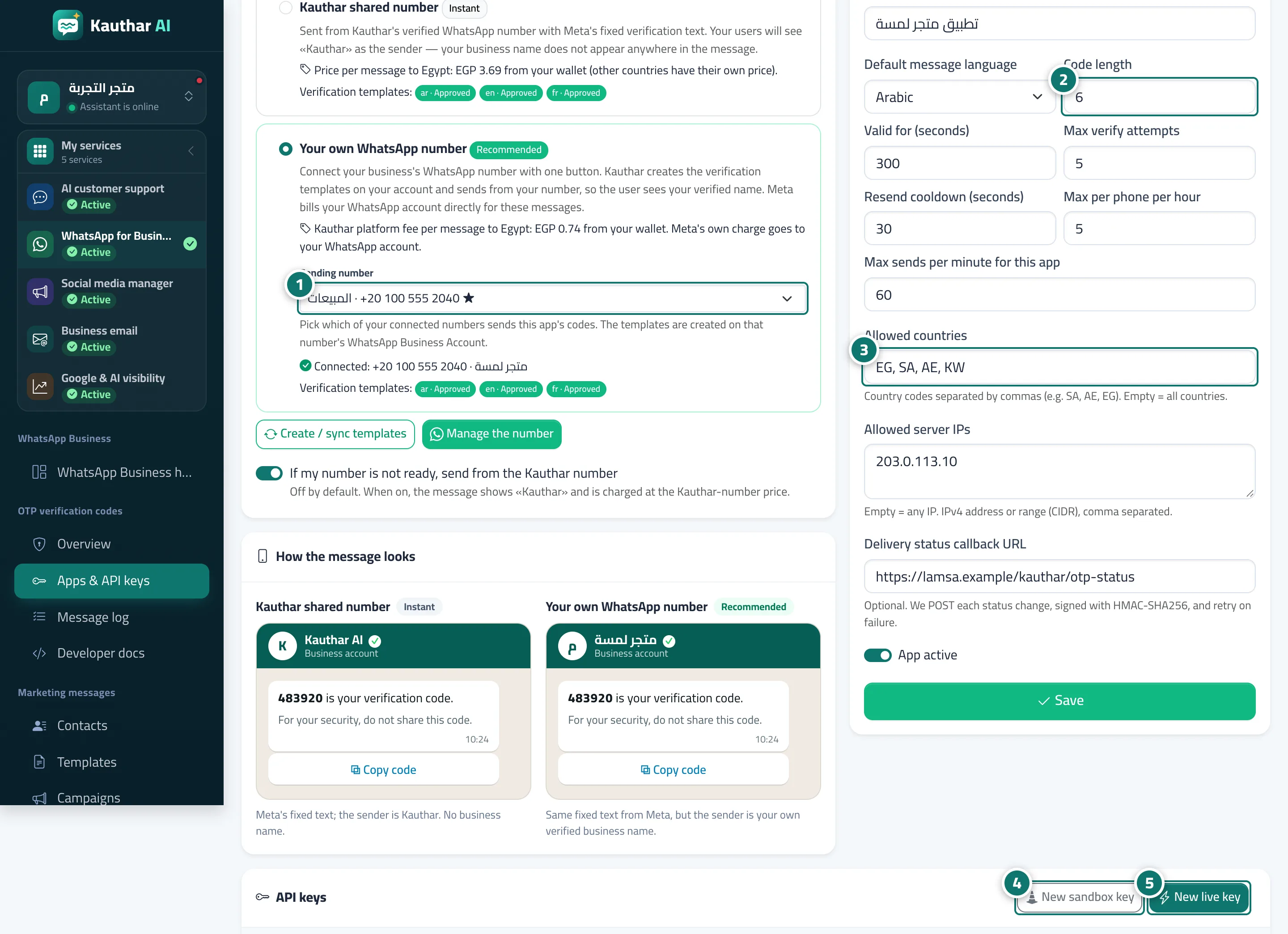
- Under "Who sends the message?" choose the sending number, and turn on the fallback to the Kauthar number if you want it. Numéro 1 sur l’image
- Set "Settings & protection": code length, validity, attempts and limits. Numéro 2 sur l’image
- Enter the allowed countries (such as SA, AE, EG), your server's IP addresses and the delivery callback URL, then "Save". Numéro 3 sur l’image
- Click "New sandbox key" to try the whole flow with no sending and no charge. Numéro 4 sur l’image
- Click "New live key" when you're ready for real sending, and copy it right away. Numéro 5 sur l’image
Étapes
- Under "Who sends the message?" choose the sending number, and turn on the fallback to the Kauthar number if you want it. Numéro 1 sur l’image
- Set "Settings & protection": code length, validity, attempts and limits. Numéro 2 sur l’image
- Enter the allowed countries (such as SA, AE, EG), your server's IP addresses and the delivery callback URL, then "Save". Numéro 3 sur l’image
- Click "New sandbox key" to try the whole flow with no sending and no charge. Numéro 4 sur l’image
- Click "New live key" when you're ready for real sending, and copy it right away. Numéro 5 sur l’image