
WhatsApp Business et OTP · WhatsApp activation: your number sends in your name
How do I start sending verification codes and notifications from my own number, in my name?
Once your number is connected, Kauthar sets up your WhatsApp account on its own: it creates the verification-code template and the notification templates in your name, sends them to Meta and follows them until sending is ready, telling you only about the step that needs you.
Pour qui : Propriétaire et responsable · Membres de l'équipe
Où : Sidebar → WhatsApp Business → OTP verification → WhatsApp activation
Étapes
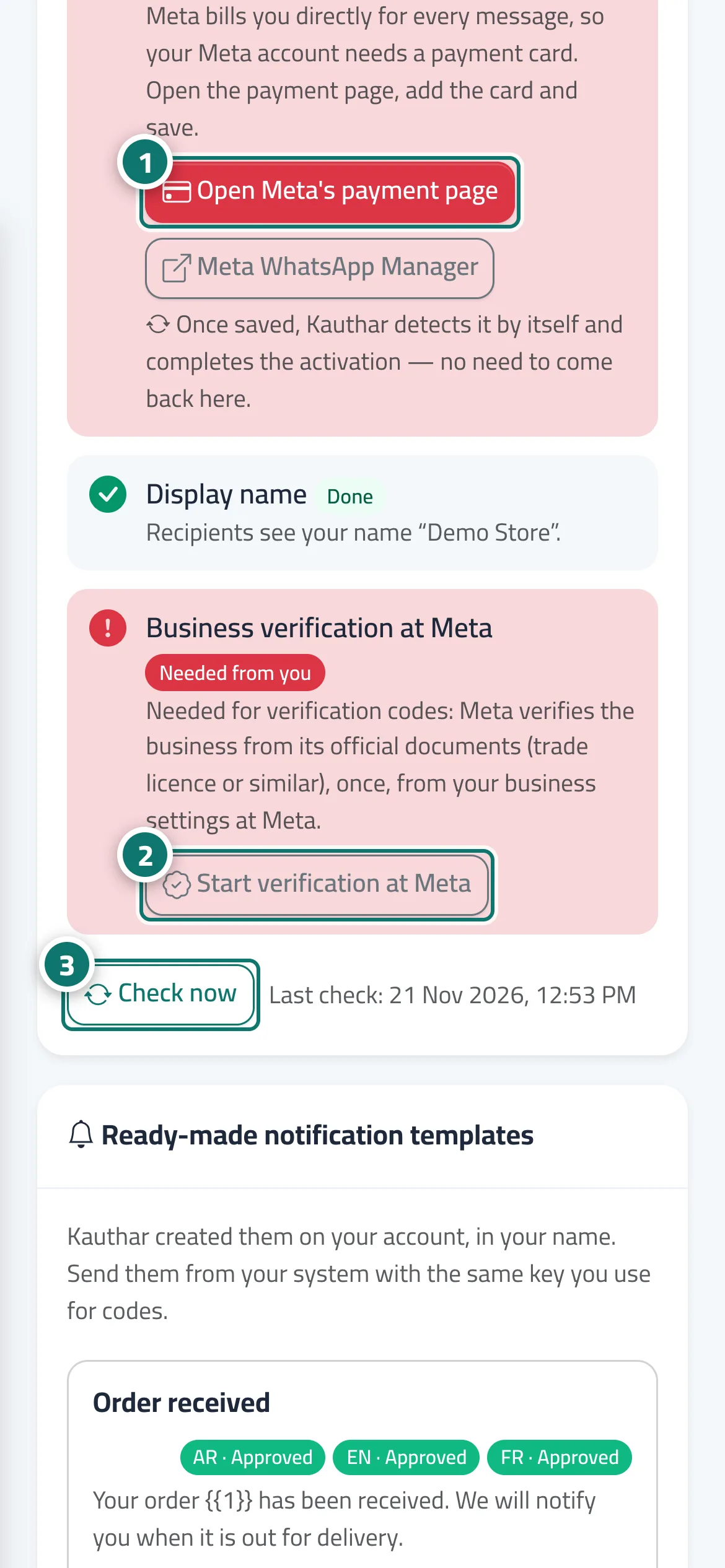
- Connect your WhatsApp number from the WhatsApp numbers page, then open "WhatsApp activation". Numéro 1 sur l’image
- If "Payment method in Meta" shows Needs you, click "Open Meta's payment page", add the card and save. Numéro 2 sur l’image
- If "Business verification with Meta" shows Needs you, click "Start verification in Meta" and upload your business's official documents. Numéro 3 sur l’image
- Click "Check now" to see the latest status at once, or wait for the notification that the number is ready.
Étapes
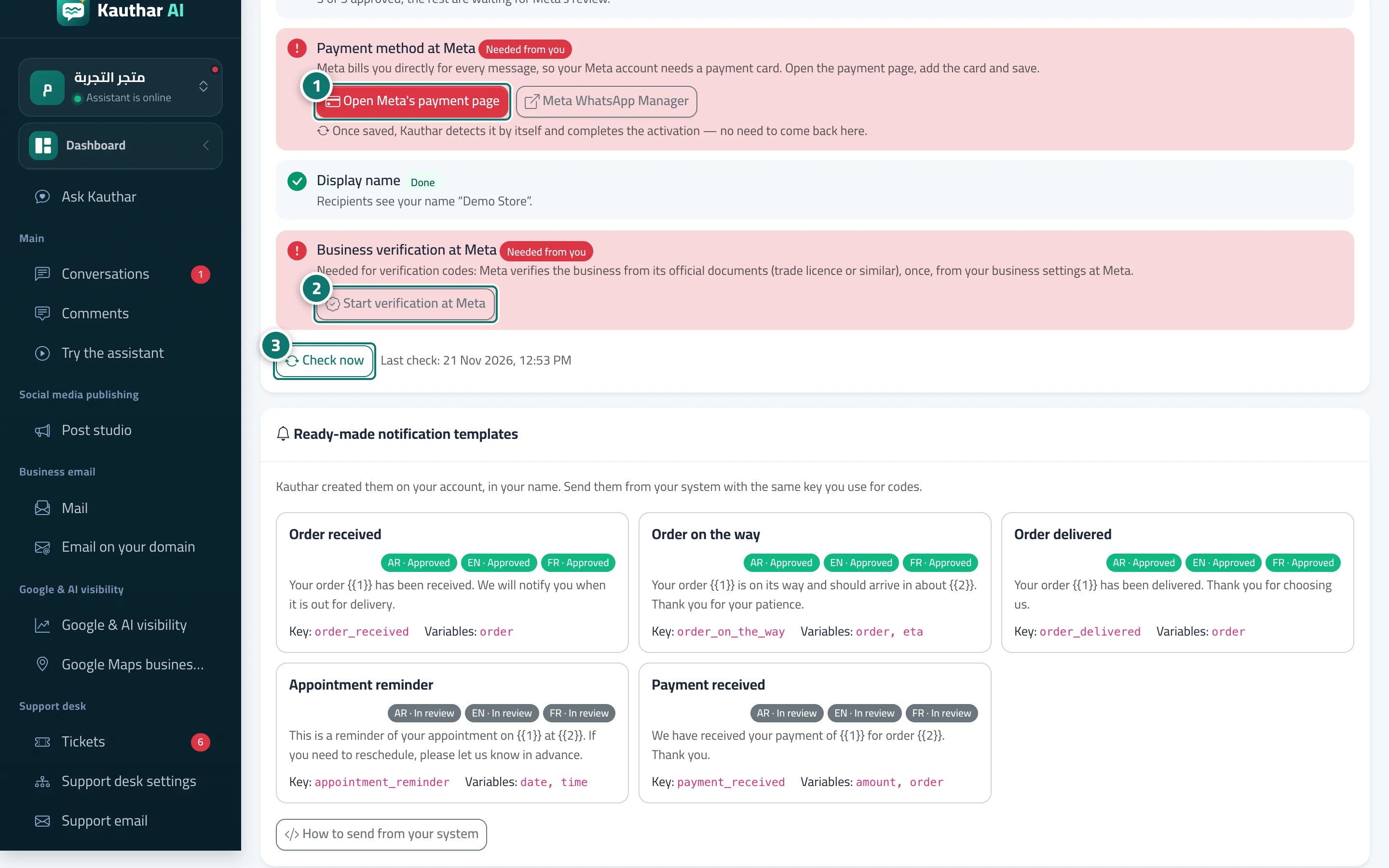
- Connect your WhatsApp number from the WhatsApp numbers page, then open "WhatsApp activation". Numéro 1 sur l’image
- If "Payment method in Meta" shows Needs you, click "Open Meta's payment page", add the card and save. Numéro 2 sur l’image
- If "Business verification with Meta" shows Needs you, click "Start verification in Meta" and upload your business's official documents. Numéro 3 sur l’image
- Click "Check now" to see the latest status at once, or wait for the notification that the number is ready.