
WhatsApp Business et OTP · Send order and appointment notifications from your system
How do I send order notifications from my system?
Send order, delivery, appointment and payment notifications on WhatsApp from your system, from your own number and in your name, with the same key you use for verification codes — with each notification's status and refunds for failed ones.
Pour qui : Propriétaire et responsable · Membres de l'équipe
Où : Sidebar → WhatsApp Business → OTP verification → WhatsApp activation → Ready-made notification templates
Étapes
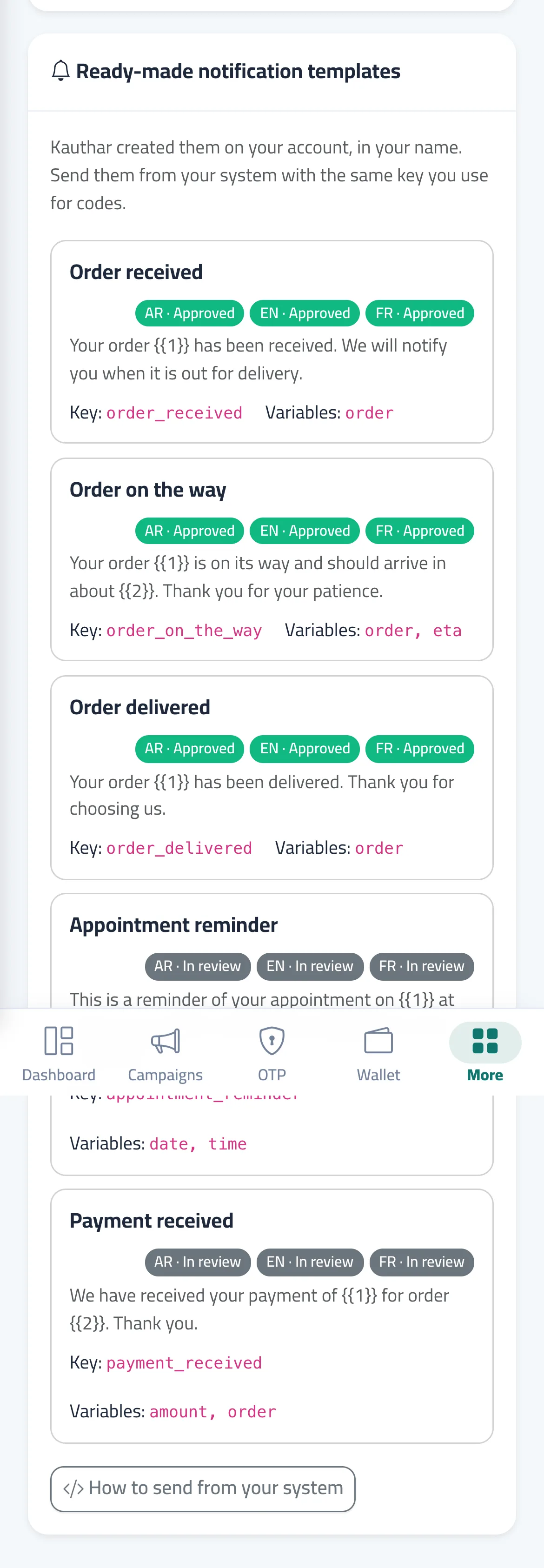
- Open "WhatsApp activation" and check that the template you want is Approved.
- Copy the template key, such as order_on_the_way, and its variables from the table.
- Send the request from your system with your OTP app's API key, as "How to send from your system" explains.
- Follow the notification's status from your system by its ID, or in the message log.
Étapes
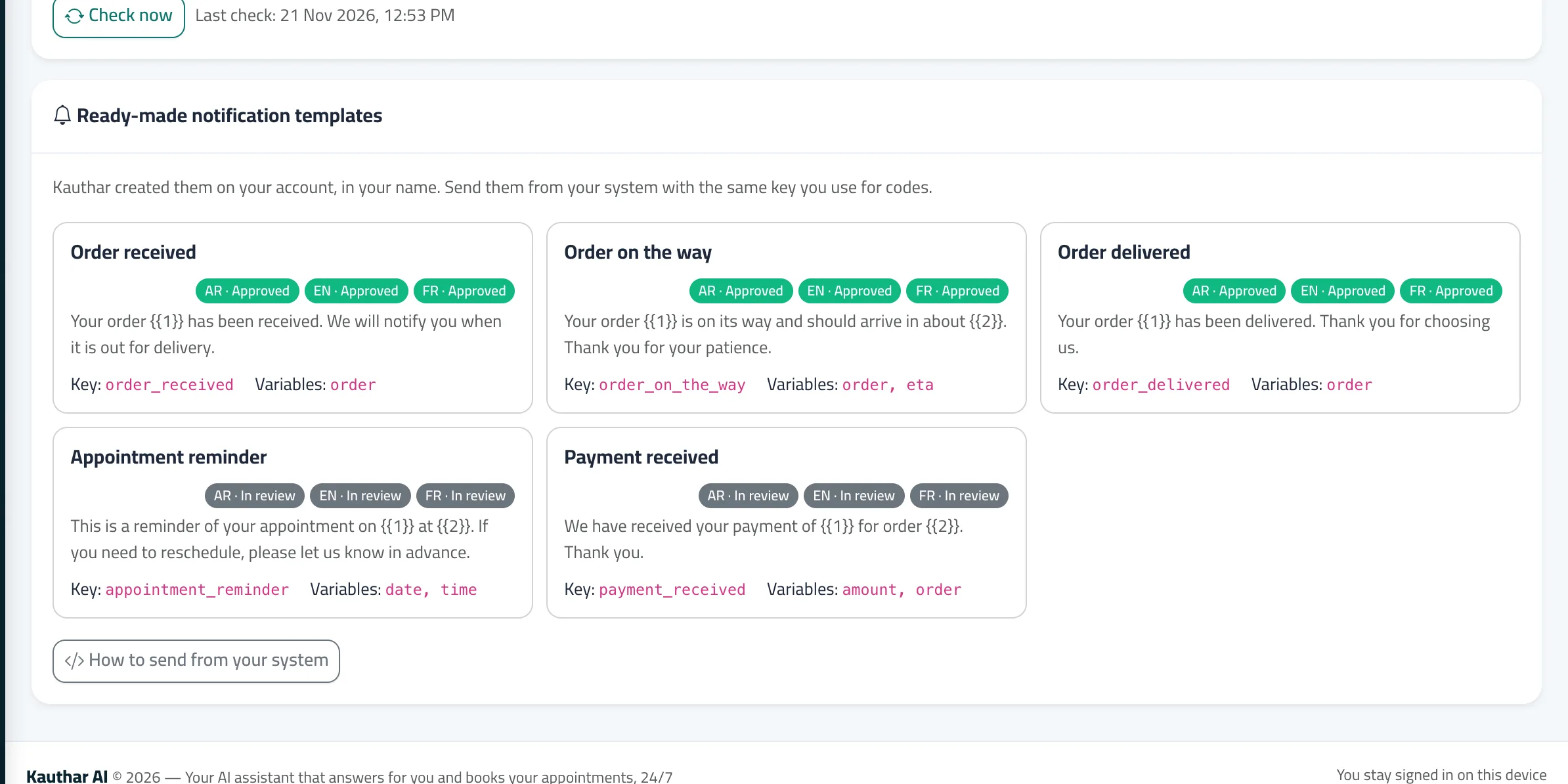
- Open "WhatsApp activation" and check that the template you want is Approved.
- Copy the template key, such as order_on_the_way, and its variables from the table.
- Send the request from your system with your OTP app's API key, as "How to send from your system" explains.
- Follow the notification's status from your system by its ID, or in the message log.