
Send order and appointment notifications from your system
Send order, delivery, appointment and payment notifications on WhatsApp from your system, from your own number and in your name, with the same key you use for verification codes — with each notification's status and refunds for failed ones.
Vue d’ensemble#
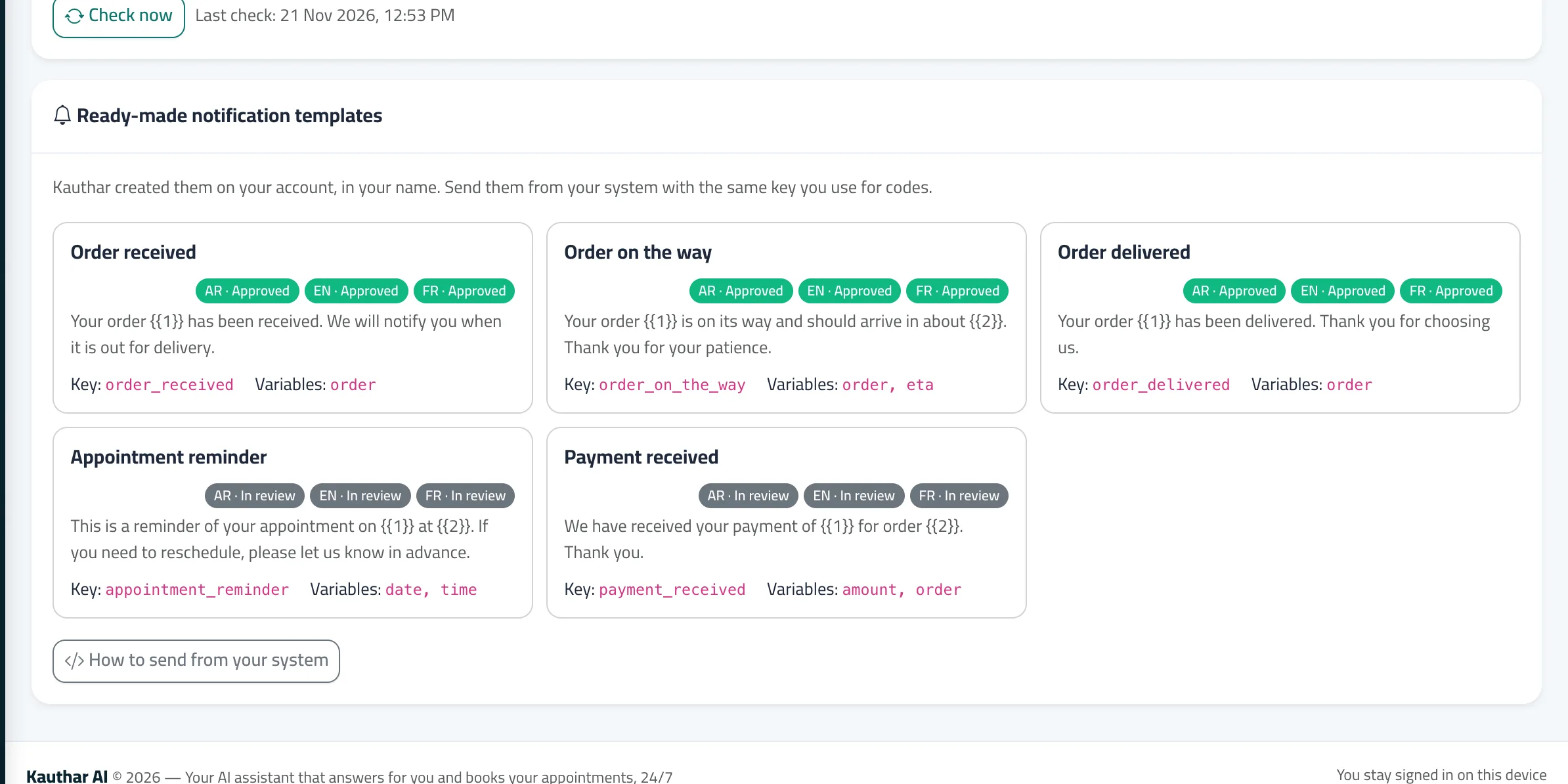
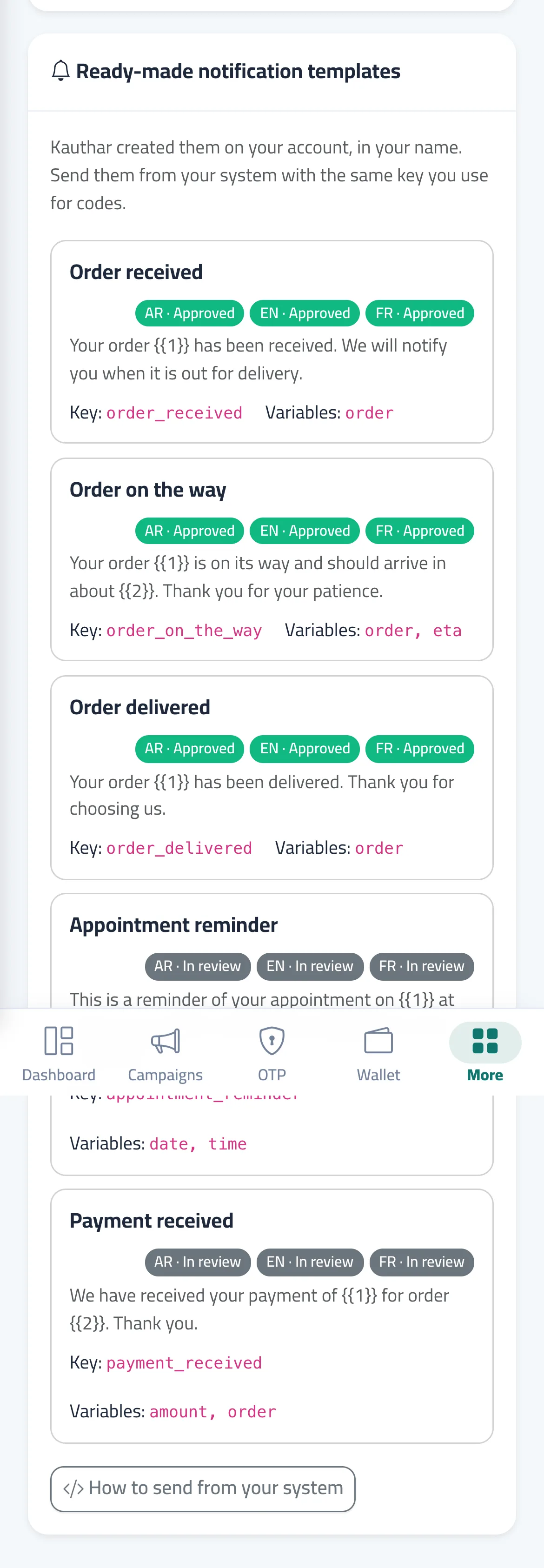
Once WhatsApp activation is done, your system sends notifications with one request to the Kauthar API: the recipient's number, the template key and the variable values. There are five ready-made templates: order_received, order_on_the_way, order_delivered, appointment_reminder and payment_received, and you can also use the name of any notification (UTILITY) template approved in your account. The Ready-made notification templates table on the activation page shows each template's key, its variables and its approval status, and the developer guide explains the request and the response. Each notification moves from accepted to sent, delivered and read, or to failed with the fee refunded automatically. Marketing messages are not sent this way; use campaigns for them.
- Pour qui ?
- Business owner / developer with the OTP permission
- Où le trouver ?
- Sidebar → WhatsApp Business → OTP verification → WhatsApp activation → Ready-made notification templates
Pas à pas#
- Open WhatsApp activation and check that the template you want is Approved.
- Copy the template key, such as order_on_the_way, and its variables from the table.
- Send the request from your system with your OTP app's API key, as How to send from your system explains.
- Follow the notification's status from your system by its ID, or in the message log.
Astuces#
Bon à savoir#
Questions fréquentes#
What happens if a notification fails?
Its status shows Failed with the reason, and the platform fee goes back to your wallet automatically.