
Content: approve first, then publish
Articles and FAQ pages from your knowledge and your customers' real questions. In automatic mode they publish by themselves where your site allows; with «Approve before publishing» nothing goes live before you click «Approve» — and you approve or reject right from the list.
Vue d’ensemble#
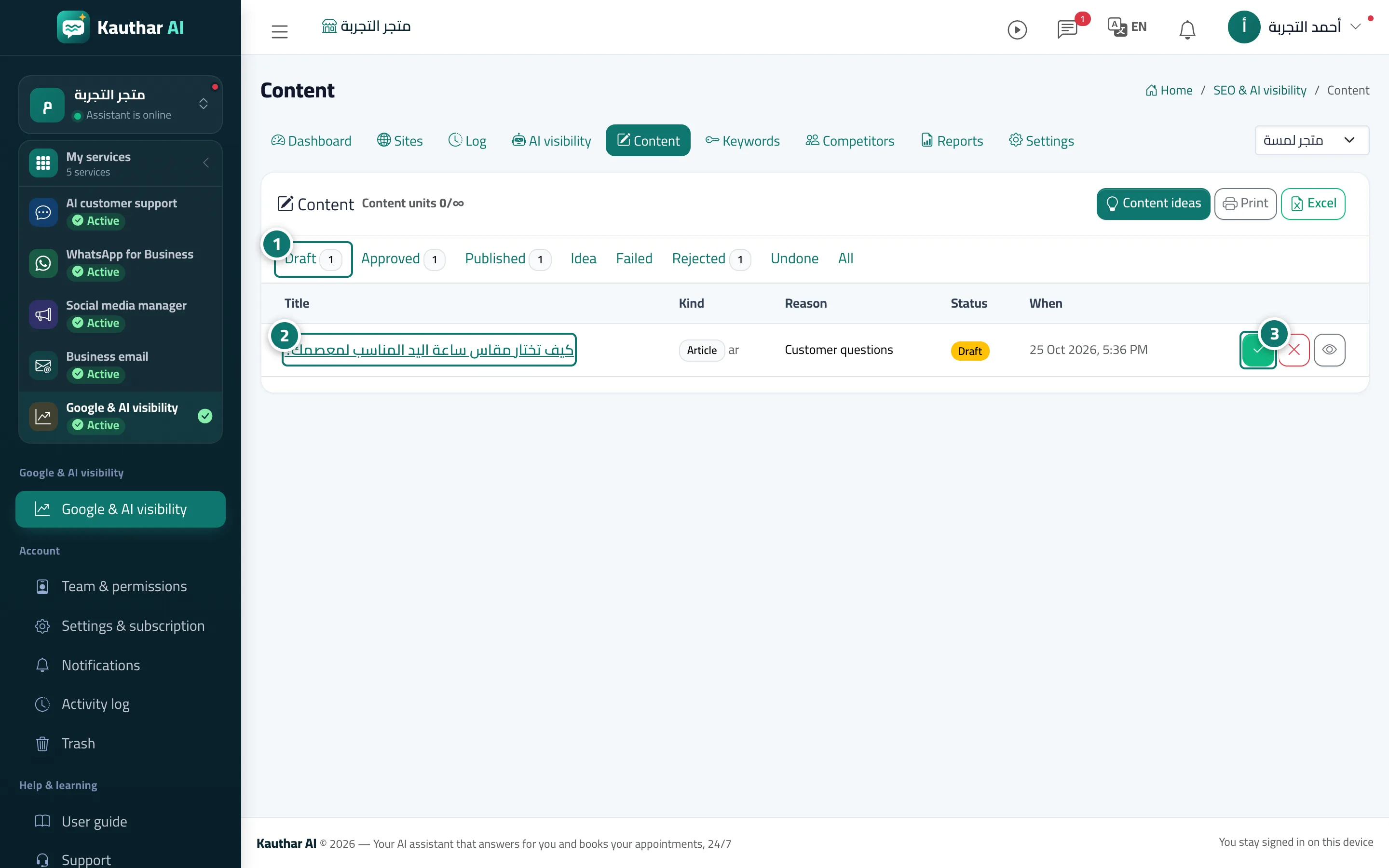
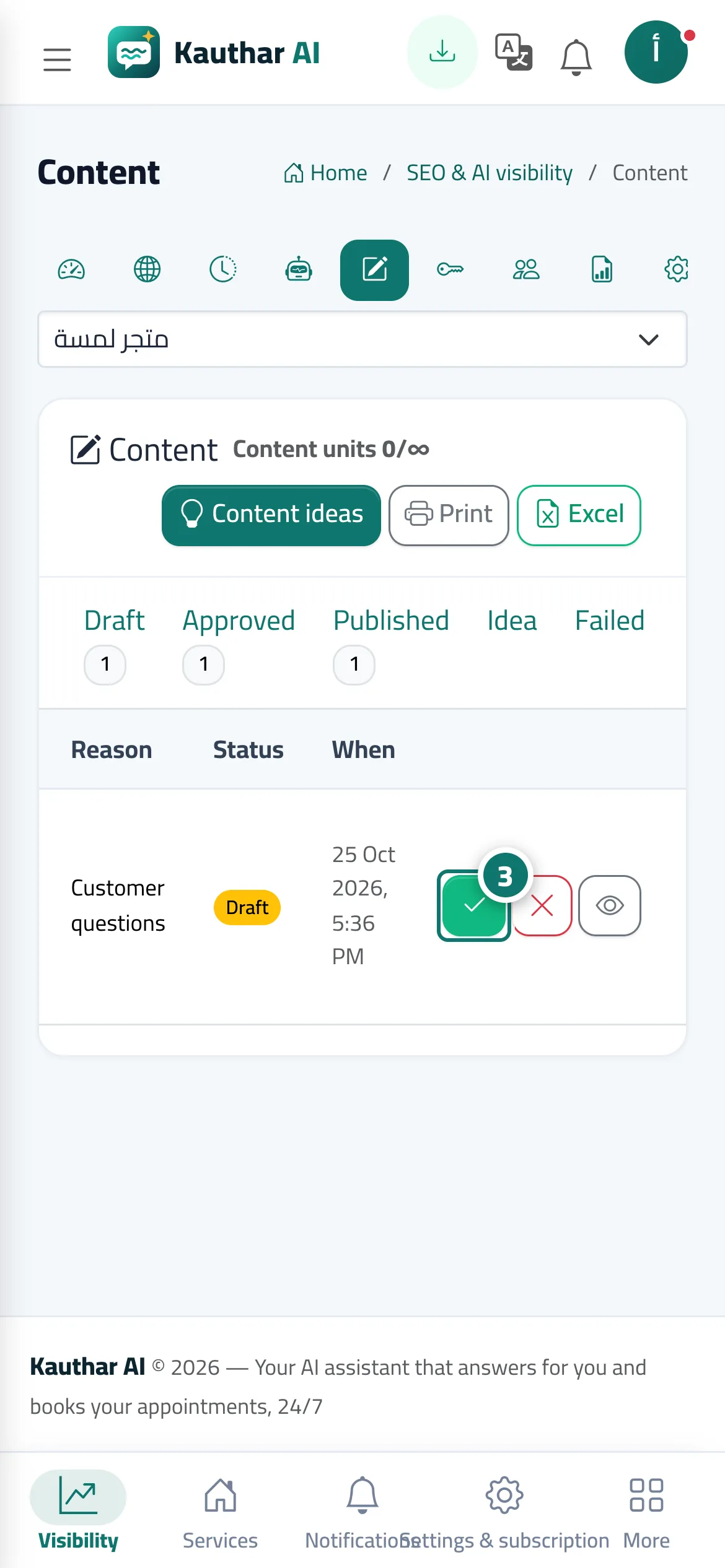
The Content page lists articles and FAQ pages in tabs: Draft, Approved, Published, Idea, Failed, Rejected, Undone and All. Ideas come from Content ideas (customer questions you answered, Search Console keywords close to page one, AI gaps and thin pages). Every draft is written from your knowledge only, with a fact check report showing what was removed because it is not in your sources. Approval is always the first step: Publish now only appears after Approve, and only on a site that can publish; after approval the article is published on schedule, while on a site that cannot publish it becomes Ready to publish by hand. The Approve and Reject buttons sit right on the draft's row, and after clicking you stay on the same list. In full automatic mode drafts are approved by themselves and carry the badge Automatic or Published automatically.
- Pour qui ?
- Business owner / manager
- Où le trouver ?
- Sidebar → Google & AI visibility → Content
Pas à pas#
- Open Content, then the Draft tab to see what is waiting for your approval.
- Open a draft from its title and review the text, title, description and fact check; edit it if you like.
- Click Approve (the tick) or Reject (the X) on the draft's row or on its page; you stay on the list to carry on.
- After approval the article is published on schedule on a site that allows publishing (or click Publish now); on a plain website it becomes Ready to publish by hand.
- To take a published article down, open it and click Undo publishing; for a product description, restore the previous description.
Astuces#
Bon à savoir#
Questions fréquentes#
Why don't I see Publish now?
It appears only after approval, and only on a site that can publish. If your site is a plain website you see Ready to publish by hand instead, with how to publish it yourself.