
Booking page link and QR code
A booking link in your business's name and a ready-made QR code — put it on your social media profiles or on your shop door.
Vue d’ensemble#
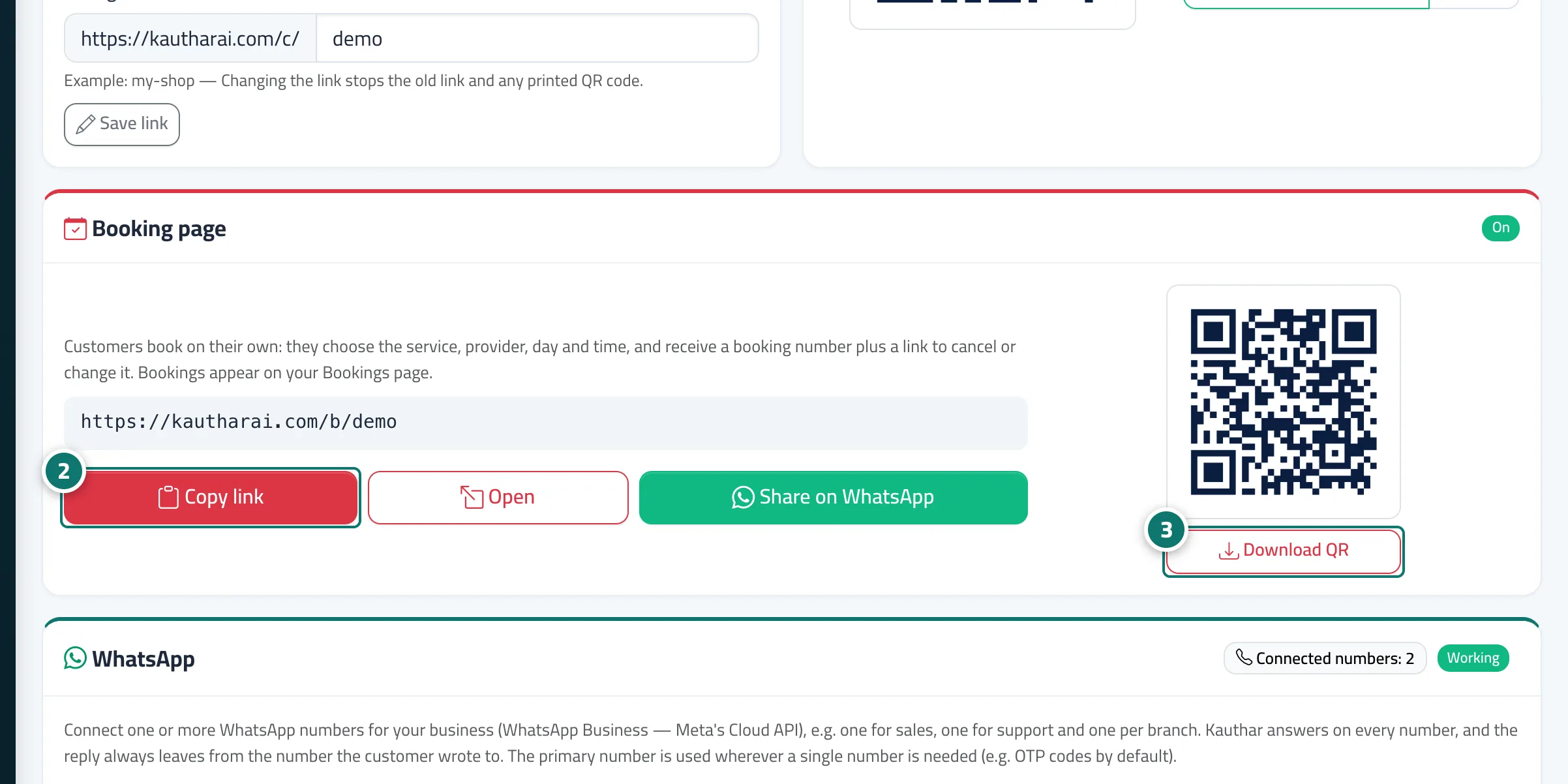
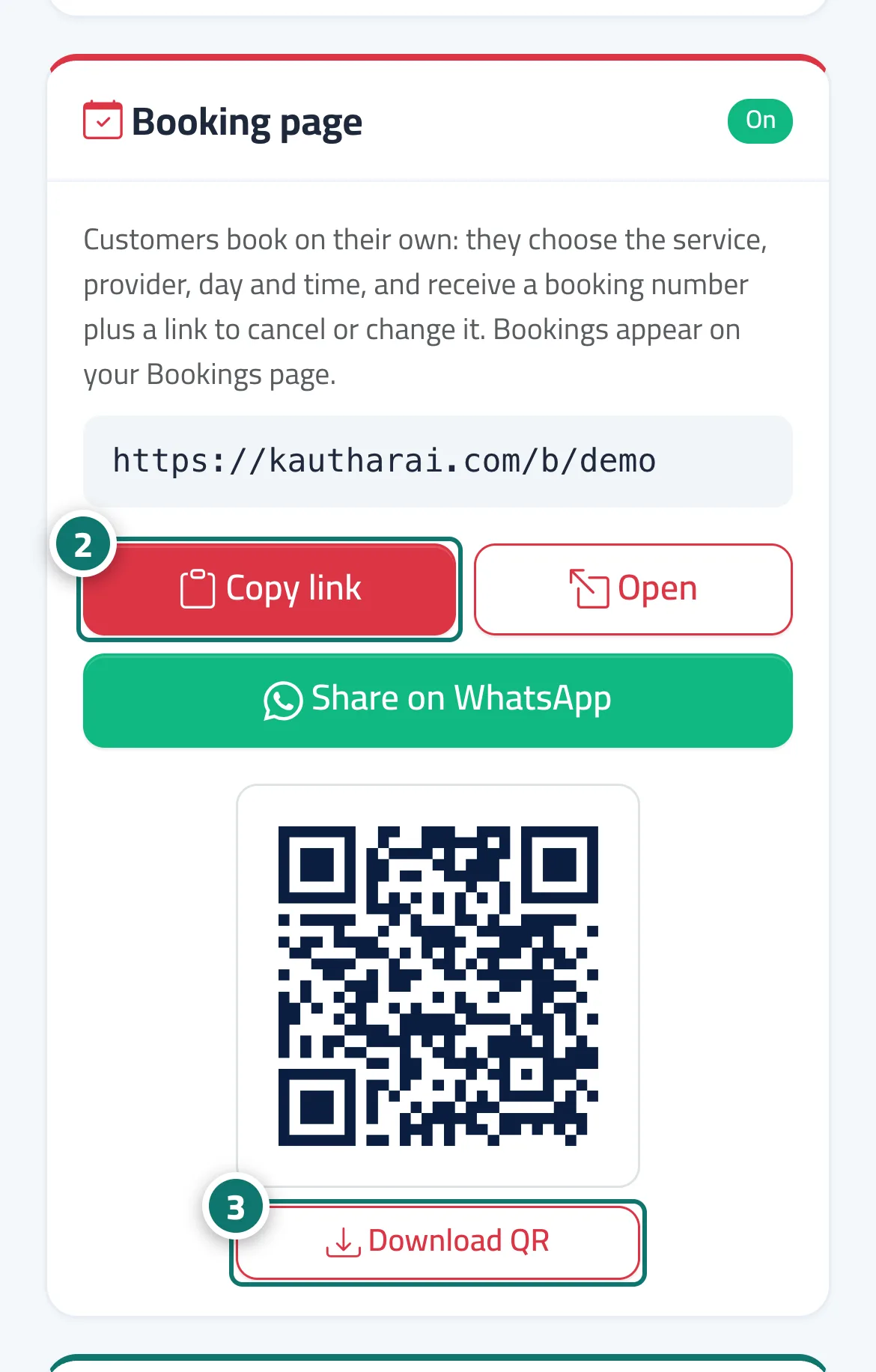
The Booking page card in Channels shows the page status (Active or Off with the reason), the page link with Copy link, Open and Share on WhatsApp buttons (with the message Book your appointment online in under a minute), and Download QR for the page's code. Your customers book their own appointments on the page in their language: they choose the service, provider, day and time, and receive the booking number, a link to cancel or change it, and an Add to calendar button. Their bookings appear on your Bookings page. The same link is also shown in the Booking settings tab.
- Pour qui ?
- Business owner / manager
- Où le trouver ?
- Sidebar → Channels & customers → Channels → Booking page card
Pas à pas#
- Open Channels and go to the Booking page card.
- Press Copy link or Share on WhatsApp.
- Press Download QR and print it.
Astuces#
Bon à savoir#
Questions fréquentes#
Is this link different from the chat link?
Yes: the chat link is for questions and the booking link is for appointments. Both use the same link name you choose in Channels.
If I change the link name, does the booking link change?
Yes, because it uses the same link name — so download the QR code again and update the link on your profiles after any change.