
Booking confirmation and adding it to the calendar
After booking, the customer gets the booking number and time, and adds it to their phone calendar or sends it to themselves on WhatsApp.
Sur cette page
Vue d’ensemble#
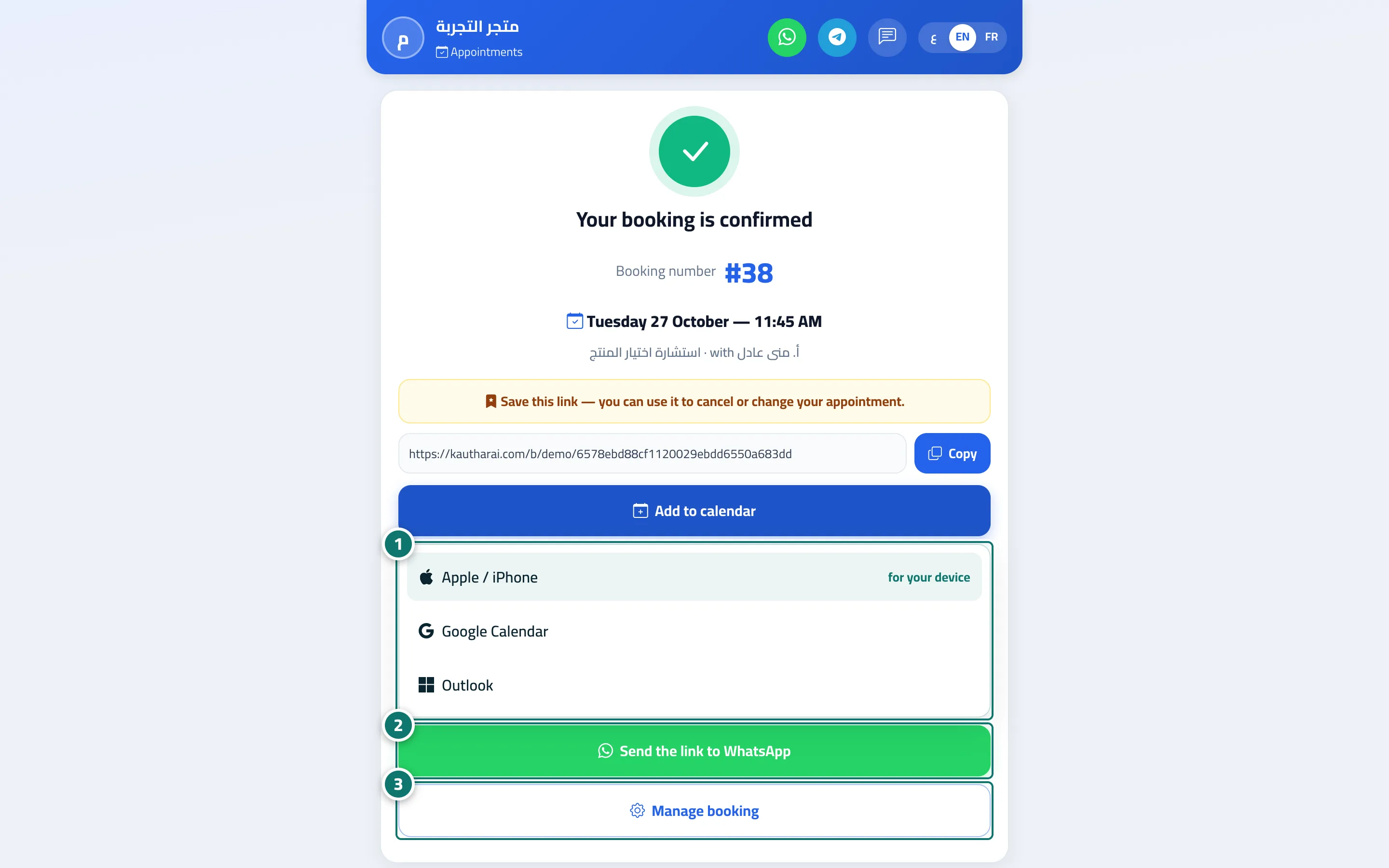
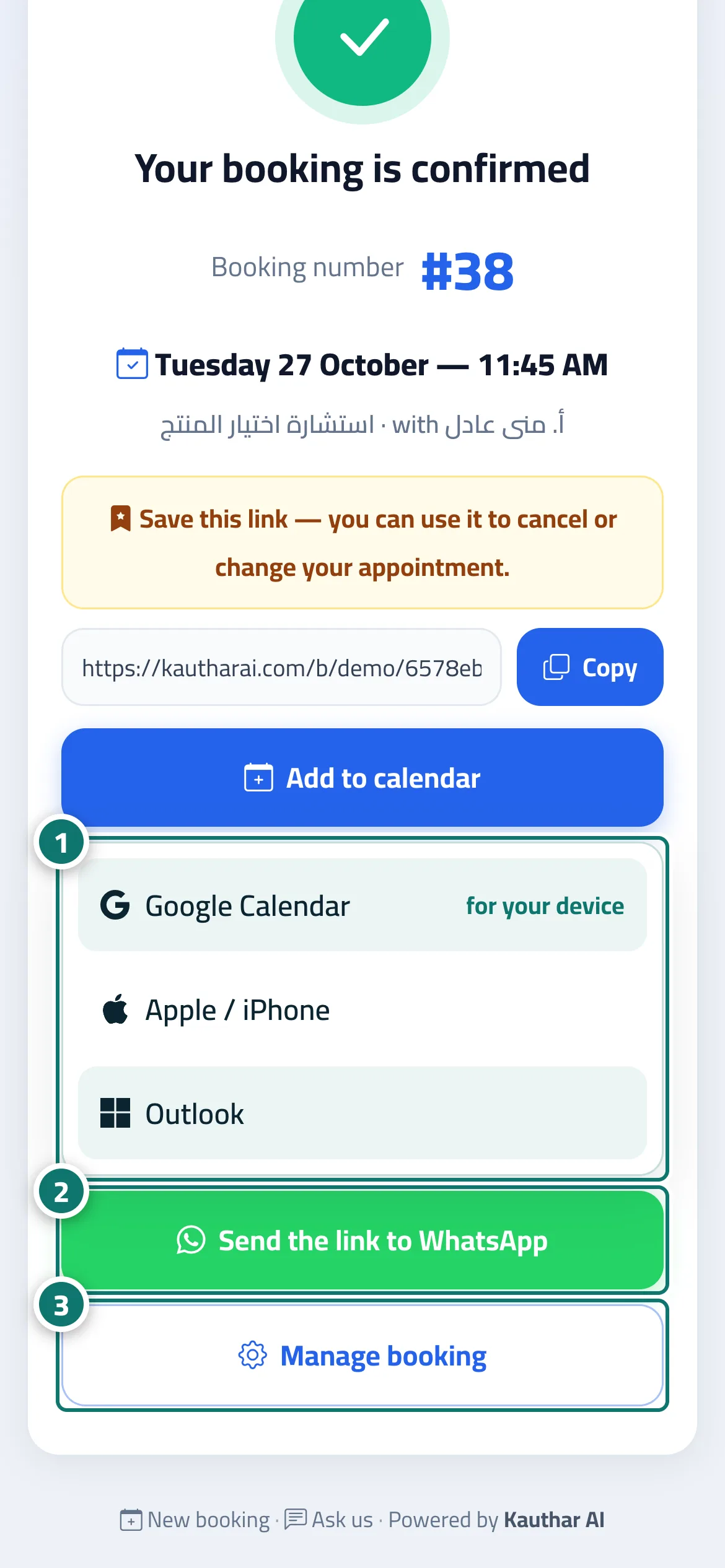
The Your booking is confirmed page (or Booking request received if it awaits confirmation): Booking number, day and time, the service and provider, and the message Save this link — you can use it to cancel or change your appointment. with the link and a Copy button, then Add to calendar (a list to choose Google Calendar, Apple / iPhone or Outlook, with the option that suits the customer's device shown first and marked for your device), Send the link to WhatsApp and Manage booking. The page appears in the customer's language and in your brand — colour, name and logo (logo upload is available on the Business plan) — set under Settings & subscription → Brand tab.
- Pour qui ?
- Your business's customers
- Où le trouver ?
- Shown after booking from the booking page (a link ending in /b/<link-name>/<private-code>/done)
Pas à pas#
- The customer taps Add to calendar and chooses their calendar (Google, Apple / iPhone or Outlook) to be reminded of the appointment.
- Or Send the link to WhatsApp to keep the details.
- Or Manage booking to change or cancel the appointment later.
Astuces#
Questions fréquentes#
Does the calendar file work on iPhone?
Yes. The Apple / iPhone option downloads a calendar file that opens in the iPhone and Mac calendar, while Google Calendar and Outlook open the appointment ready to save in the customer's account.
Does the customer get a reminder before the appointment?
The Apple calendar file includes a reminder one hour before the appointment, and an email reminder can be sent (according to Customer reminder in the booking setup) if the customer entered their email and a support mailbox is connected.