
Reply-path icon library
Pick a professional icon for every reply-path button from a library of 47 icons grouped by type of business.
Vue d’ensemble#
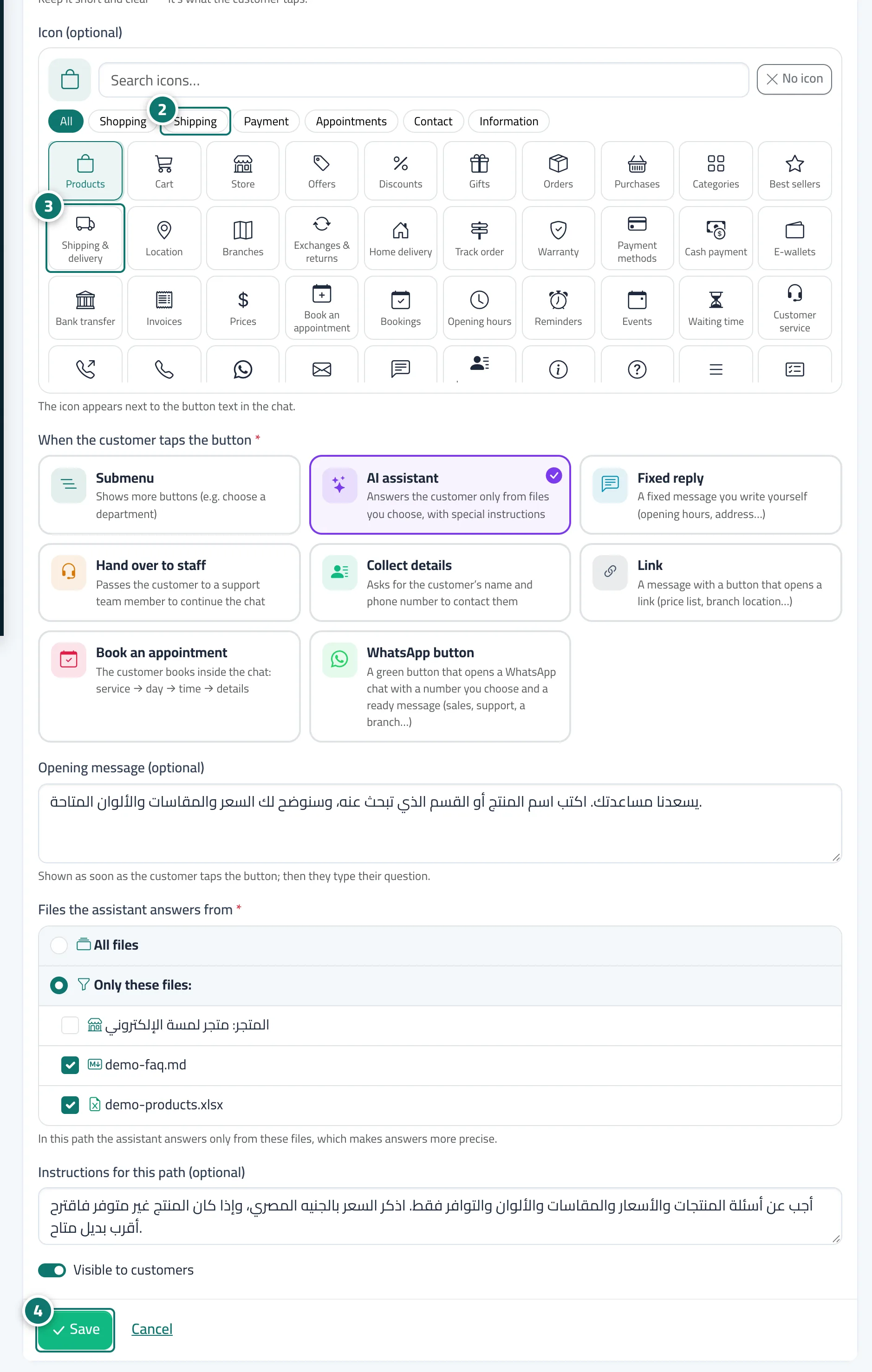
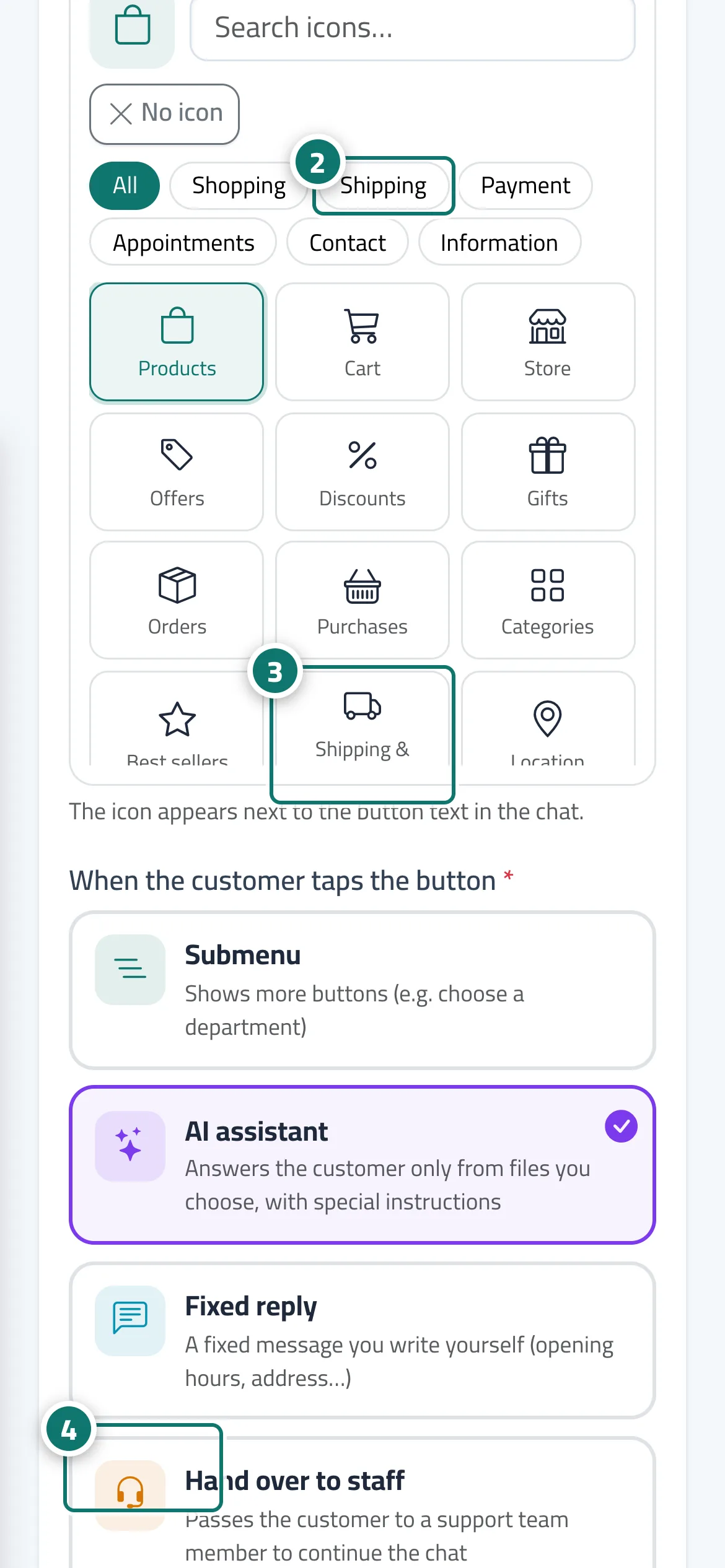
When you add or edit a reply-path button you'll find the Icon (optional) field with a library of 47 icons in one consistent design, in six categories — Shopping, Shipping, Payment, Appointments, Contact and Information — plus a Search icons… box. The chosen icon appears next to the button text on your customers' chat page and in the reply-path tree, so the menu looks organised and easy to read on phones and computers.
- Pour qui ?
- Business owner / manager
- Où le trouver ?
- Sidebar → Train your assistant → Reply paths → Add button or Edit on a button
Pas à pas#
- Open Reply paths and click Add a button to the main menu, or Edit on an existing button.
- Under Icon (optional), choose a category (such as Shipping or Payment) or type in Search icons….
- Click the right icon and it appears under Selected icon, or click No icon to remove it.
- Click Save.
Astuces#
Bon à savoir#
Questions fréquentes#
Is the icon required?
No. The icon is optional, and the button shows its text only if you don't choose one.
I can't find an icon that suits my business — what do I do?
Try the Information category, which has general icons such as Services, FAQ and About us, or leave the button without an icon.