
Working hours and days off
Set your working hours for each day (up to two periods a day) and your days off, so customers know when you'll reply.
Vue d’ensemble#
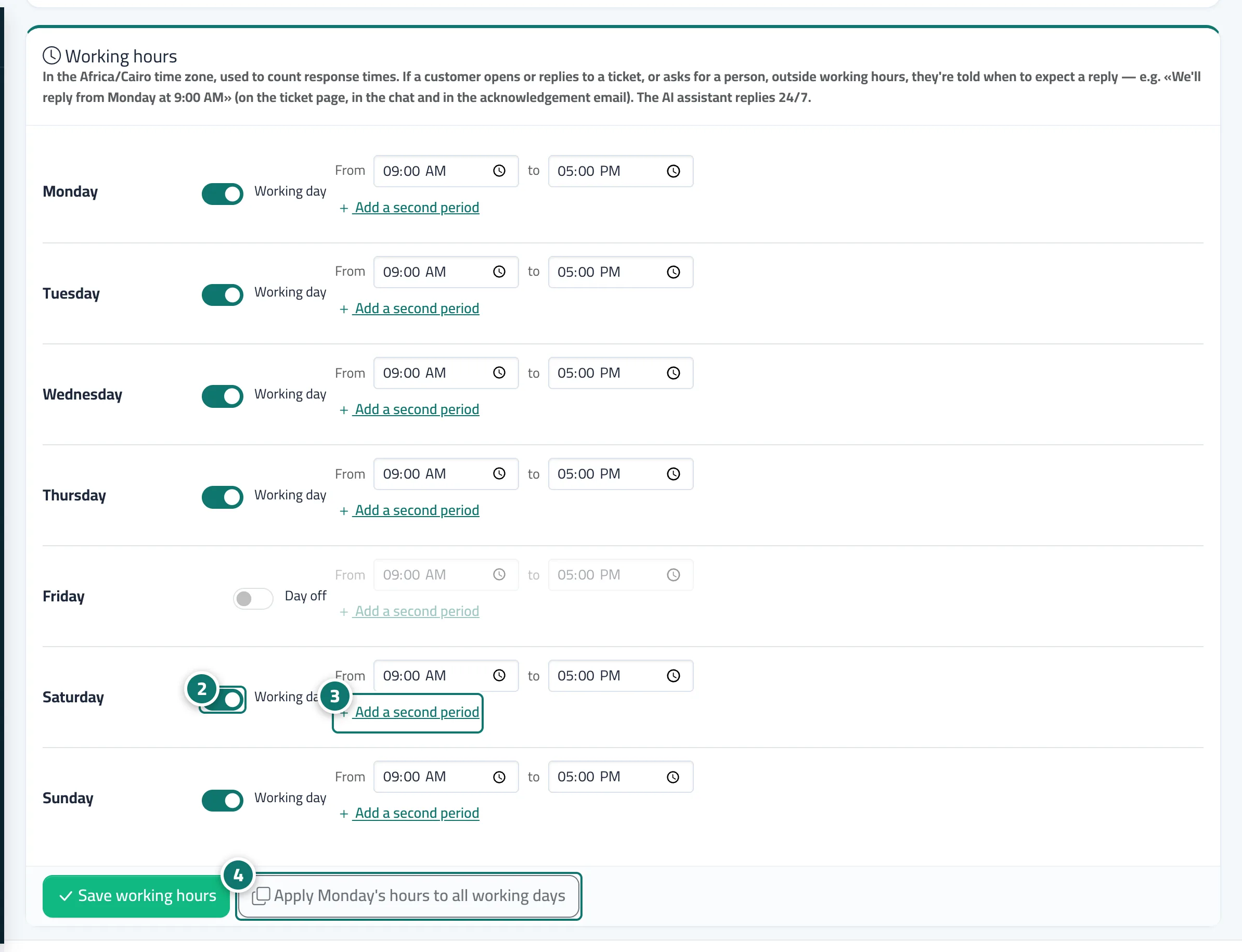
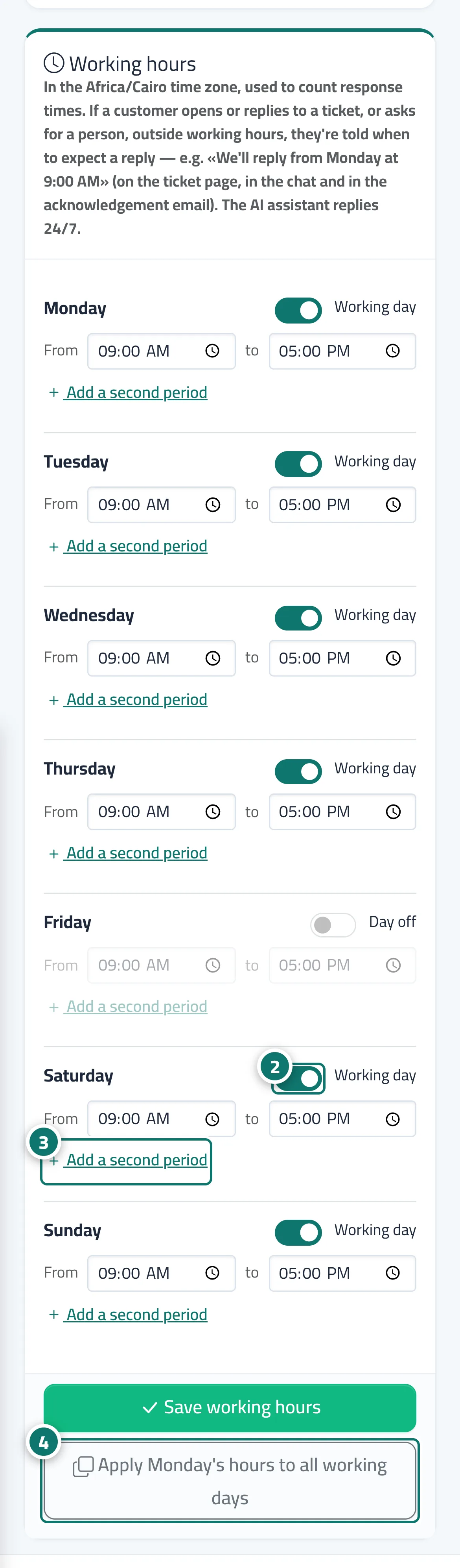
For each day of the week you choose Working day or Day off and set the start and end times, with the option to Add a second period (for example 10:00 am to 2:00 pm, then 5:00 pm to 10:00 pm). These hours are used to count response times and for the out-of-hours notice: if a customer opens or replies to a ticket, or asks to talk to a person, outside working hours, they are told automatically when to expect a reply, based on your next actual opening — for example «We received your message outside working hours and will reply from tomorrow, Saturday at 9:00 am». Default: Saturday to Thursday, 9:00 am to 5:00 pm, Friday off, in the time zone set in your business settings.
- Pour qui ?
- Business owner / manager
- Où le trouver ?
- Sidebar → Support desk → Support desk settings → Working hours
Pas à pas#
- Open Support desk settings → the Working hours tab.
- For each day, switch it on or off (Working day / Day off) and set From and To.
- If you have two periods, press Add a second period.
- As a shortcut, press Apply Saturday's hours to all working days, then Save working hours.
Astuces#
Bon à savoir#
Questions fréquentes#
Does the AI assistant stop outside working hours?
No. The AI assistant replies 24 hours a day. Working hours apply to ticket response times and to telling customers when your team will reply if they write outside them.
We take a break in the middle of the day — how do I set that?
Enter the first period up to the start of the break, then press Add a second period and enter the period after it.
What does a customer see if they write to us on a day off?
A message saying we received their message outside working hours and will reply from the next working time, for example Saturday at 9:00 am.