
Your business's brand
Your business's colour, logo and name on every page your customers see, from the chat to booking, tickets and emails.
Vue d’ensemble#
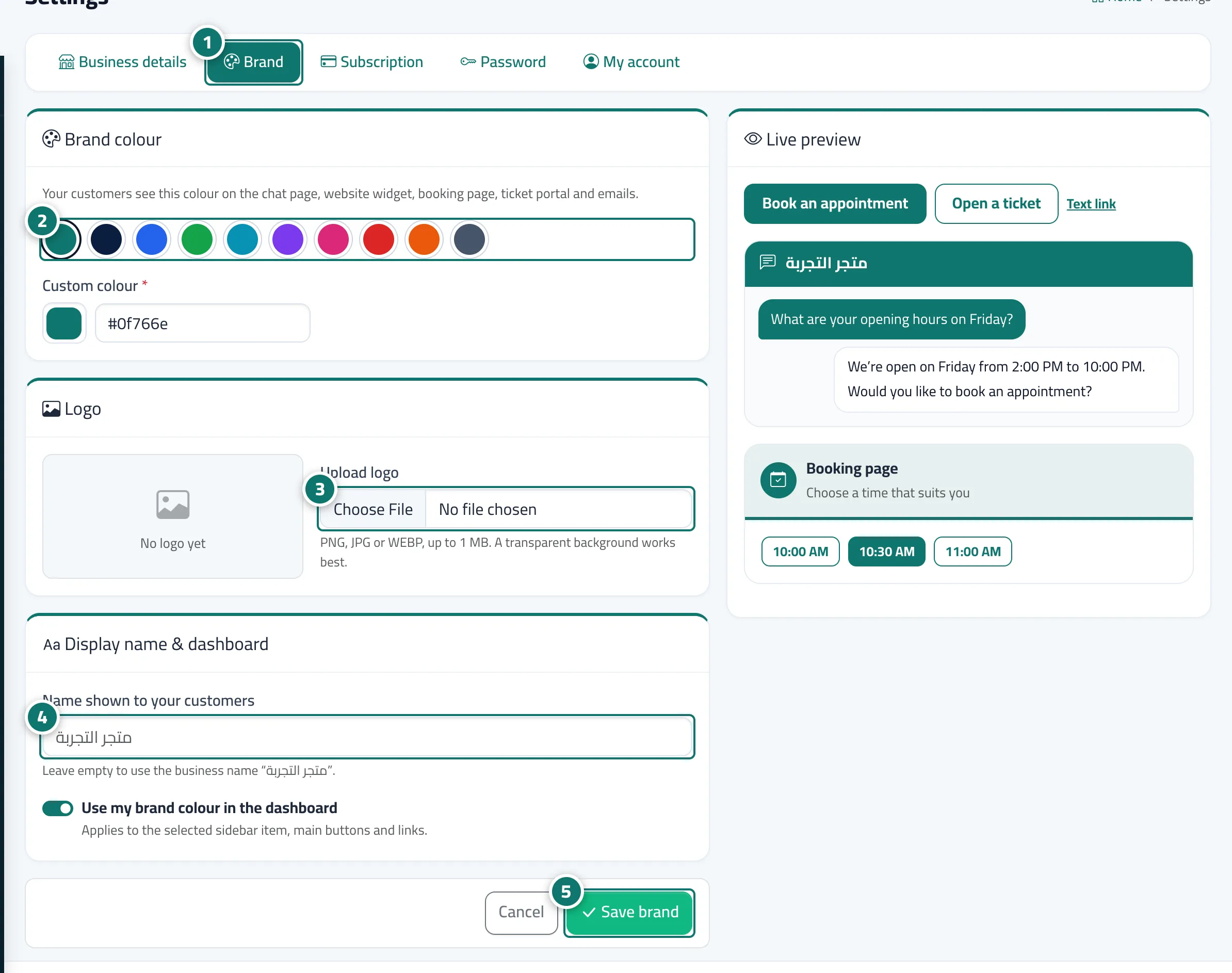
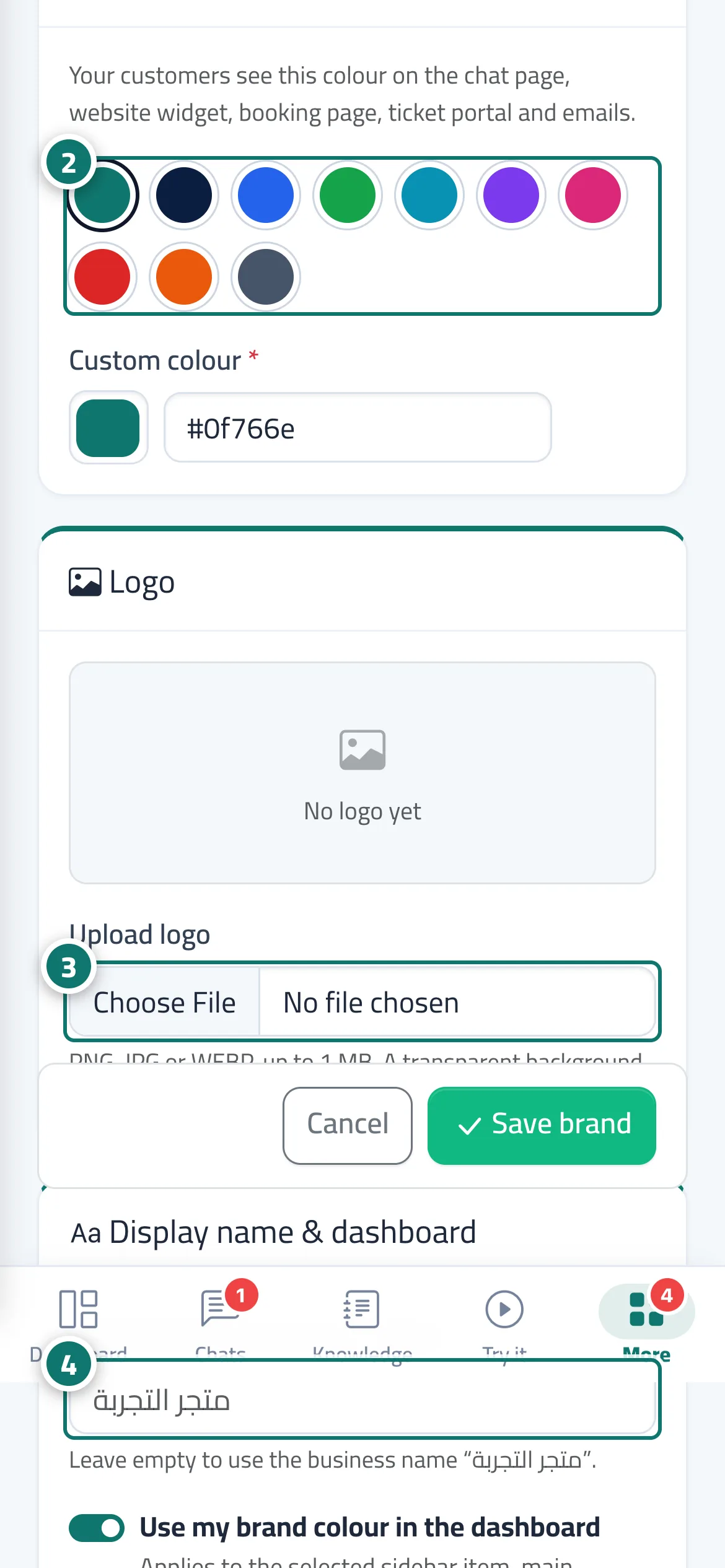
The Brand tab in Settings lets you choose a Brand colour from suggested colours or a Custom colour in #RRGGBB format, upload a Logo, and set the Name shown to your customers, with a Live preview before saving. The brand is applied to everything your customers see: the chat page and website widget, the booking page, the ticket portal, emails and the print header. You can also colour your own dashboard with your brand colour using Use my brand colour in the dashboard. The default colour is Kauthar's teal.
- Pour qui ?
- Business owner / admin
- Où le trouver ?
- Sidebar → Account → Settings & subscription → Brand tab
Pas à pas#
- Open Settings & subscription, then the Brand tab.
- In Brand colour, pick one of the suggested colours or enter yours in Custom colour.
- Under Logo, press Upload logo and choose a PNG, JPG or WEBP image.
- Type the Name shown to your customers, or leave it empty to use the business name.
- Turn Use my brand colour in the dashboard on or off, then press Save brand.
Astuces#
Bon à savoir#
Questions fréquentes#
Do my customers see my business name and logo?
Yes. The name and colour appear on the chat page, the website widget, the booking page, the ticket portal and emails, and the logo too once uploaded on the Business plan.
I don't want to change the dashboard colours. Is that possible?
Yes. Turn off Use my brand colour in the dashboard; the colour then applies to your customer pages only.