
Customer registration before the chat, and timed sessions
The customer enters their name, phone number and profession or business before the first message, and every return after a pause starts a new conversation registered in their name — so you always know who is talking to your assistant.
Vue d’ensemble#
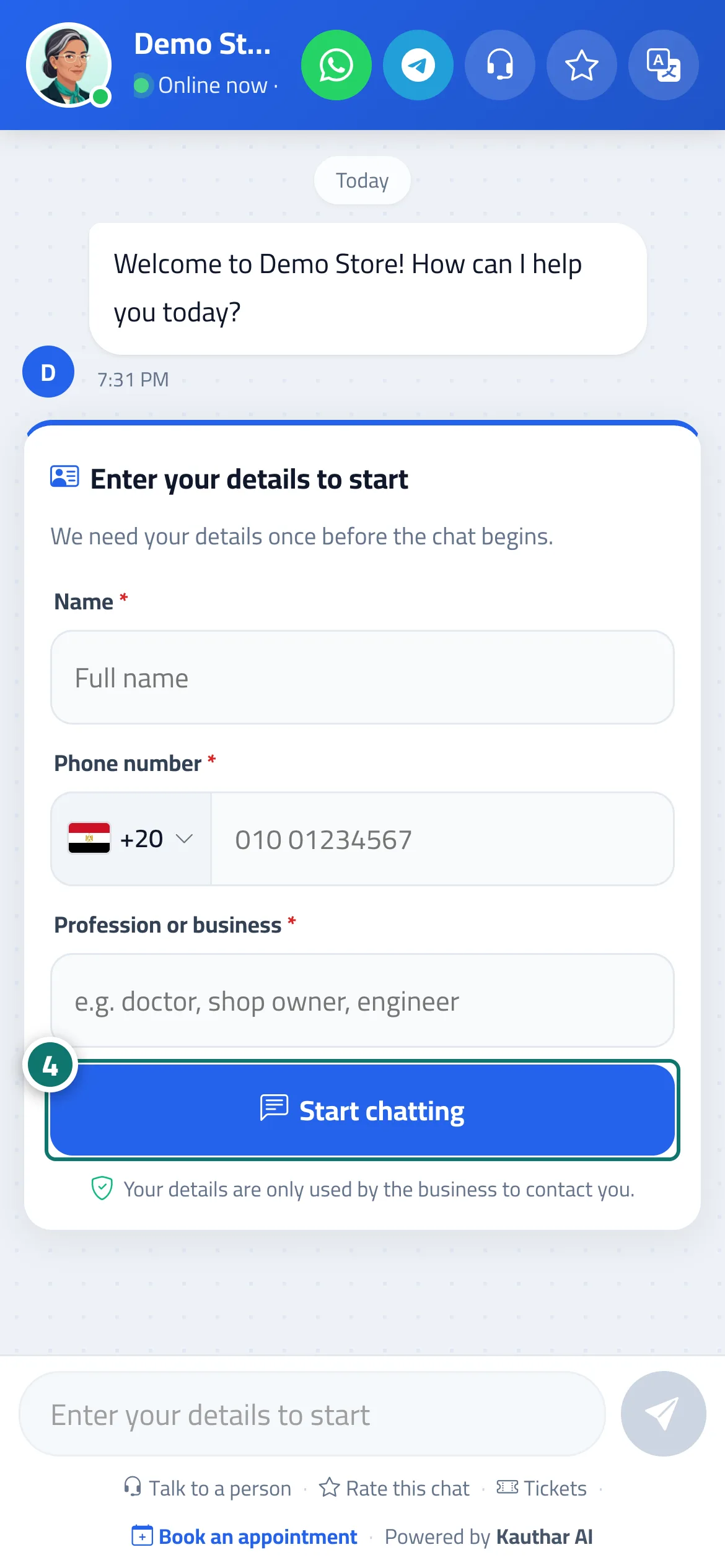
Before the customer types their first message on the chat page or in the chat window on your website, they see the card Enter your details to start with the fields Name, Phone number (with a country picker; Arabic digits are converted automatically) and Profession or business if you turned it on, the note Your details are only used by the business to contact you. and a Start chatting button. Until registration is complete the message box stays locked with Enter your details to start, the buttons and suggested questions are hidden, and the system refuses any message, booking or ticket from an unregistered conversation, even if someone tries to get around the form. After registering, the customer sees Your details are saved. How can we help you? and the chat carries on normally. You also set the session length: if the customer stops typing for longer than this and then comes back, they don't continue the old conversation — a new one starts with a New conversation started divider, and they are asked to confirm their pre-filled details (Welcome back! Confirm your details to start). The details appear in Conversations (the Visitor details panel: phone, Profession / business, Session registered) and in Customers.
- Pour qui ?
- Business owner / the business's customers / team member
- Où le trouver ?
- Sidebar → Account → Assistant settings → Customer details and session card · the form appears to your customers on the chat page and in the chat window on your website
Pas à pas#
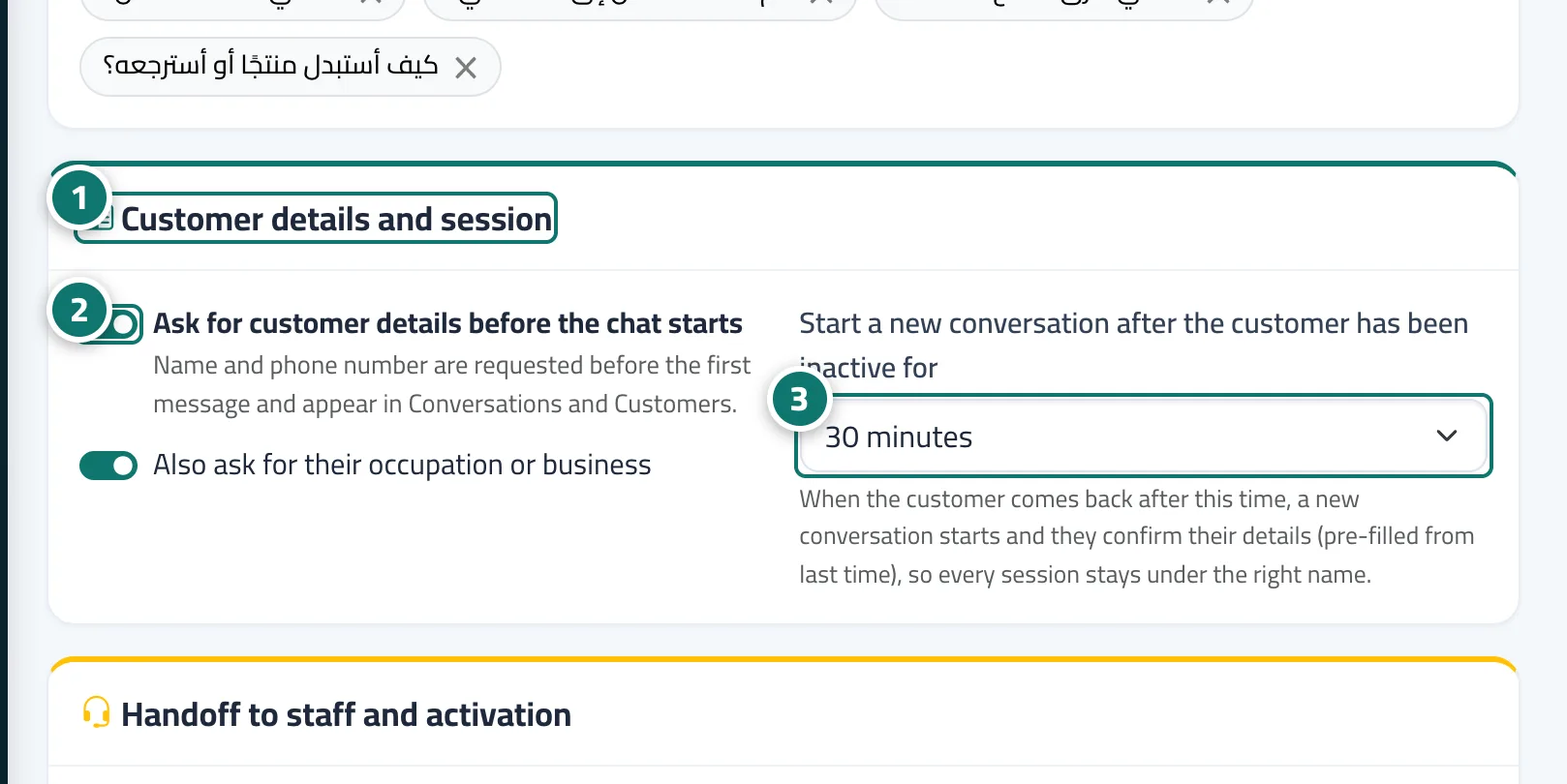
- Open Assistant settings and scroll down to the Customer details and session card.
- Leave Ask for customer details before the chat starts on (the default), and choose whether to Also ask for their occupation or business.
- Under Start a new conversation after the customer has been inactive for, choose the length that suits your business (default 30 minutes), then click Save.
- Open the chat link the way your customer does: the registration card appears before any message, and after clicking Start chatting the conversation begins.
- Review each session's details in Conversations (the visitor details panel) or in Customers.
Astuces#
Bon à savoir#
Questions fréquentes#
Can a customer skip the form and start typing straight away?
No. Even if someone tries to send a message in an unusual way, the system refuses it and asks them to register first — the check happens on our servers, not just in the browser.
The customer came back after an hour — why didn't they continue the earlier conversation?
Because the session had ended, so a new conversation starts with their pre-filled details to confirm, keeping every session in Conversations registered under the right person and time. You can lengthen the session in Assistant settings.
Does the customer lose their message if the session ends while they are typing?
No. The message stays in the message box; after confirming their details they click Send and it arrives in the new conversation.
What happens if I turn the registration option off?
The form disappears and the chat works as before, while the Leave your details card still appears when needed and the new session after a pause keeps working silently.