
Providers and their working hours
A doctor, a technician — or even a room or a branch: each provider has their own services and weekly working hours.
Vue d’ensemble#
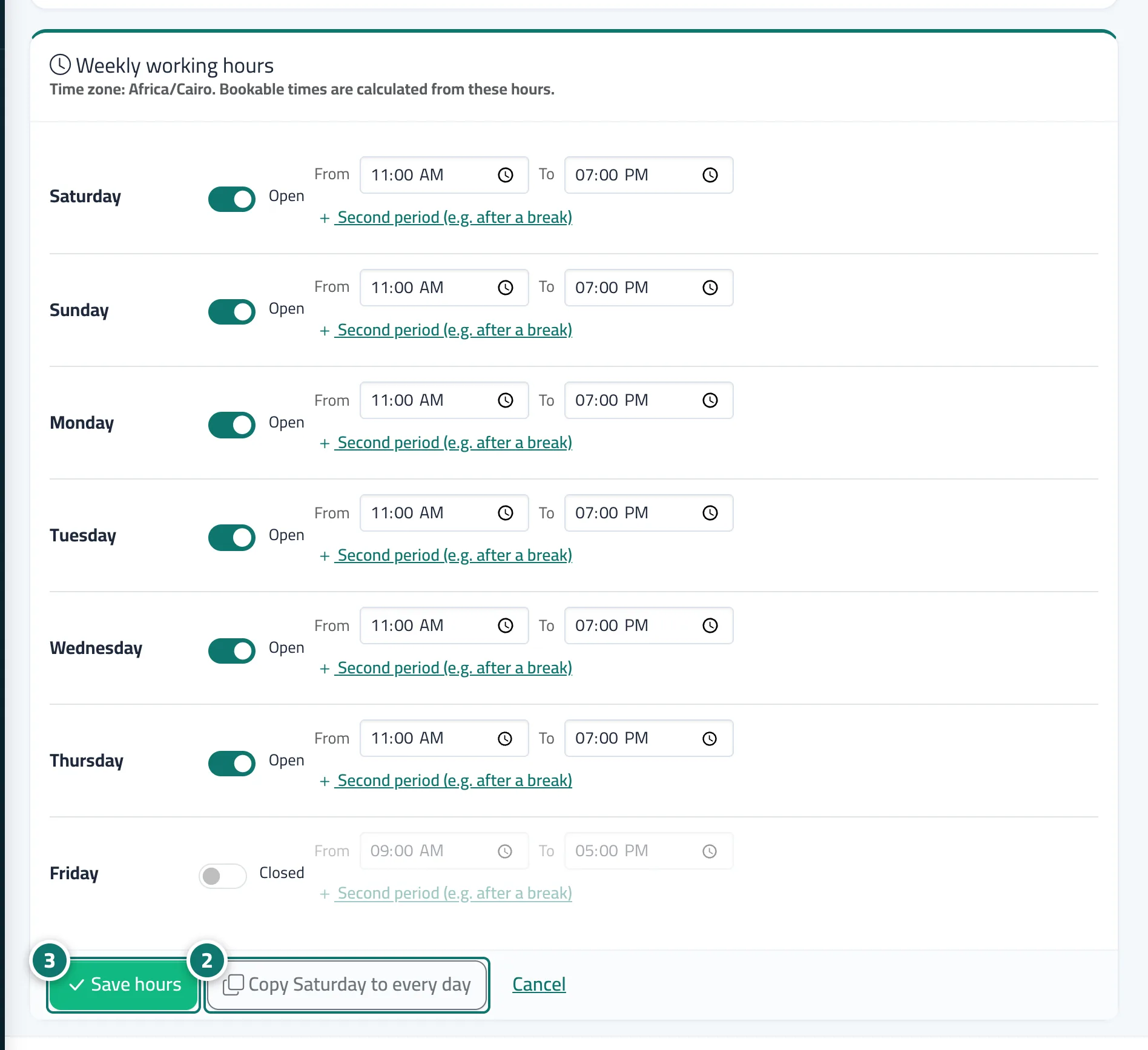
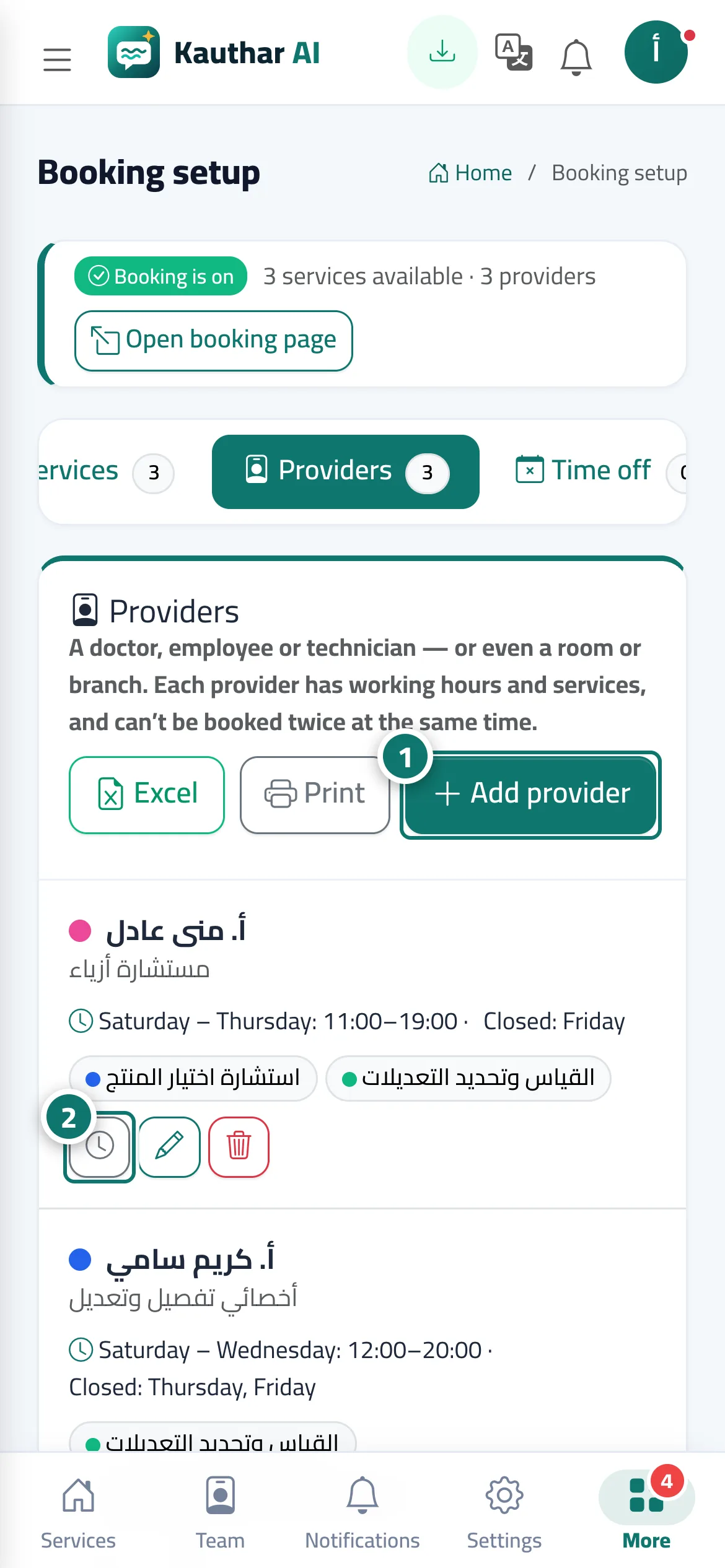
The Providers tab: each provider has a Name, a Job title / speciality (shown to the customer under the name), a Staff account (optional, so they receive notifications of their new bookings), Services offered, a Colour (in the calendar), an Order, and a Can be booked switch. The Working hours button on their card lets you set each day as Working day or Day off with from / to times and a Second period (e.g. after a break), and you can copy Saturday's hours to every day. Unless you give them their own hours, a provider Follows business hours, and you can return to that with the Use business hours button.
- Pour qui ?
- Business owner / manager
- Où le trouver ?
- Sidebar → Appointments → Booking setup → Providers tab → Working hours
Pas à pas#
- Press Add provider, enter the name and speciality, choose their services, then press Save.
- Press Working hours on the provider's card.
- Set each day (Working day / Day off and the periods), then press Save hours.
Astuces#
Bon à savoir#
Questions fréquentes#
I have no staff, just one room or one branch?
Add a provider called Room or Branch; what matters is that the same place can't be booked twice at the same time.
How do I add a break in the middle of the day?
In Working hours, set the first period up to the start of the break, then press Second period (e.g. after a break) and set its time.