
Permissions for every screen
Decide, for each staff member, what they can view, add, edit or delete on every screen; changes apply immediately.
Vue d’ensemble#
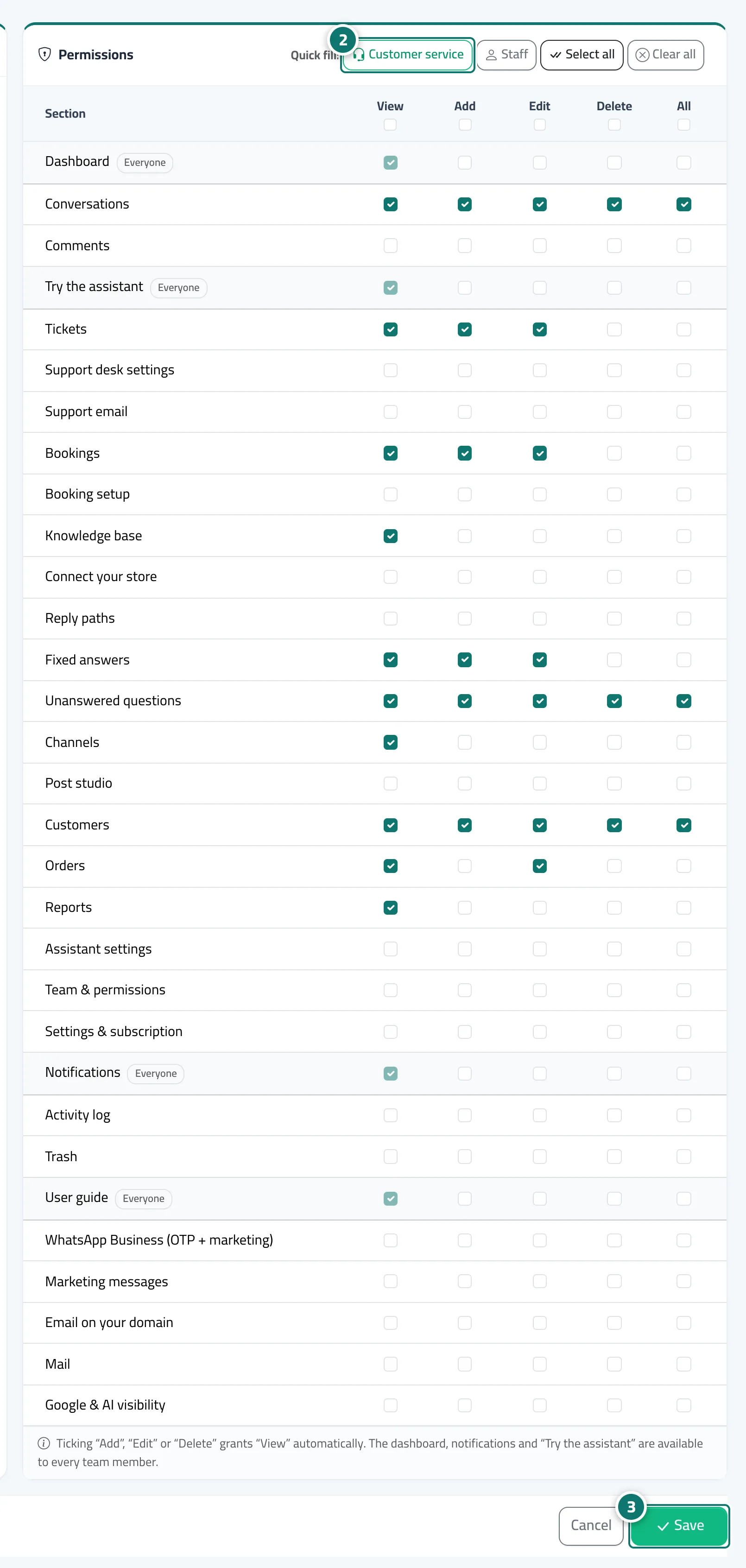
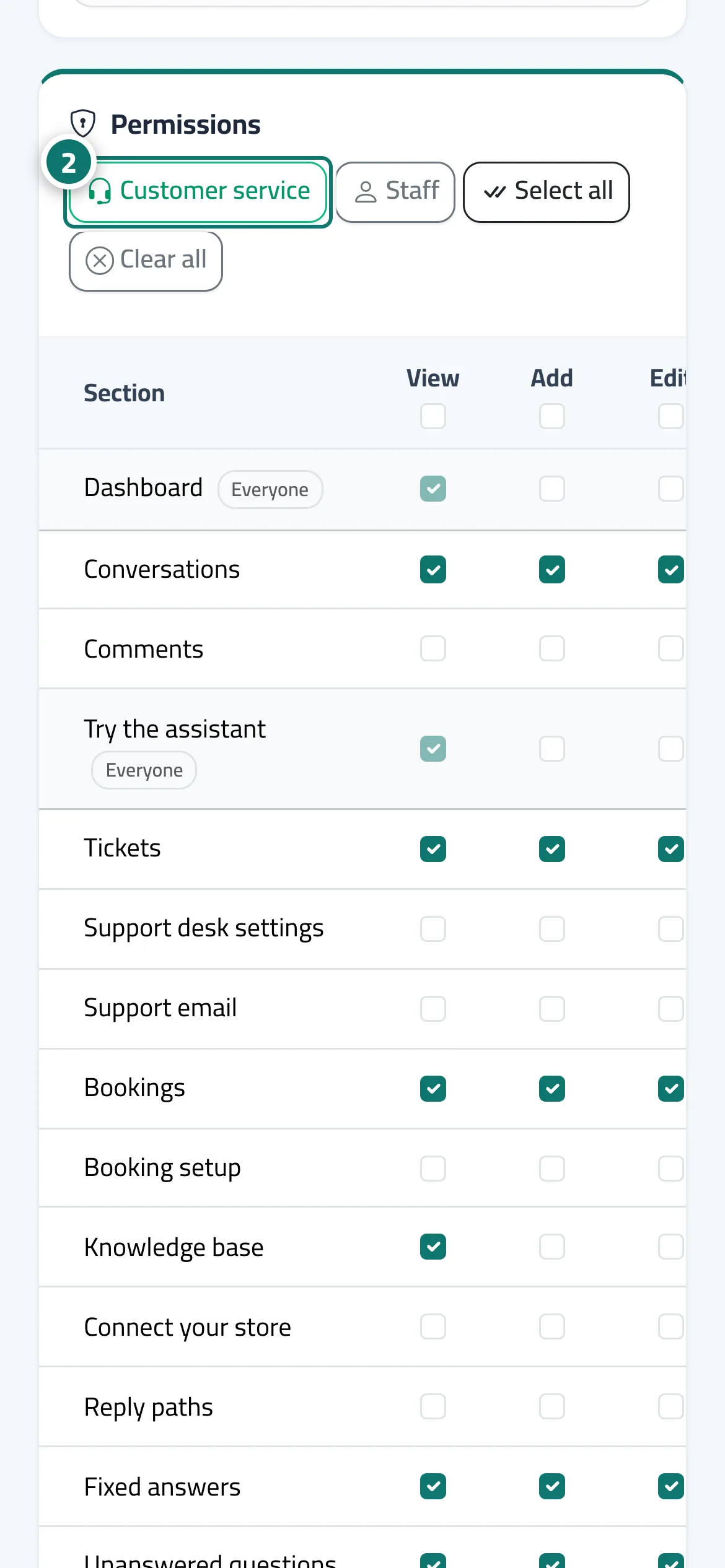
A permission matrix with four boxes for each module: View · Add · Edit · Delete. The modules are: Conversations, Comments, Tickets, Support desk settings, Support email, Bookings, Booking setup, Knowledge base, Connect your store, Reply paths, Fixed answers, Unanswered questions, Channels, Post studio, Customers, Orders, Reports, Assistant settings, Team & permissions, Settings & subscription, Activity log, Trash, WhatsApp Business (OTP + marketing) and Marketing messages. It also offers Quick fill: Customer service · Staff · Select all · Clear all. The owner and admins automatically have every permission, and the Dashboard, Notifications, Try the assistant and the User guide are available to every team member.
- Pour qui ?
- Business owner / admin
- Où le trouver ?
- Sidebar → Account → Team & permissions → Add member or Edit → Permissions card
Pas à pas#
- Open the member and press Edit or Edit permissions.
- Choose a quick fill (Customer service or Staff) or tick the boxes yourself.
- Press Save changes.
Astuces#
Bon à savoir#
Questions fréquentes#
I want a staff member to reply to tickets without deleting anything. How?
Set Tickets to View, Add and Edit and leave Delete empty, or use the Customer service quick fill.
Does the staff member need to sign out for the permissions to apply?
No. They apply immediately, from the next request.