
Booking for a customer who calls or walks in
Customer phoned or came in person? Book them in 4 steps while seeing only the times that are actually free.
Vue d’ensemble#
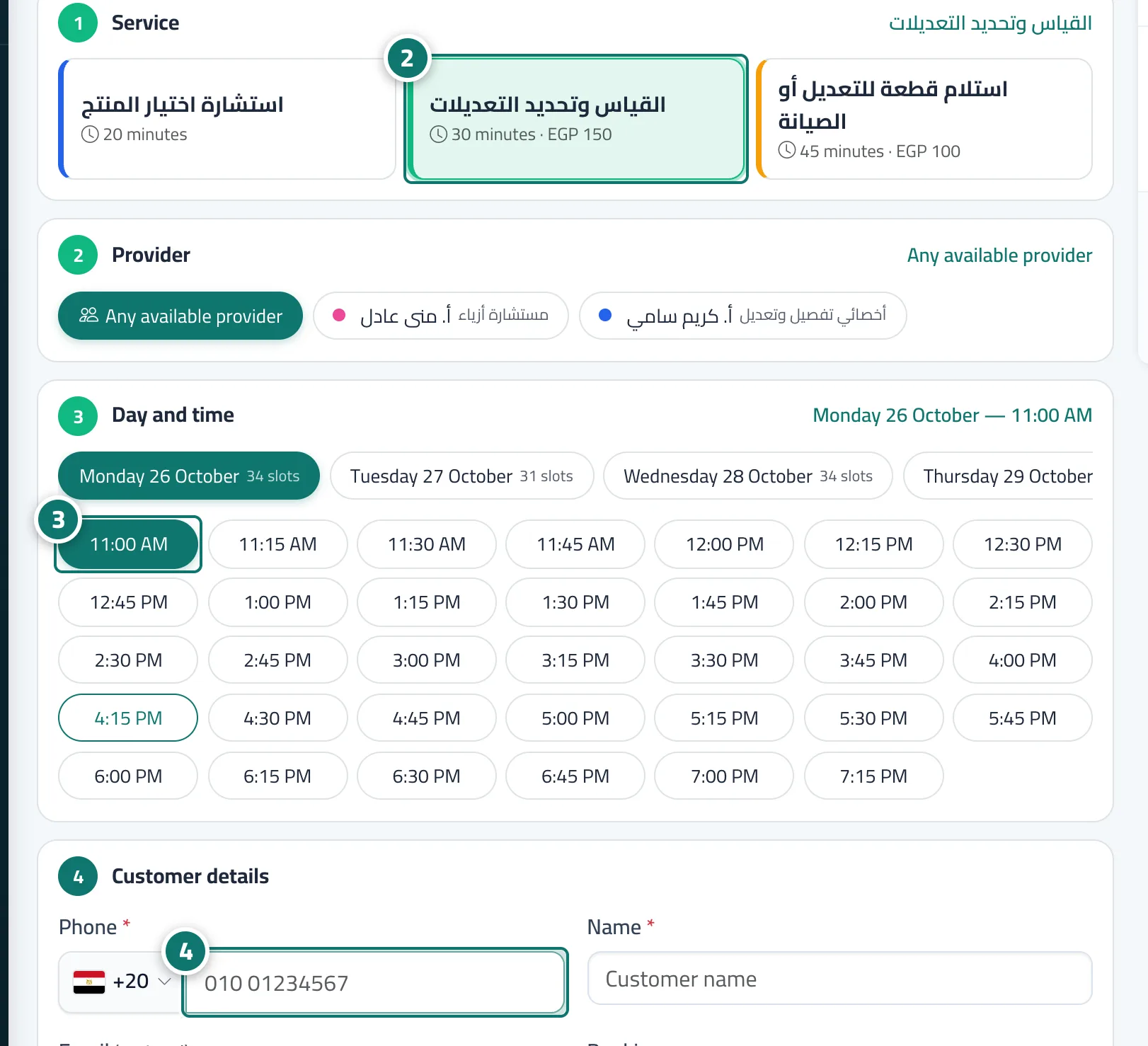
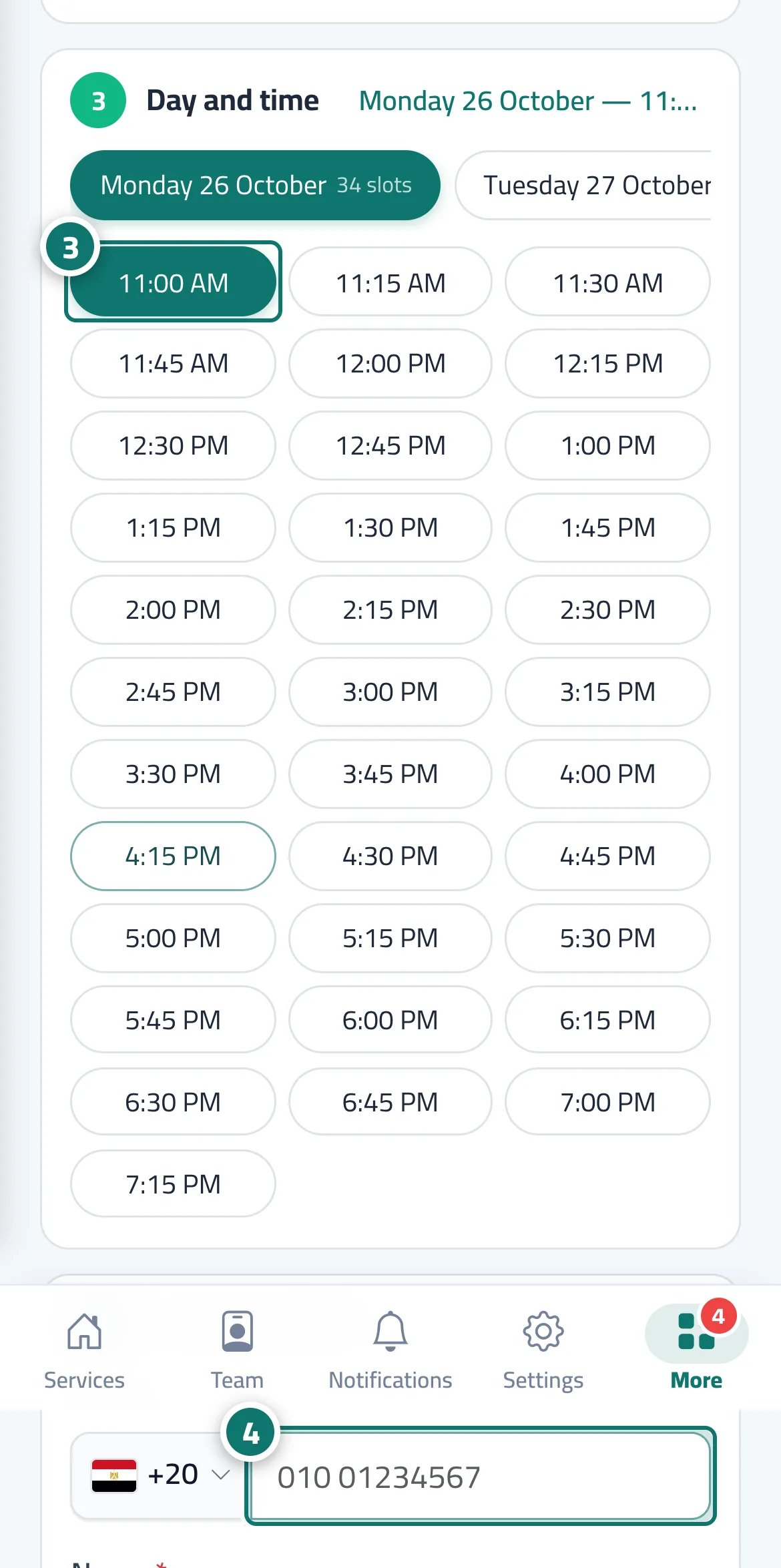
The New booking page books an appointment for a customer who phones or walks in: (1) the Service, with its length and price → (2) the Provider, or Any available provider → (3) the Day and time, from free slots only → (4) the Customer details: phone number with country (if they've booked before, a Returning customer badge appears with their name and recent bookings), name, email (optional), Booking source (phone, walk-in / staff, WhatsApp, Facebook), Customer language (optional; confirmations and reminders are sent in it) and notes. The Booking summary sits alongside, followed by the Confirm booking button.
- Pour qui ?
- Business owner / manager / agent (depending on permissions)
- Où le trouver ?
- Sidebar → Appointments → Bookings → New booking
Pas à pas#
- Press New booking.
- Choose the service, then the provider or Any available provider.
- Choose the day, then the time.
- Enter the customer's phone number and name, choose the Booking source, then press Confirm booking.
Astuces#
Bon à savoir#
Questions fréquentes#
Can I book an appointment in fifteen minutes even though the setting is one hour?
Yes, from New booking — the Minimum notice rule applies to customer bookings only.
Does the customer get a booking confirmation?
If you enter their email and Support email is connected, they receive a confirmation email in their language. You can also send the details with Confirm on WhatsApp from the appointment details.