
The complete ticket page
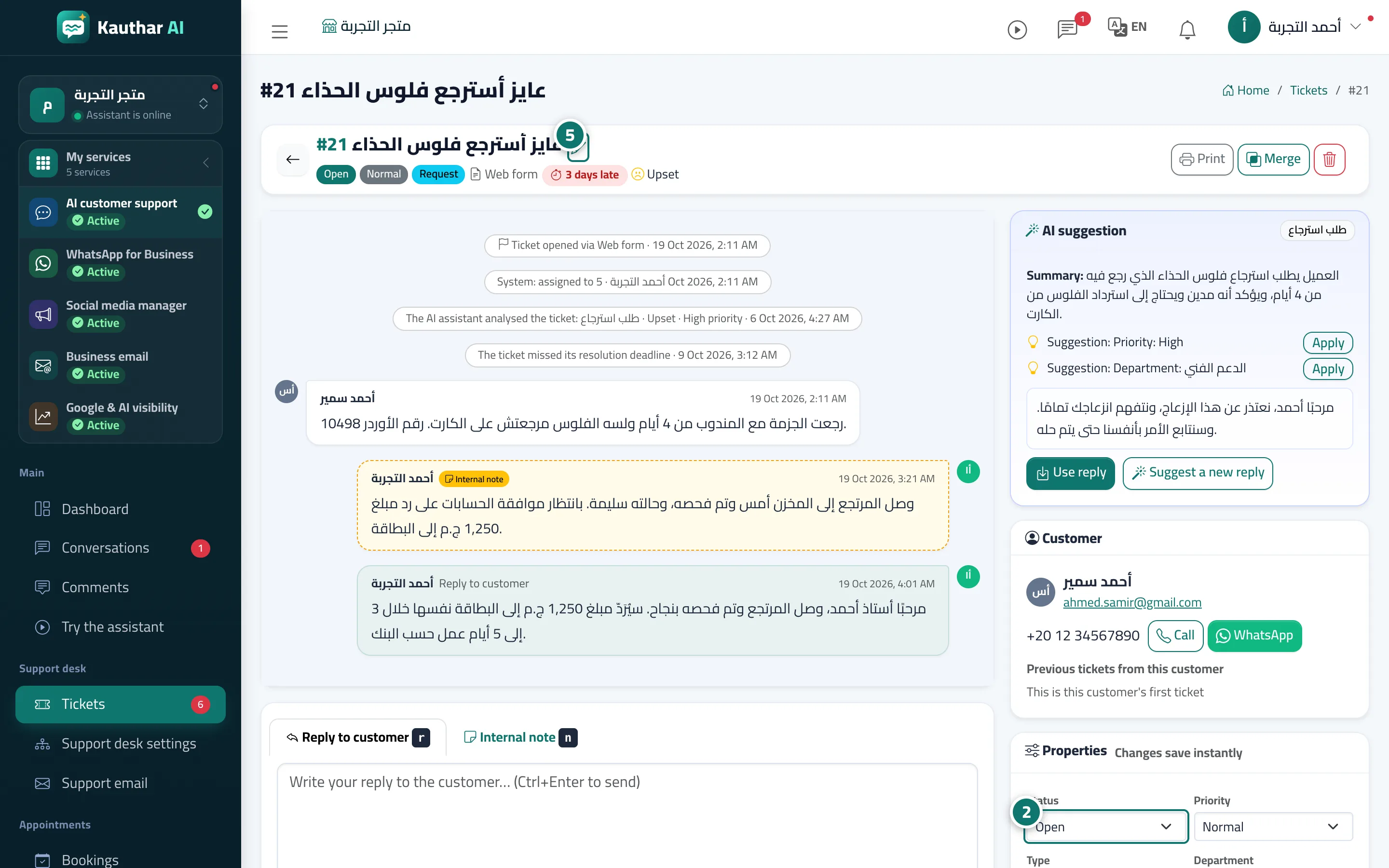
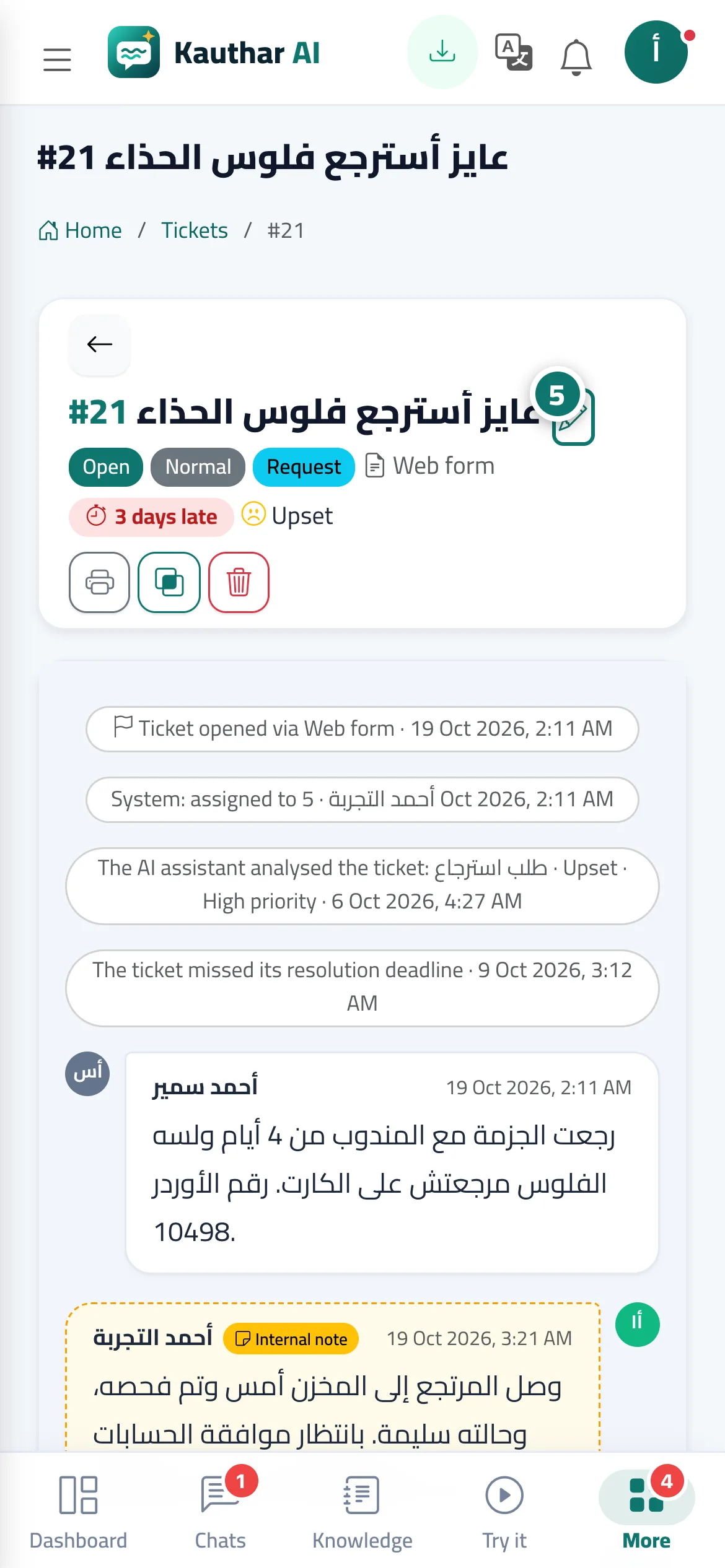
The full history of a request — messages and changes — with its properties and the customer's details right beside it, without switching screens.
Vue d’ensemble#
The ticket page shows the whole conversation in order: the customer's messages, agents' replies, internal notes (on a distinctive yellow background) and system events such as status changes or assignment. Alongside it you'll find the AI suggestion card; the Customer card (name and phone with Call and WhatsApp buttons, Previous tickets from this customer, and an Original chat button when the ticket came from a chat); the Properties card (status, priority, type, department, assignee, tags), saved the moment you change them; the Response time (SLA) card; and the Ticket tracking portal card with the Customer rating, if any.
- Pour qui ?
- Business owner / manager / agent
- Où le trouver ?
- Sidebar → Support desk → Tickets → (the ticket)
Pas à pas#
- Open the ticket from the list.
- Change any property in the Properties card; changes are saved immediately and recorded in the ticket history.
- Press Assign to me to take the ticket yourself if it isn't already assigned to you.
- Add a tag by typing it in the Add a tag, then Enter field.
- To edit the ticket subject, press the Edit subject pencil icon next to it.
Astuces#
Bon à savoir#
Questions fréquentes#
How do I see who changed a ticket's status?
Every change appears as a small line in the conversation with the time and the name of whoever made it, and it is also recorded in the Activity log.
How do I contact the customer on WhatsApp from the ticket?
In the Customer card, press WhatsApp; a WhatsApp chat with their number opens directly on your phone or in WhatsApp Web.
Can I see the customer's previous tickets?
Yes, under Previous tickets from this customer in the customer card, with each ticket's number and status.