
Connect your website or store
Add your site (WordPress through the Kauthar plugin, your linked store, or any link) to start the full audit and automatic technical fixes — with no settings to choose.
Vue d’ensemble#
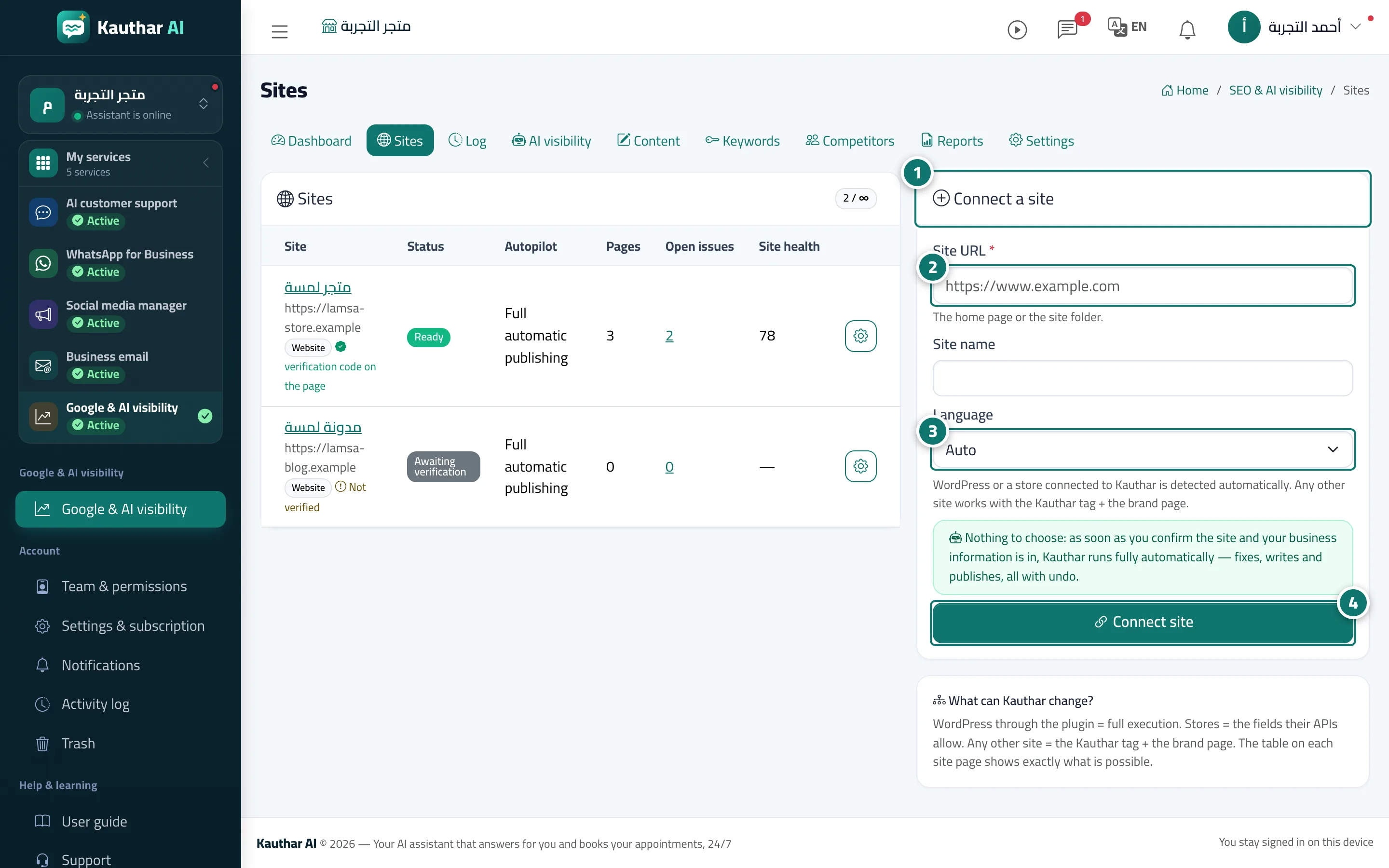
The Sites page gathers every website or store connected to the service. For each site you see its type (WordPress through the Kauthar plugin, a store linked from Connect your store, or a plain website), the ownership check, the publishing mode, the number of pages and open issues and the Site health score. You don't choose any mode when connecting: as soon as you prove you own the site and your business information is in the knowledge base, Kauthar runs fully automatically — it crawls the pages gradually following your robots.txt, then fixes, writes and publishes, with undo for every change.
- Pour qui ?
- Business owner / manager
- Où le trouver ?
- Sidebar → Google & AI visibility → Sites
Pas à pas#
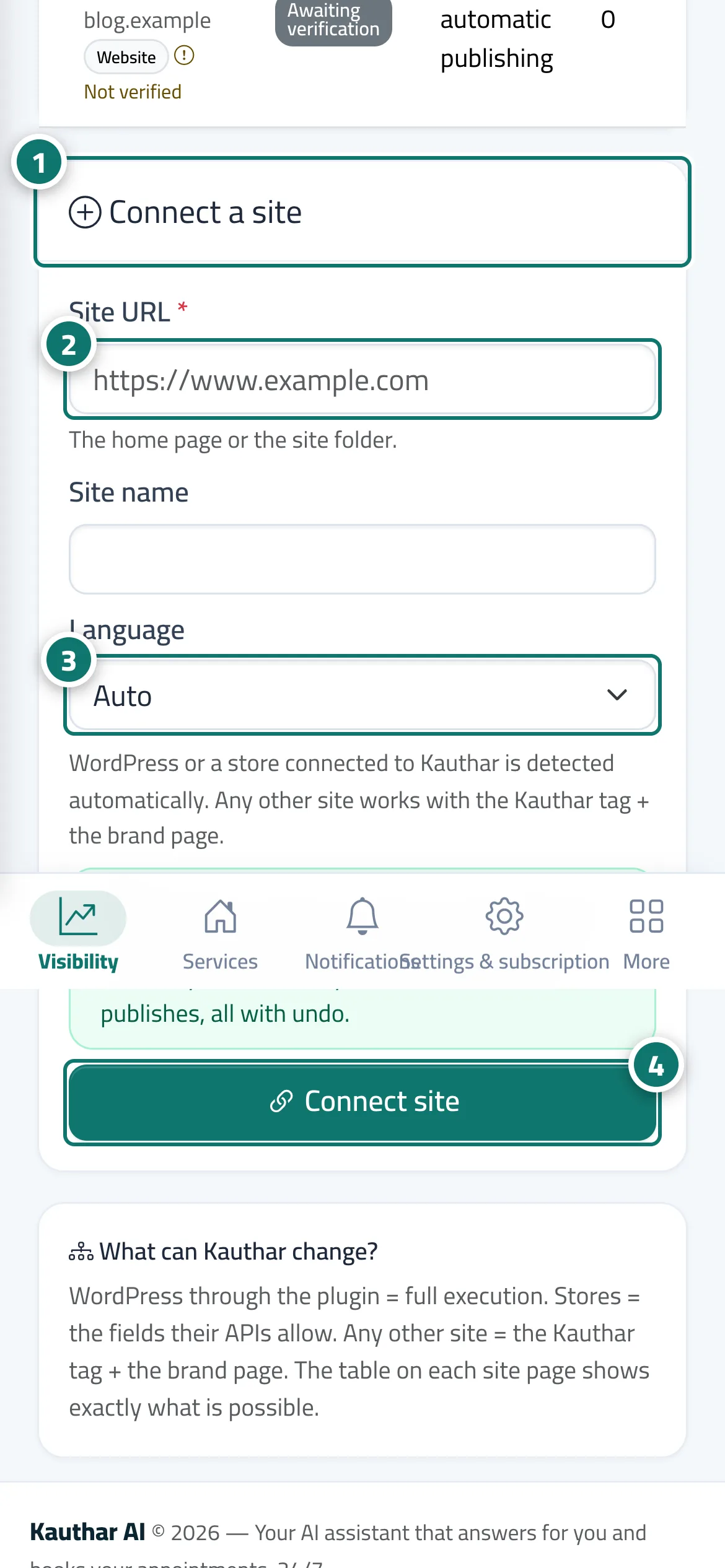
- Open Sites; the Connect a site card is next to the list of your sites.
- Enter the site link and its name (a WordPress site connected with the Kauthar plugin or a linked store is recognised automatically).
- Choose the site's main language or leave it on Automatic.
- Click Connect site, then complete the ownership check (topic Verify site ownership) and add the names your business is known by and your competitors in Settings.
Astuces#
Bon à savoir#
Questions fréquentes#
Does Kauthar slow my site down while crawling?
No. Kauthar sends one request at a time with a pause between requests, follows robots.txt and Crawl-delay, and identifies itself as KautharBot.