
Connect a Telegram bot
Create a bot for your business with @BotFather, paste its token into Kauthar, and Kauthar answers your customers on Telegram just as she does on your website and WhatsApp.
Vue d’ensemble#
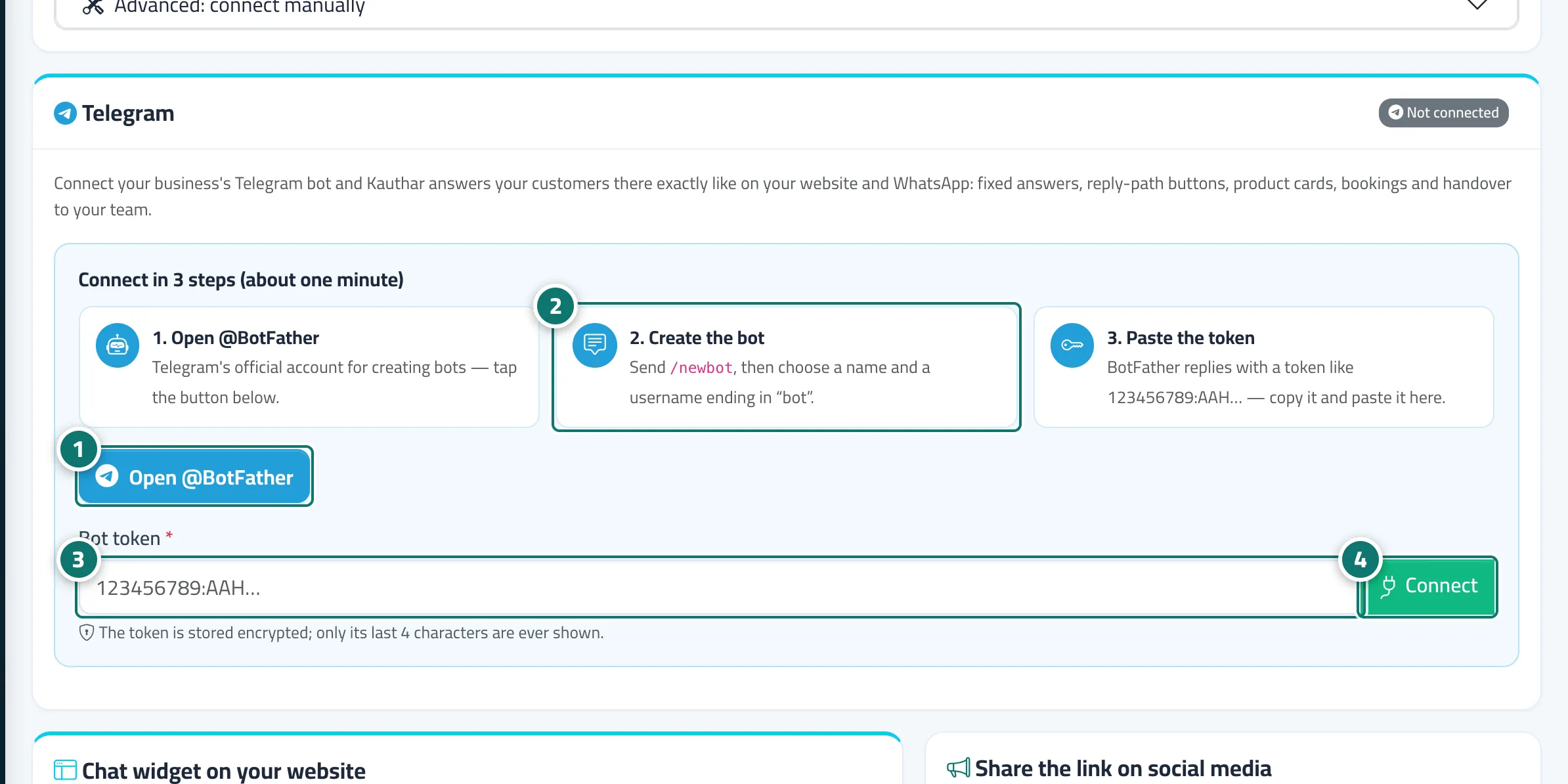
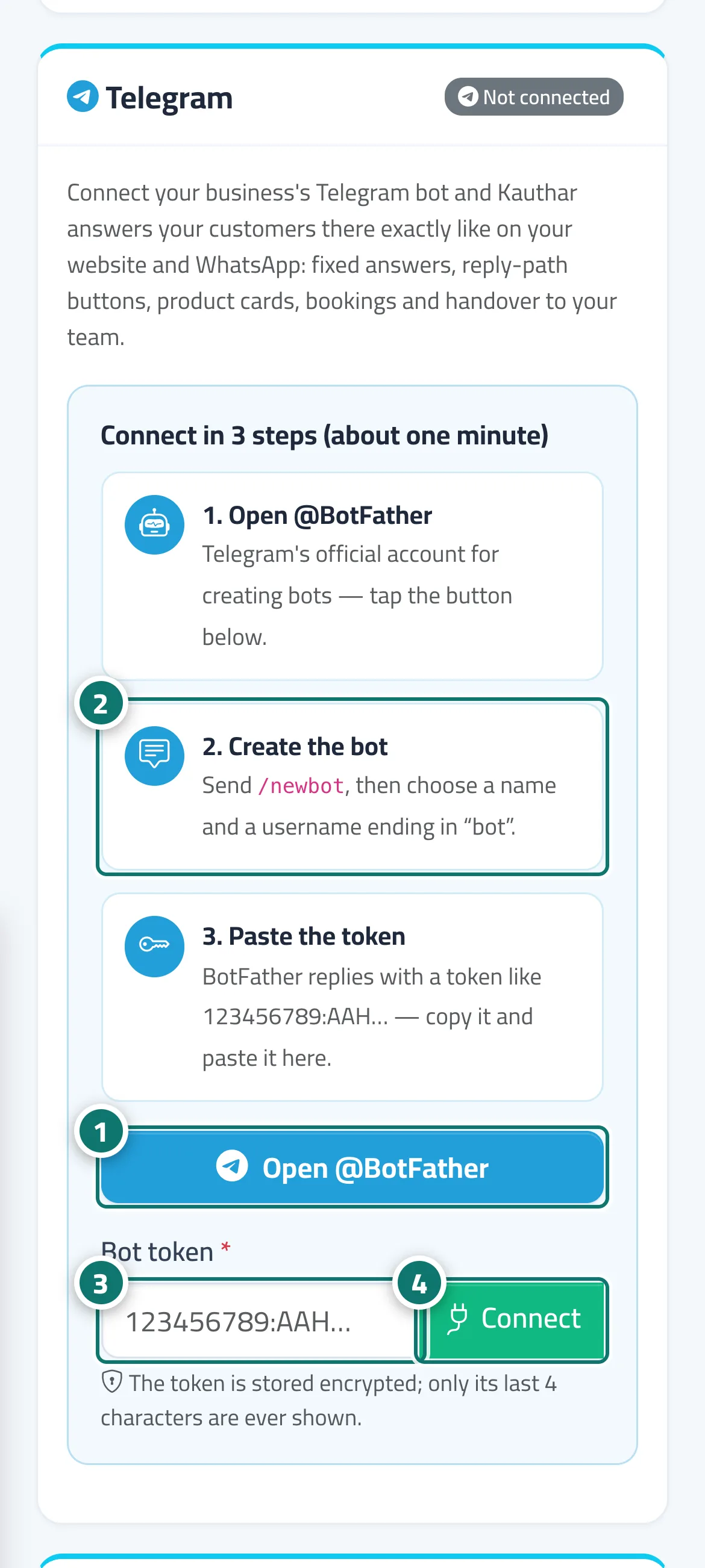
The Telegram card on the Channels page connects your business's own Telegram bot to Kauthar. Telegram only allows this through a bot that you create with its official @BotFather account, so the card shows Connect in 3 steps: open @BotFather, create the bot with /newbot and give it a name and a username ending in bot, then paste the token BotFather sends you into Bot token and press Connect. From then on Kauthar answers everyone who messages the bot exactly as on your website and WhatsApp: fixed answers and AI replies from your knowledge base, reply-path buttons, product cards with a buy button, bookings and handover to your team. The chats appear in Conversations with a Telegram label, and your staff reply from there. Kauthar also sets the bot's /start command (Start — main menu) and a description with your business name. Once connected, the card shows the bot and its username, the last 4 characters of the token, whether messages are being received and the last incoming message, plus Open the bot in Telegram, Test connection, Pause replies / Resume replies, Disconnect, and Change the token to use a new token or another bot. A Telegram button (Chat with us on Telegram) with the t.me link appears on your public chat page and booking page while the bot is active.
- Pour qui ?
- Business owner / manager (or a staff member allowed to edit Channels)
- Où le trouver ?
- Sidebar → Channels & customers → Channels → Telegram (from the channel bar at the top of the page)
Pas à pas#
- In the Telegram card press Open @BotFather to open Telegram's official account for creating bots.
- Send /newbot to BotFather, then choose a name for the bot and a username ending in bot.
- Copy the token BotFather sends (numbers, a colon, then letters) and paste it into Bot token.
- Press Connect. A Connected message and the Working status appear — send the bot a message on Telegram to try it.
- To manage the bot later, use Test connection, Pause replies or Disconnect on the same card.
Astuces#
Bon à savoir#
Questions fréquentes#
Does Telegram have a 24-hour reply window like WhatsApp?
No. Telegram has no such window, so your team can reply to a customer from Conversations at any time.
Kauthar rejected my token. What should I do?
Copy it again from @BotFather (/mybots → your bot → API Token) and paste it in full, without spaces. If another service is reading the bot's messages, remove it and press Test connection.