
My account and changing your password
Every member edits their own name, job title and email, changes their own password, can delete their account, and stays signed in on their device.
Vue d’ensemble#
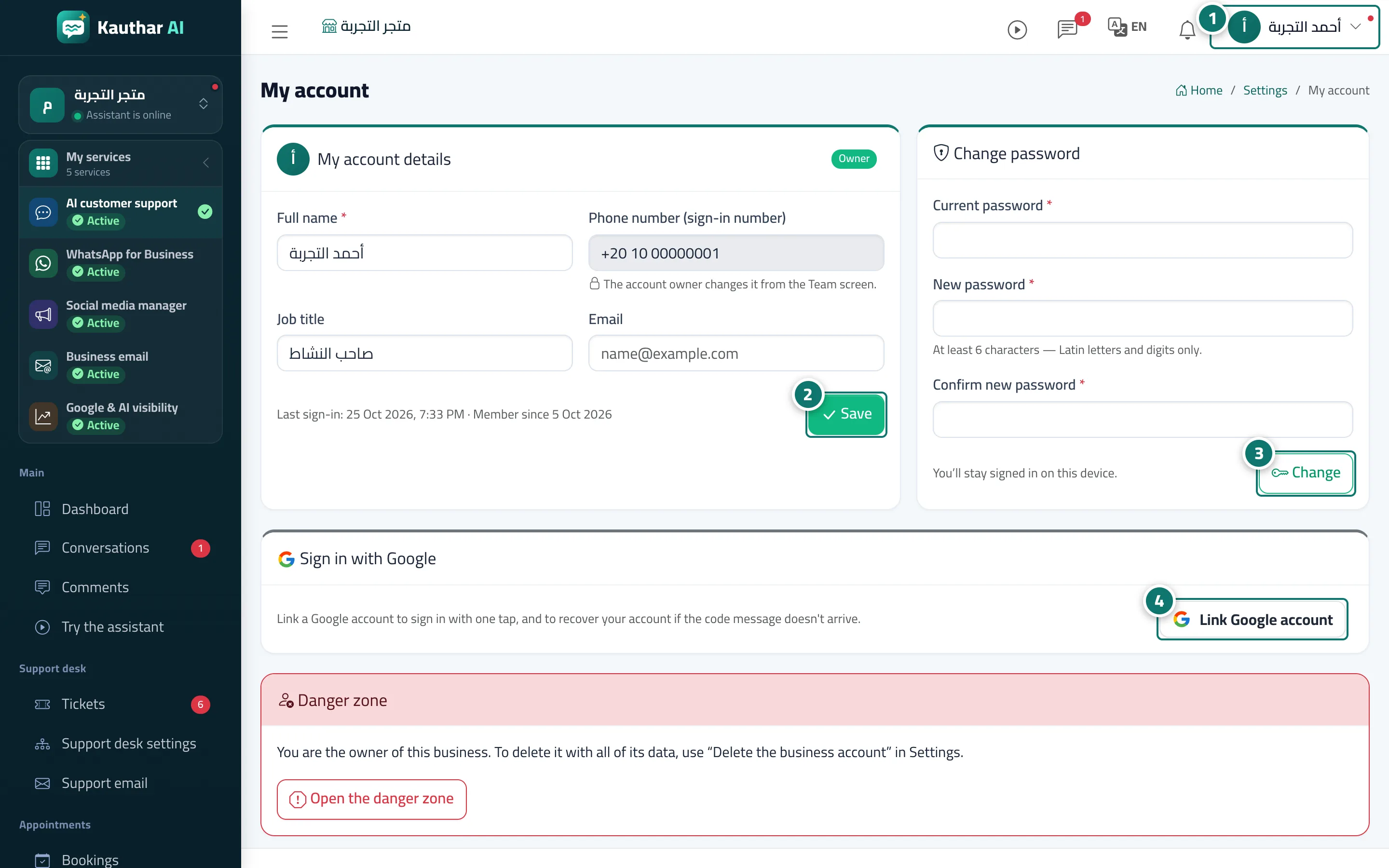
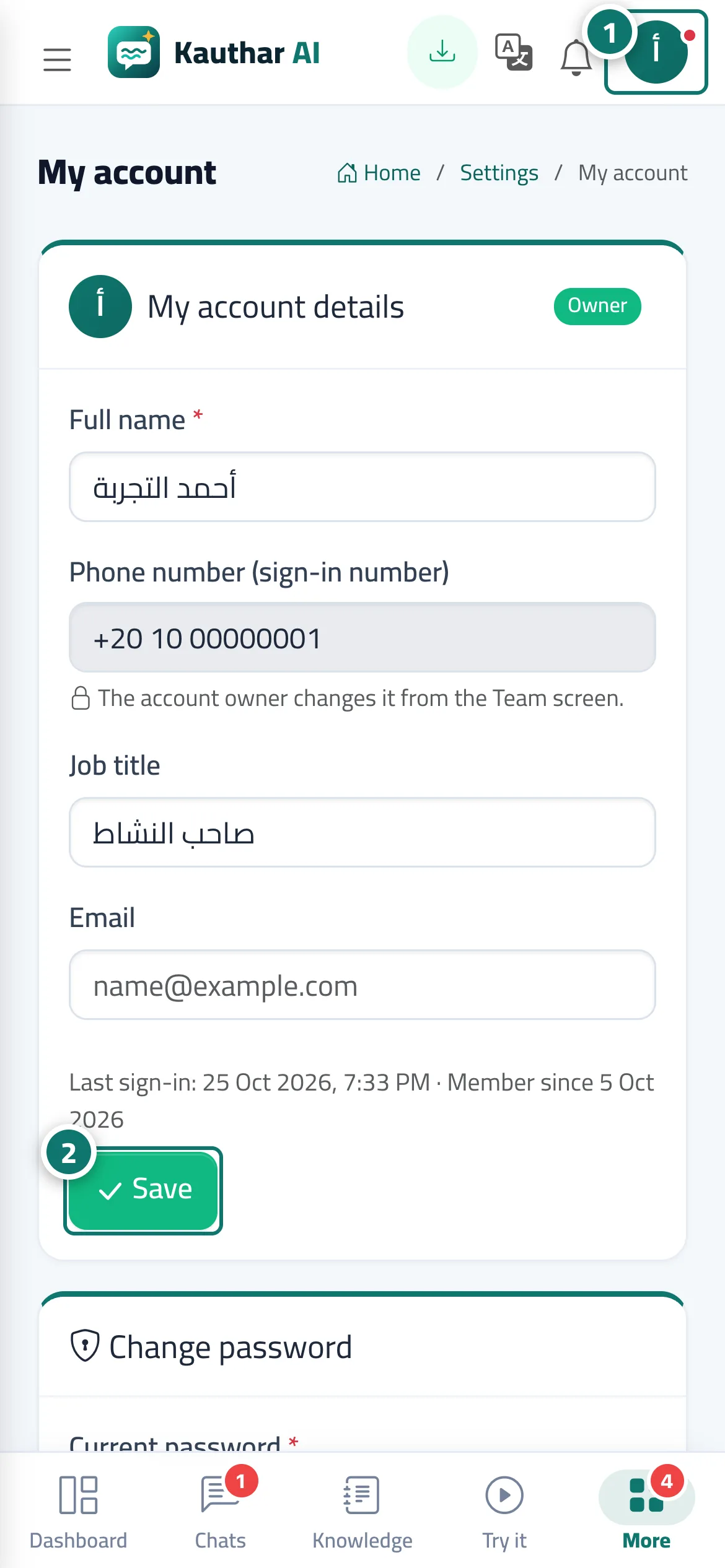
The My account page (from the menu under your name in the top bar, or the My account tab in Settings) shows My account details: full name, phone number (your sign-in number), job title, email, last sign-in and date joined; a Change password card (current, new and confirm); and a Sign in with Google card to link or unlink a Google account. At the bottom, a team member has Delete my account, confirmed with their password; the business owner instead sees an Open the danger zone link to delete the business.
- Pour qui ?
- Business owner / admin / staff
- Où le trouver ?
- Menu under your name in the top bar → My account
Pas à pas#
- Click your name in the top bar, then My account.
- Edit your details and press Save.
- To change your password, type the current one, then the new one twice, and press Change.
- To sign in with one tap later, press Link Google account and choose your account.
Astuces#
Bon à savoir#
Questions fréquentes#
How do I change my phone number?
The owner or an admin changes it from Team & permissions → Edit on your member page. The owner's number is changed from Business details.
I forgot my current password. What do I do?
Sign out and use Forgot your password? on the sign-in screen, or ask the owner to Reset password for you.