
Publishing to Pinterest and Threads
Connect Pinterest and Threads in the “Accounts” tab, pick your default Pinterest board, and Kauthar posts your design as a tall Pin linking to your website or product, and to Threads as text, an image or an album — only after you approve.
Vue d’ensemble#
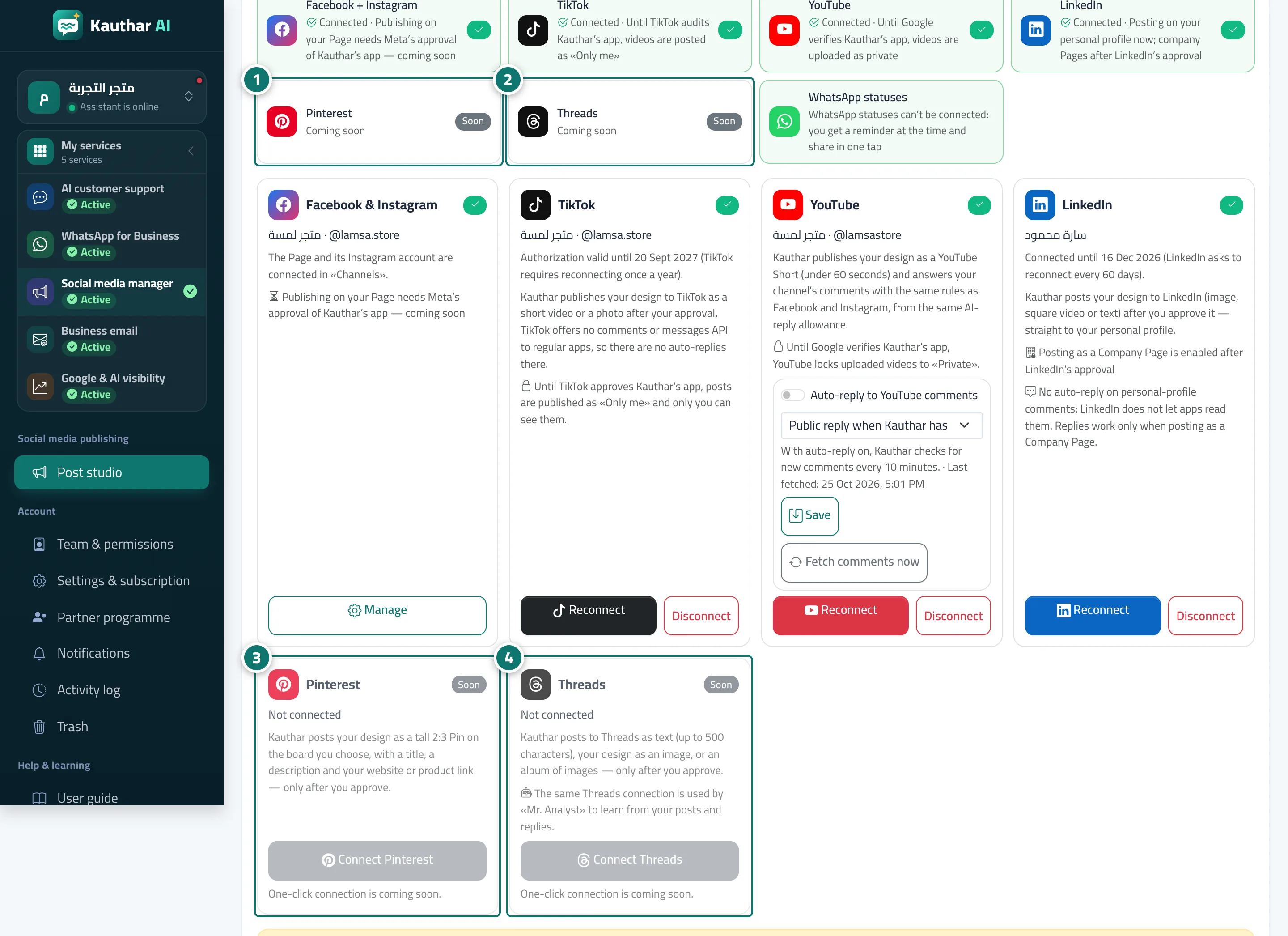
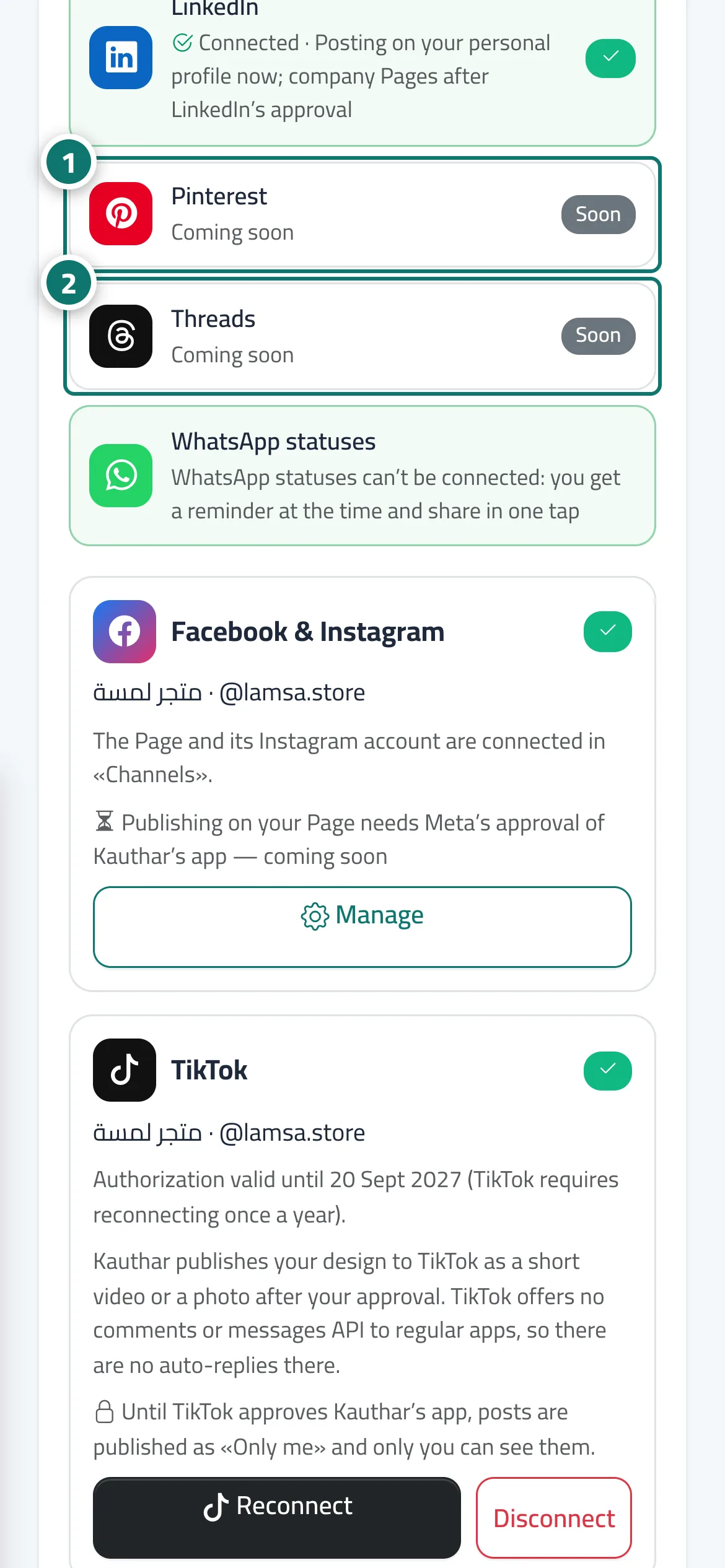
The Accounts tab has a Pinterest card and a Threads card. Pinterest: once connected, your boards appear and you choose the Default board (or Create a board named after your business when there are none, and Refresh boards after you make one on Pinterest). Every Pinterest post goes out as a tall 2:3 Pin (1000×1500) with the post’s title (up to 100 characters), a description (up to 500) and a link: the product link from your knowledge base when there is one, otherwise your chat or booking link — you can change the board and the link per post on the post page. Threads: the same connection Mr. Analyst uses; posts are text up to 500 characters (an emoji counts as several), a 1080×1350 image, or an album of the post’s designs. From Publish from the knowledge base, Pinterest takes the vertical picture and Threads the wide one, untouched.
- Pour qui ?
- Business owner / manager
- Où le trouver ?
- Sidebar → Social media publishing → Post studio → Accounts
Pas à pas#
- Open the Accounts tab and press Connect on the Pinterest or Threads line, sign in and accept the permissions.
- On the Pinterest card choose the Default board and press Save.
- Create a new post and pick Pinterest or Threads among the channels.
- For a different board or link on one post, change them on the post page, then Save.
- Approve or schedule the post — Kauthar publishes it on time and retries by itself if the platform is busy.
Astuces#
Bon à savoir#
Questions fréquentes#
Can Kauthar publish to Pinterest or Threads without my approval?
No. The connection only lets Kauthar publish when you, or a team member allowed to, approve or schedule a post.