
Disconnect a WhatsApp number and release it from Meta
Disconnect any WhatsApp number from Kauthar and choose to release it from Meta so you can use it again in the WhatsApp app on your phone; your other numbers and their conversations stay as they are.
Vue d’ensemble#
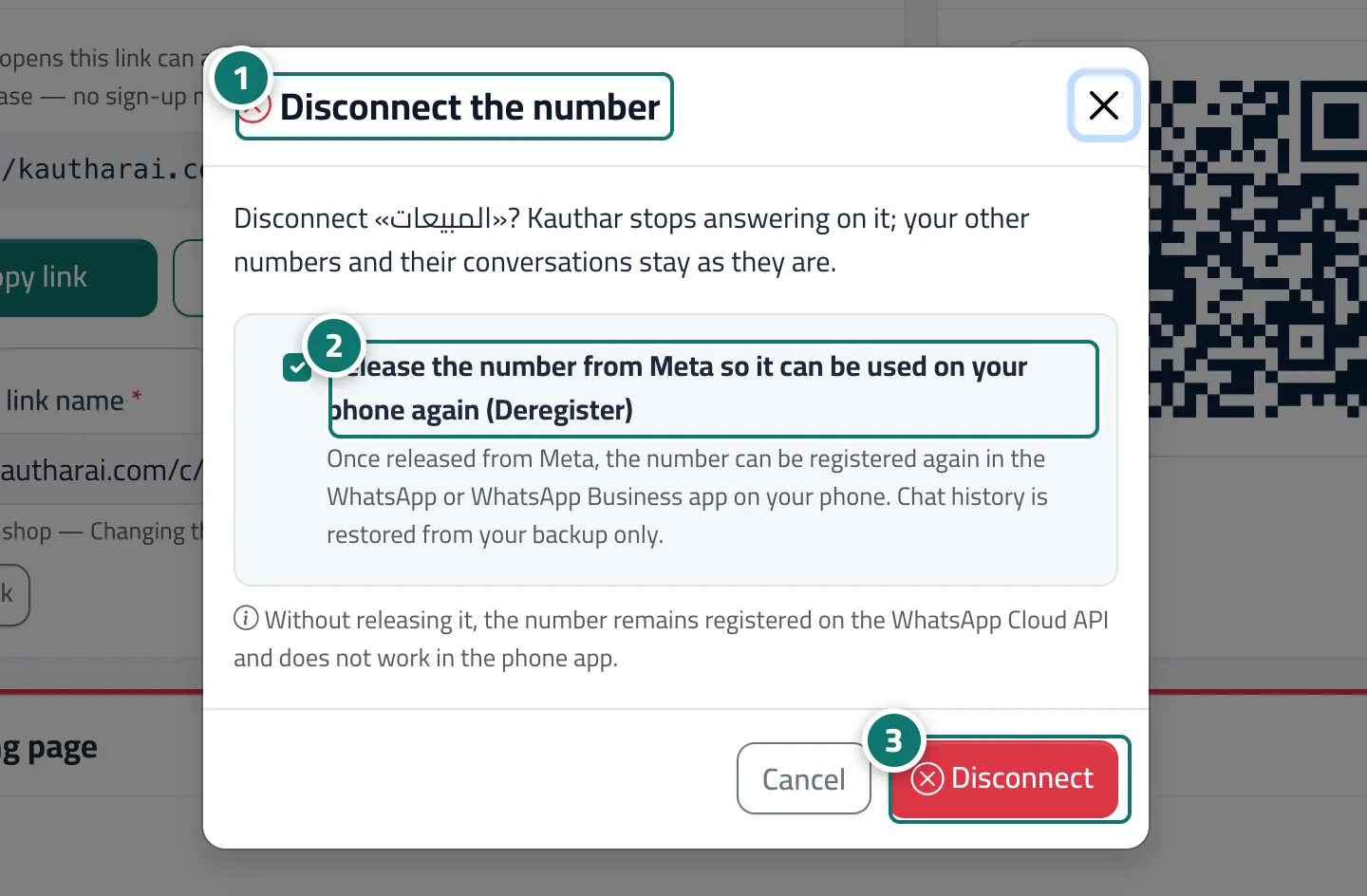
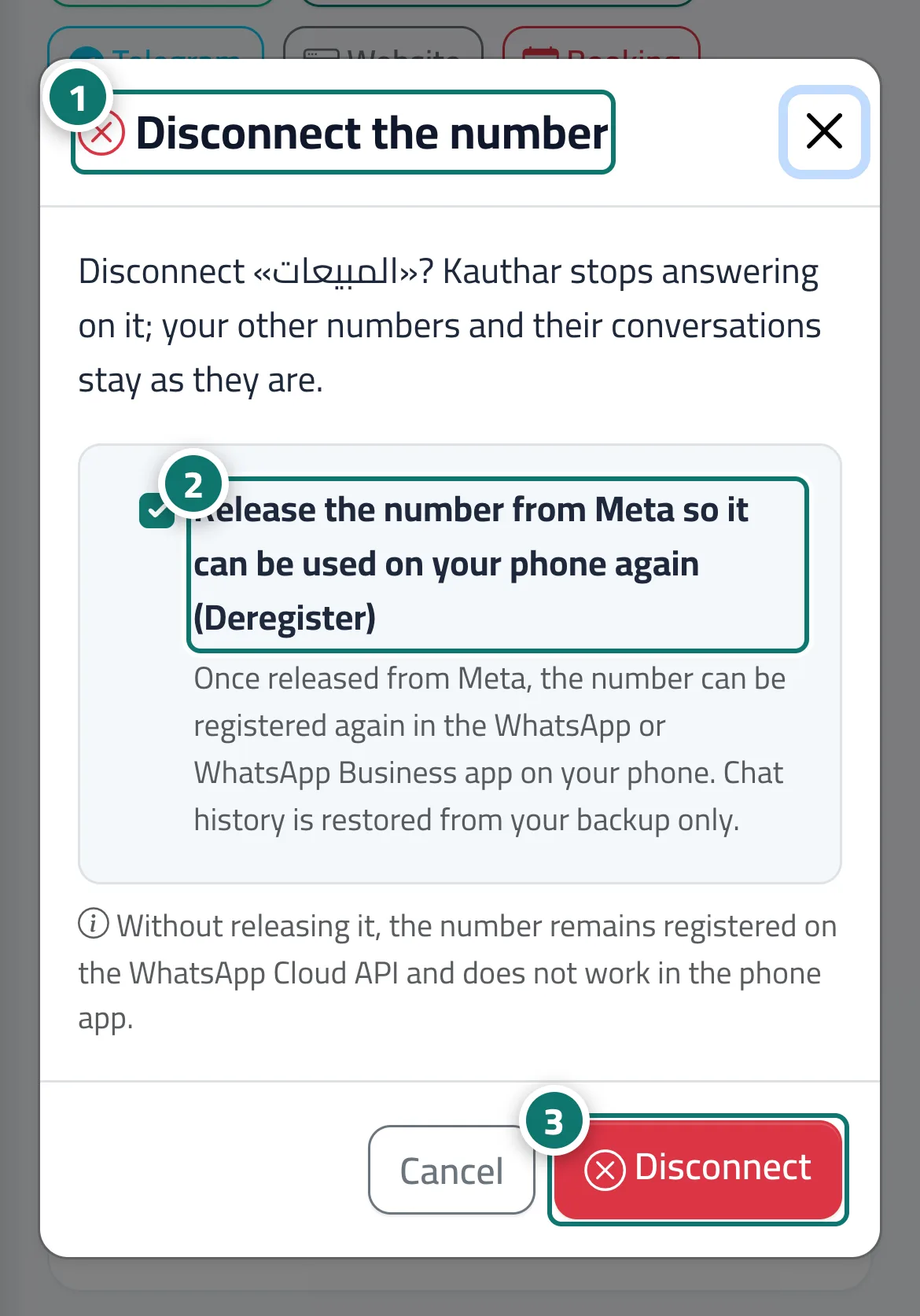
The Disconnect number button on each number's card opens the Disconnect number window, showing the number's name and the option Release the number from Meta so it can be used on your phone again (Deregister), ticked by default. With release, you can register the number again in the WhatsApp or WhatsApp Business app on your phone (chat history comes back from your backup only). Without release, the number stays registered on the WhatsApp Cloud API and doesn't work in the phone app. After disconnecting, Kauthar stops replying on this number, and your other numbers and their conversations stay as they are.
- Pour qui ?
- Business owner / manager (or a team member allowed to edit Channels)
- Où le trouver ?
- Sidebar → Channels & customers → Channels → the number's card → Disconnect number
Pas à pas#
- Click Disconnect number on the number's card; the Disconnect number window opens.
- Keep Release the number from Meta… ticked if you want to use the number in the WhatsApp app on your phone, or untick it to keep it registered on the Cloud API.
- Click Disconnect number to confirm.
Astuces#
Bon à savoir#
Questions fréquentes#
What happens to earlier conversations in Kauthar?
They stay in Conversations as they are; only replies on the disconnected number stop.