
Select several emails and act on them
Select one or more conversations (or all of them) in «Mail», then mark them read or unread, archive, delete, move to spam, star or label them — in one click.
Vue d’ensemble#
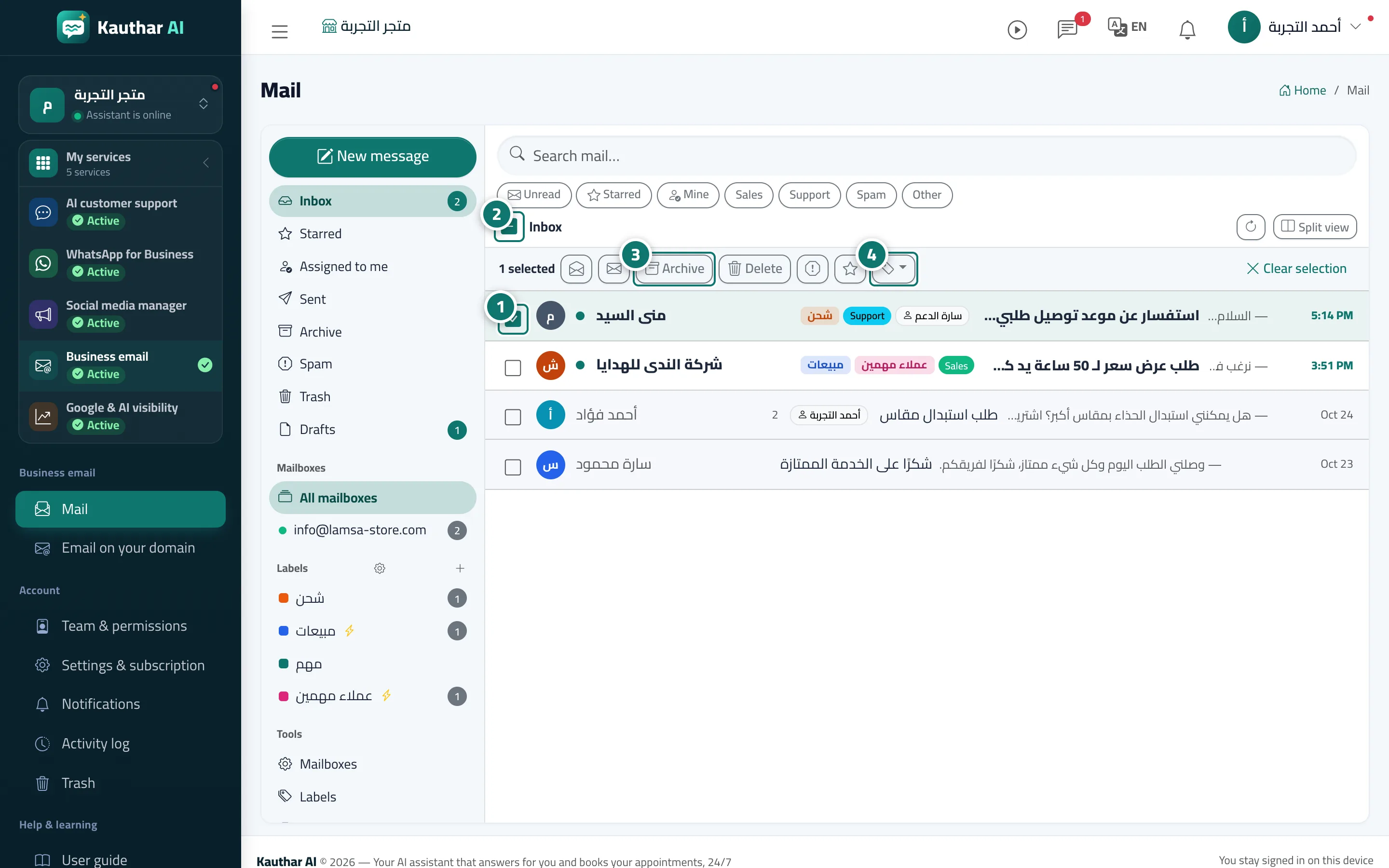
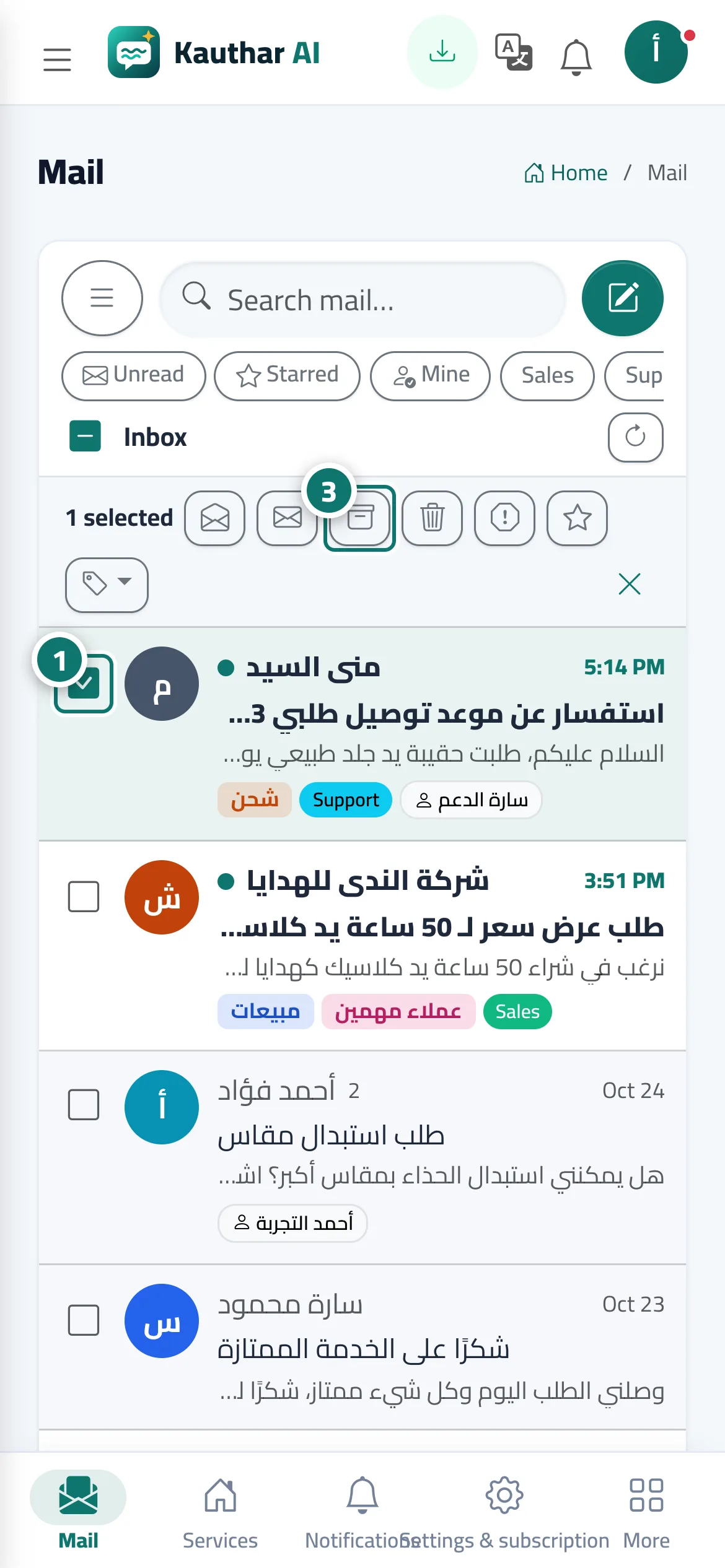
Every conversation in the Mail list has a checkbox, and the top of the list has Select all for every conversation shown. As soon as one is selected, the Actions on selected bar appears with the number selected and the buttons Mark as read, Mark as unread, Archive, Delete (to Trash), Spam, Star, a Label menu with your labels, and Clear selection. After the action Kauthar shows Done for {n} conversations, and if the open message was archived, deleted or moved it closes by itself.
- Pour qui ?
- Everyone with the Mail permission (read / unread) · archive, delete, spam, star and label need the edit permission
- Où le trouver ?
- Sidebar → Business email → Mail → the checkboxes in the list
Pas à pas#
- Click the checkbox next to a conversation, and repeat for every conversation you want.
- Or click Select all at the top of the list to select every conversation shown (click it again to clear).
- In the Actions on selected bar choose the action: Archive, Delete, Spam, Star or mark as read / unread.
- To label them, open the Label button and pick a label; then Clear selection when you are done.
Astuces#
Bon à savoir#
Questions fréquentes#
Does Delete in multi-select delete the emails for good?
No. It moves them to Trash in the mailbox, just like deleting from inside a conversation.