
Response times (SLA) based on working hours
Set the maximum time to first reply and to resolution for each priority, counted during your working hours only — not nights or days off.
Vue d’ensemble#
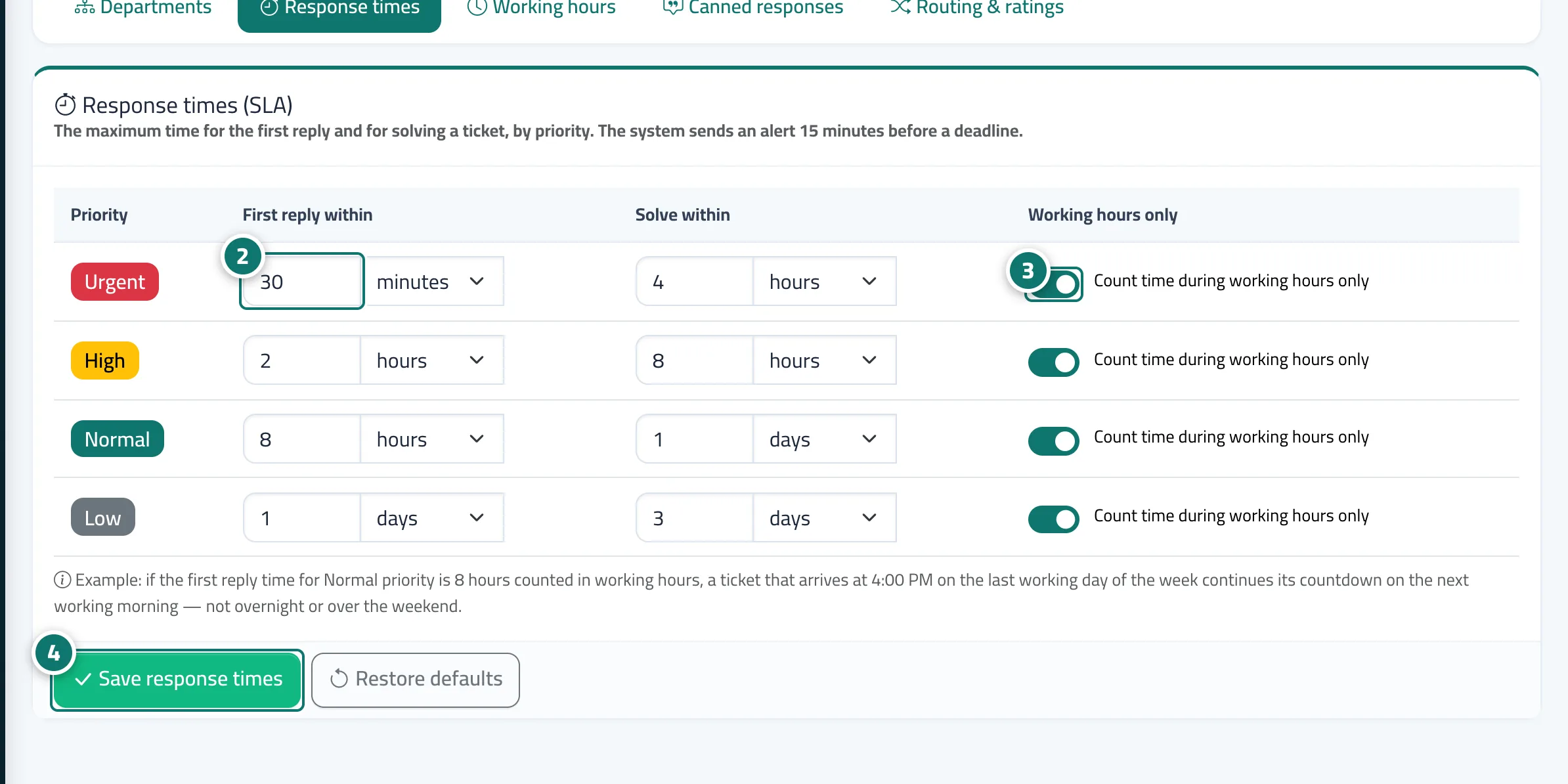
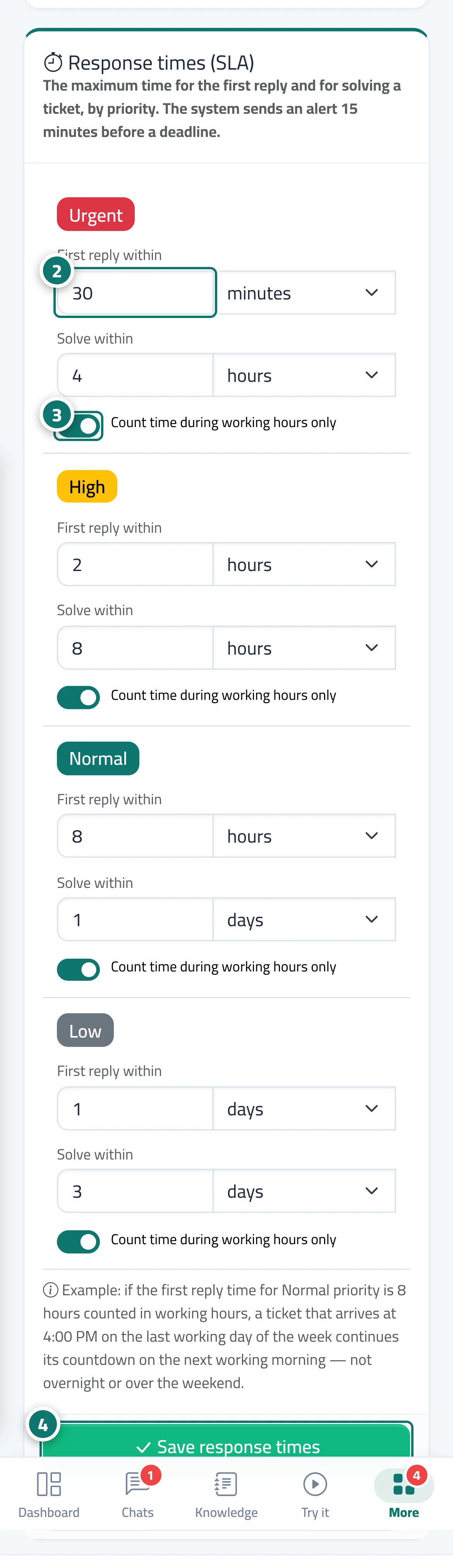
For each priority (urgent, high, normal, low) you set First reply within and Solve within in minutes, hours or days, and choose whether the time counts during working hours only. Defaults: urgent 30 minutes / 4 hours · high 2 hours / 8 hours · normal 8 hours / 1 day · low 1 day / 3 days. Each ticket gets its deadlines when it is opened, and they are recalculated if its priority changes.
- Pour qui ?
- Business owner / manager
- Où le trouver ?
- Sidebar → Support desk → Support desk settings → Response times
Pas à pas#
- Open Support desk settings → the Response times tab.
- For each priority, enter a number and choose the unit (minute / hour / day) for First reply within and Solve within.
- Turn on Count time during working hours only for the priorities you want.
- Press Save response times. To go back to the original settings, press Restore defaults.
Astuces#
Bon à savoir#
Questions fréquentes#
If I change the deadlines, are existing tickets affected?
Deadlines are set when a ticket is opened, so new values apply to new tickets; an older ticket is recalculated if its priority changes.
How do I know a ticket is about to be late?
A quarter of an hour before the deadline, the assigned agent (or the whole team if the ticket is unassigned) gets an alert, and the countdown in the list turns amber and then red.
What does Working hours only mean?
Time outside your working hours and on days off isn't counted against the deadline. Hours are set in the Working hours tab.