
Assistant identity and messages
Choose your assistant's name, picture and welcome message, tell her about your business, and check the result in a live preview before you save.
Vue d’ensemble#
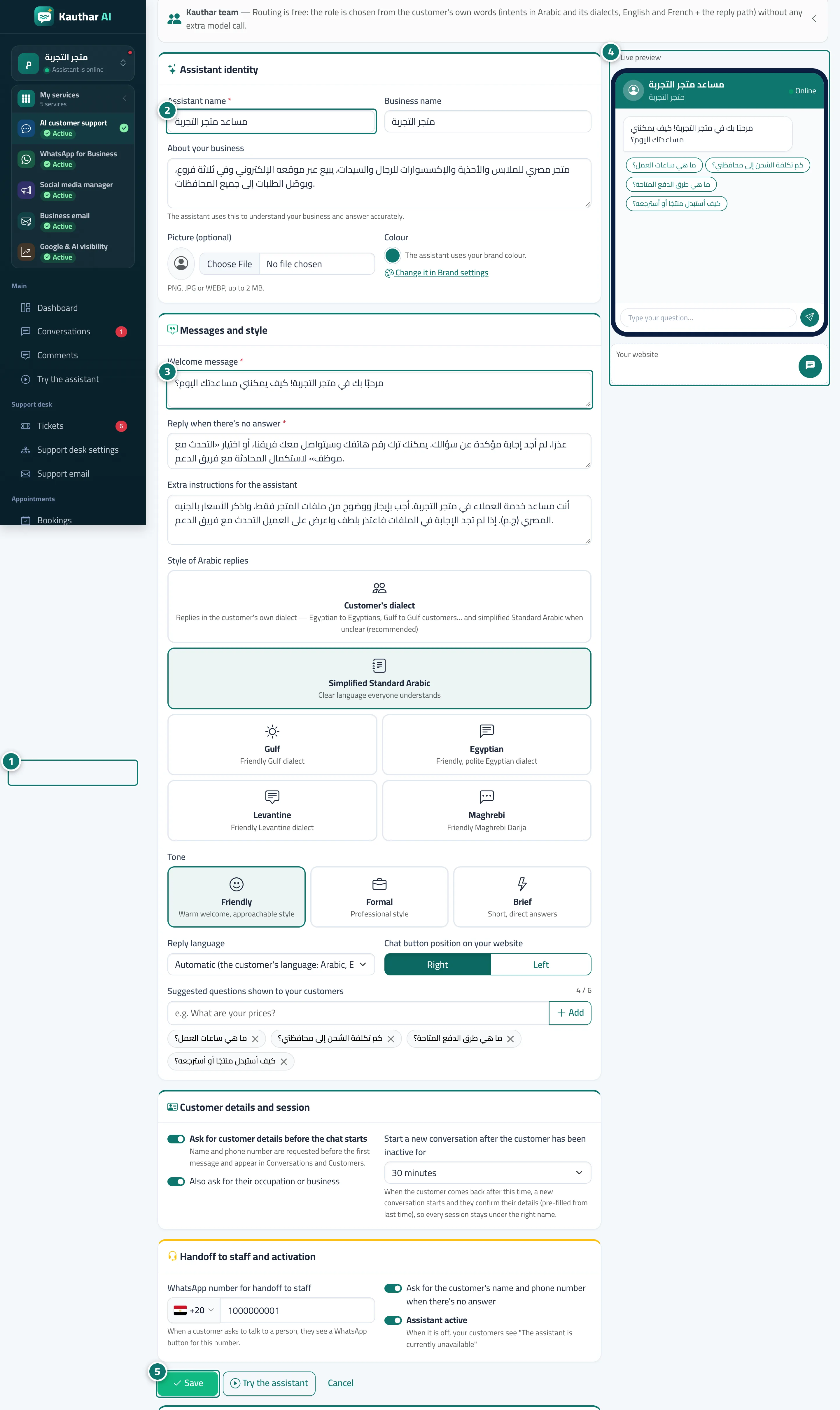
The Assistant settings page has an Assistant identity card: the assistant name (Kauthar by default), the business name your customers see at the top of the chat, About your business, which helps the assistant understand what you do, and an optional picture. The assistant's colour follows your brand colour from Brand. In the Messages and style card you write the Welcome message, the Reply when there's no answer and the Extra instructions for the assistant, and choose the Chat button position on your website (right or left). A Live preview at the side updates as you type. In the Handoff to staff and activation card, the Assistant active switch turns her on or off; while she is off your customers see The assistant is currently unavailable. At the bottom of the page, the Business profile card is written by Kauthar automatically from your knowledge base so she can answer general questions such as What do you offer?.
- Pour qui ?
- Business owner / admin
- Où le trouver ?
- Sidebar → Account → Assistant settings
Pas à pas#
- Open Assistant settings from the sidebar.
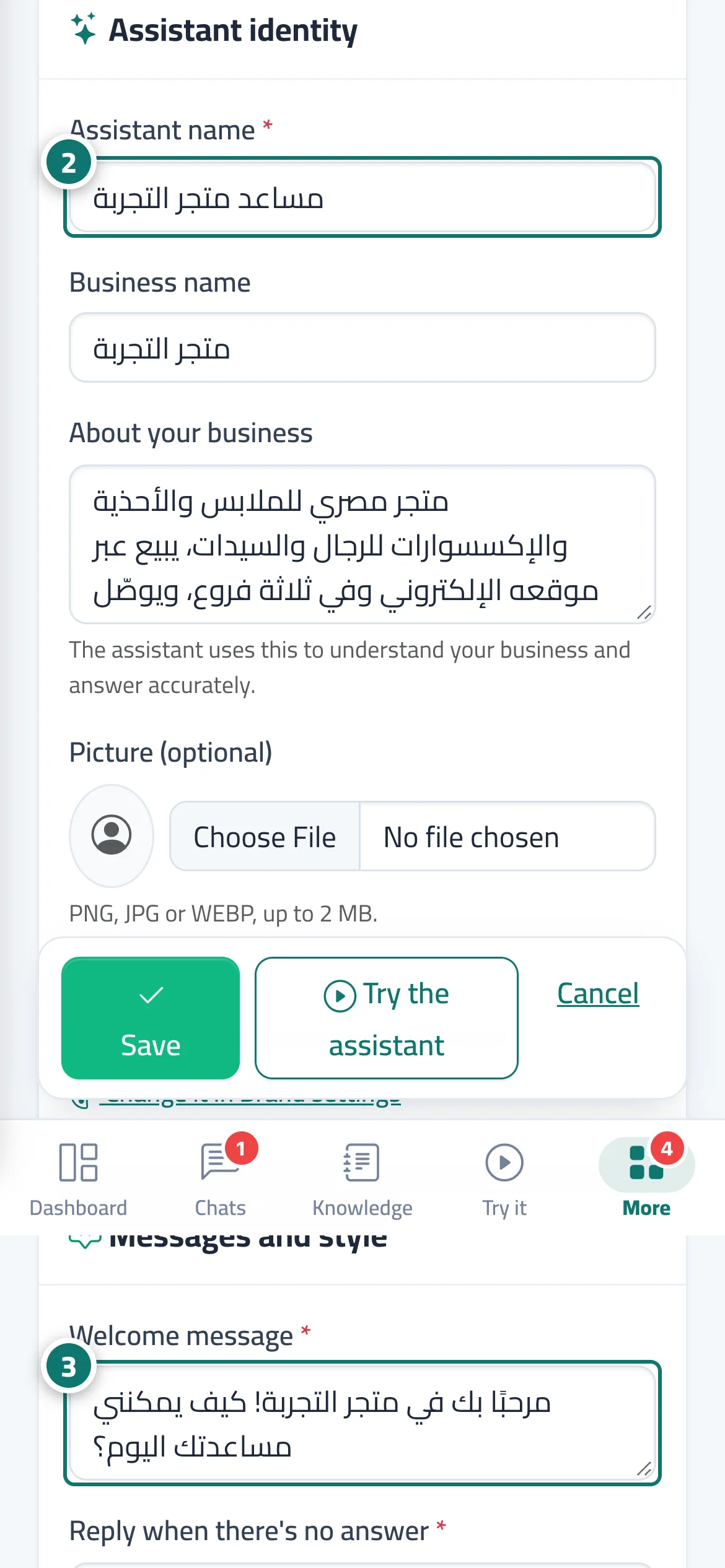
- Fill in the Assistant identity card: assistant name, business name, About your business, and a picture if you like.
- In Messages and style, write the Welcome message, the Reply when there's no answer and the Extra instructions for the assistant.
- Check the Live preview at the side.
- Press Save, then test the result with the Try the assistant button.
Astuces#
Bon à savoir#
Questions fréquentes#
How do I pause the assistant for a while?
Turn off the Assistant active switch in the Handoff to staff and activation card and press Save. Your customers then see The assistant is currently unavailable. Your answers and files stay as they are until you turn her back on.
Is the Business name here the same as in Settings?
This is the name your customers see at the top of the chat. The business name in Settings & subscription appears on the internal screens, and the Name shown to your customers in Brand is used on your other customer pages.
Can I give the assistant a name other than Kauthar?
Yes. Type any name in Assistant name (for example Sarah from Customer Care) and press Save.