
Reply paths with buttons
Ready-made buttons in the chat, such as «Prices» and «Shipping», that take your customer to their answer in one tap with an instant reply.
Vue d’ensemble#
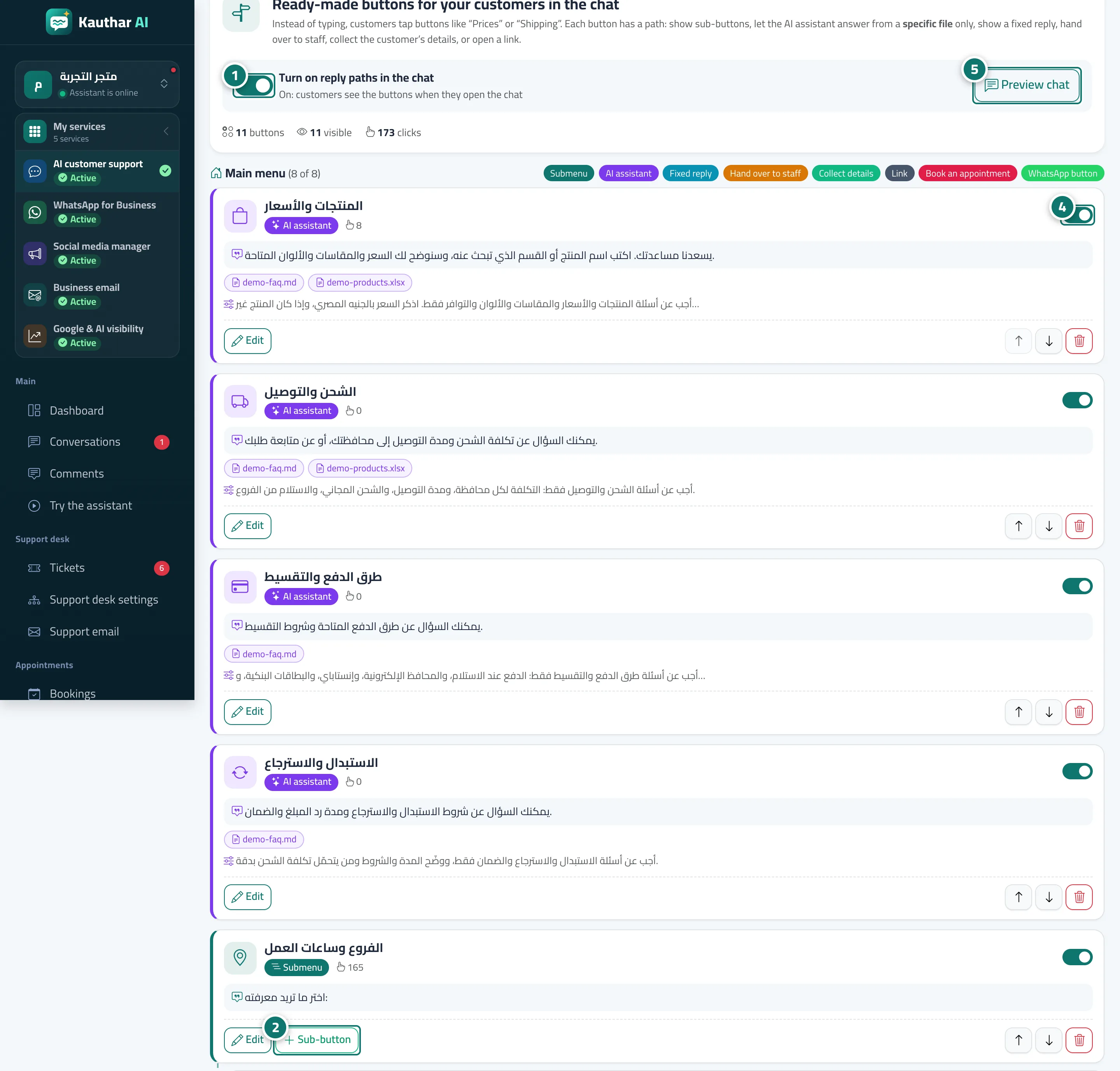
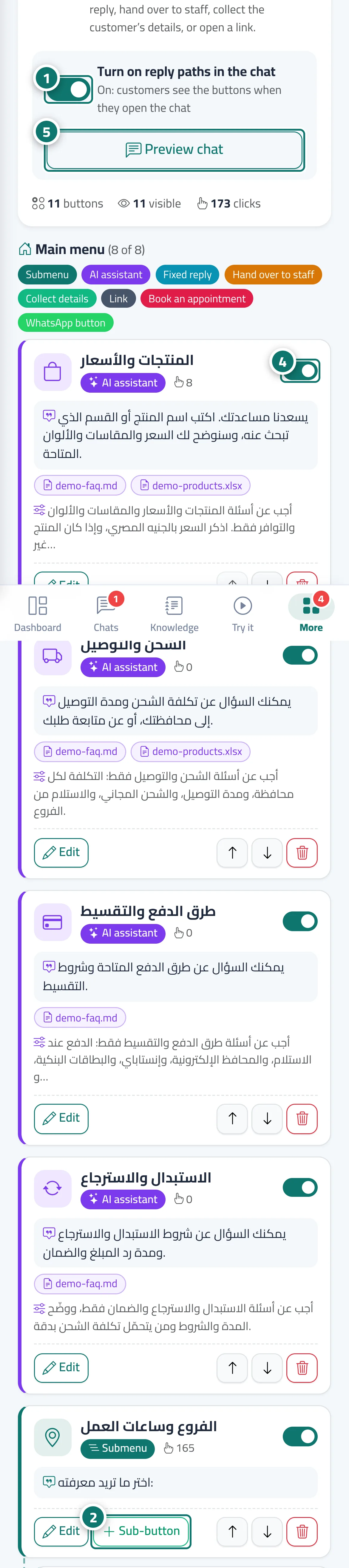
Instead of typing a question, the customer finds buttons when the chat opens. Each button has a type that decides what happens when it is tapped: Submenu (shows more buttons), AI assistant (answers only from files you choose, with its own instructions), Fixed reply (a message you write yourself), Hand over to staff, Collect details (name and phone number), Link (a message with a button that opens a link), Book an appointment (booking steps inside the chat) and WhatsApp button (a green button that opens a WhatsApp chat with a number you choose — one of your connected numbers or any other number, such as a branch — with a ready message for the customer to send). Each button has an icon chosen from a library of 47 icons grouped for businesses. The page shows the whole tree with the Number of clicks on each button, a global switch Turn on reply paths in the chat and a Preview chat button.
- Pour qui ?
- Business owner / manager
- Où le trouver ?
- Sidebar → Train your assistant → Reply paths
Pas à pas#
- Open Reply paths and make sure Turn on reply paths in the chat is on. If the list is empty you can start with Use a template (it adds: products and prices · shipping and delivery · payment methods · exchanges and returns · talk to a team member).
- Click Add a button to the main menu, or Sub-button under any button of type Submenu.
- Enter the Button text, pick an Icon (optional) from the library, choose its type under When the customer taps the button, write the Message shown to the customer, then click Save.
- Reorder buttons with Move up and Move down, and show or hide each button with the Visible to customers switch.
- Click Preview chat to see the buttons exactly as your customers see them.
Astuces#
Bon à savoir#
Questions fréquentes#
What happens if I delete a button that has sub-buttons?
The button and all the buttons under it are deleted after a confirmation message. If you only want to pause it, switch off Visible to customers instead of deleting.
How do I see which buttons customers tap most?
Each button shows its Number of clicks, and the top of the page shows the total buttons, how many are visible and the total clicks.
Can I turn the buttons off and keep the chat typing-only?
Yes — switch off Turn on reply paths in the chat and the assistant will only receive typed questions.
Can I use an emoji instead of an icon?
No. Icons come from one unified library of 47 business icons so the chat looks professional and consistent; you can also choose No icon.
How do I make a button open a specific branch's WhatsApp?
Add a button of type WhatsApp button, choose Another WhatsApp number and enter the branch number with its country code — or choose One of your connected numbers if the number is connected to Kauthar. Taps on these buttons appear in Reports → WhatsApp button taps.