
Assistant & knowledge · Assistant identity and messages
How do I change the assistant's name and welcome message?
Choose your assistant's name, picture and welcome message, tell her about your business, and check the result in a live preview before you save.
Who this is for: Owner & manager
Where: Sidebar → Account → Assistant settings
Steps
- Open «Assistant settings» from the sidebar.
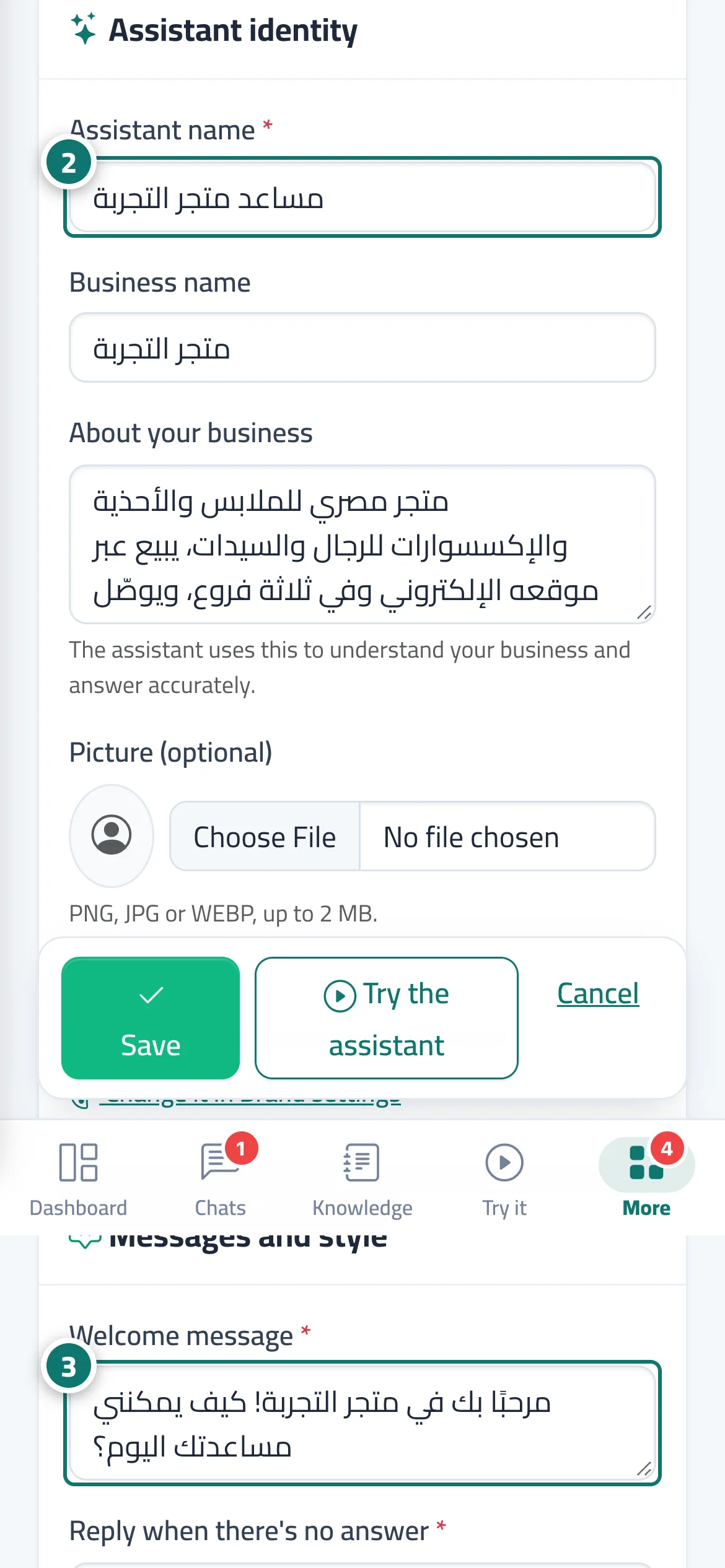
- Fill in the «Assistant identity» card: assistant name, business name, «About your business», and a picture if you like. Number 2 on the picture
- In «Messages and style», write the «Welcome message», the «Reply when there's no answer» and the «Extra instructions for the assistant». Number 3 on the picture
- Check the «Live preview» at the side.
- Press «Save», then test the result with the «Try the assistant» button.
Steps
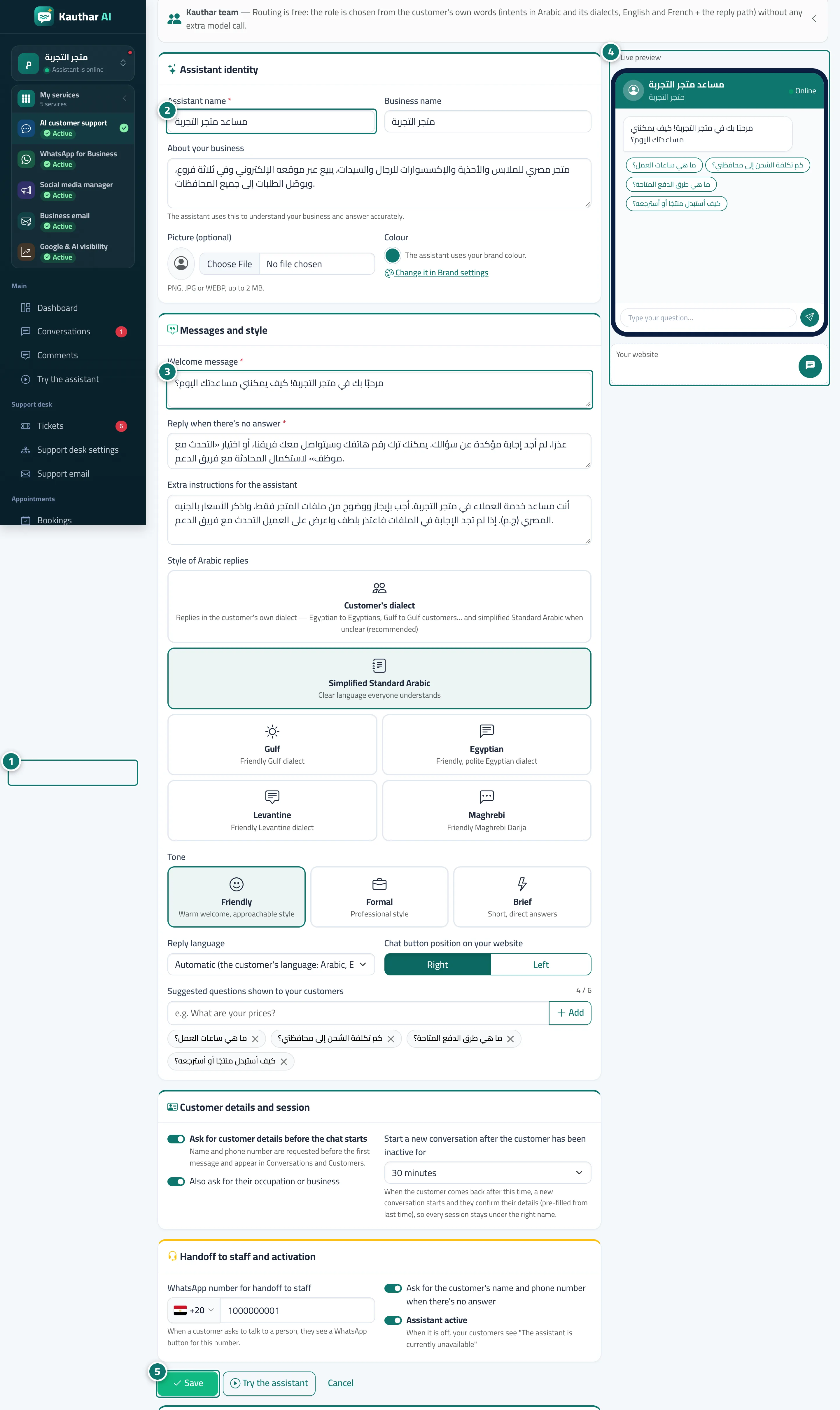
- Open «Assistant settings» from the sidebar. Number 1 on the picture
- Fill in the «Assistant identity» card: assistant name, business name, «About your business», and a picture if you like. Number 2 on the picture
- In «Messages and style», write the «Welcome message», the «Reply when there's no answer» and the «Extra instructions for the assistant». Number 3 on the picture
- Check the «Live preview» at the side. Number 4 on the picture
- Press «Save», then test the result with the «Try the assistant» button. Number 5 on the picture