
Channels · Disconnect a WhatsApp number and release it from Meta
How do I disconnect a WhatsApp number from Kauthar?
Disconnect any WhatsApp number from Kauthar and choose to release it from Meta so you can use it again in the WhatsApp app on your phone; your other numbers and their conversations stay as they are.
Who this is for: Owner & manager · Team members
Where: Sidebar → Channels & customers → Channels → the number's card → «Disconnect number»
Steps
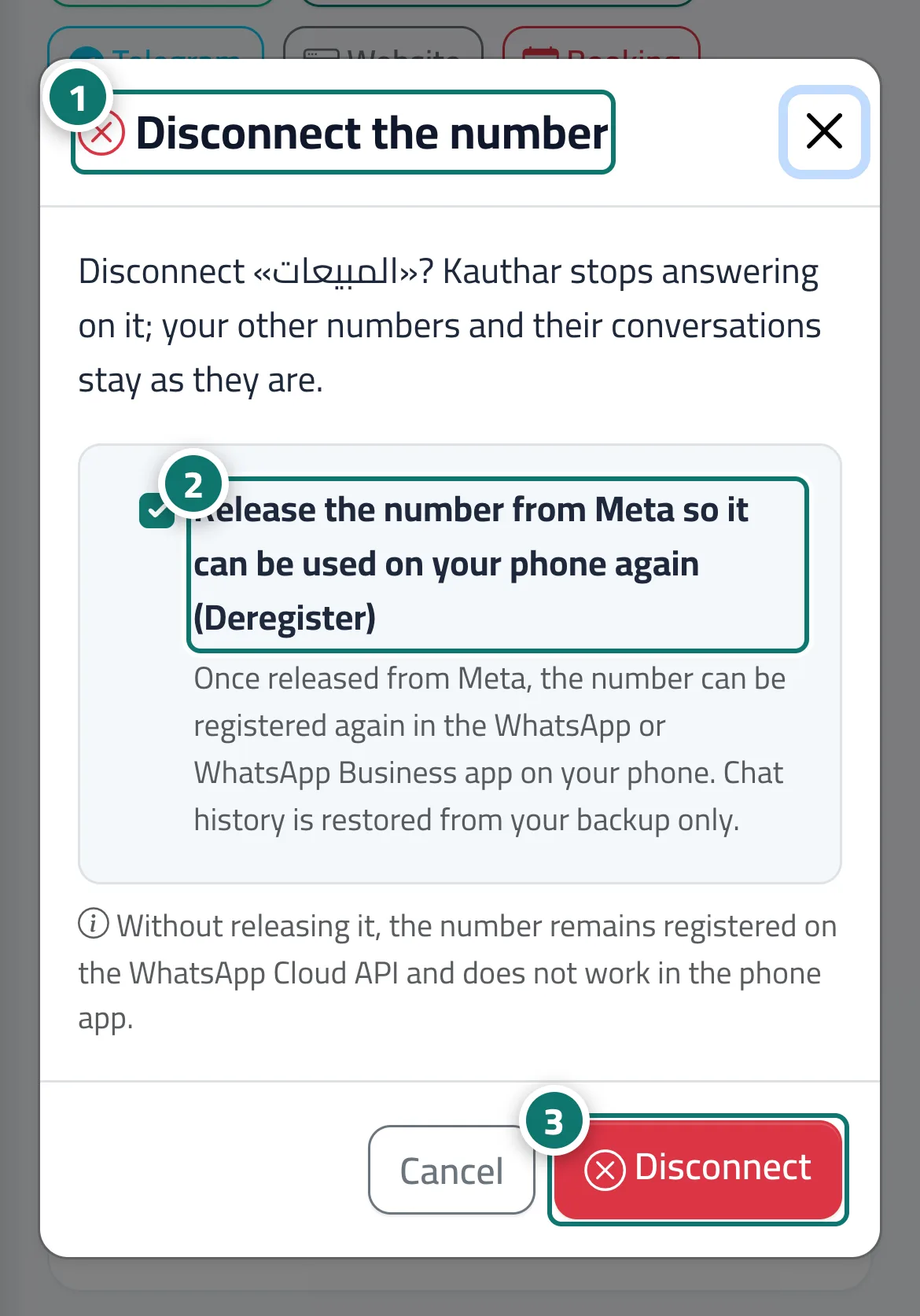
- Click «Disconnect number» on the number's card; the «Disconnect number» window opens. Number 1 on the picture
- Keep «Release the number from Meta…» ticked if you want to use the number in the WhatsApp app on your phone, or untick it to keep it registered on the Cloud API. Number 2 on the picture
- Click «Disconnect number» to confirm. Number 3 on the picture
Steps
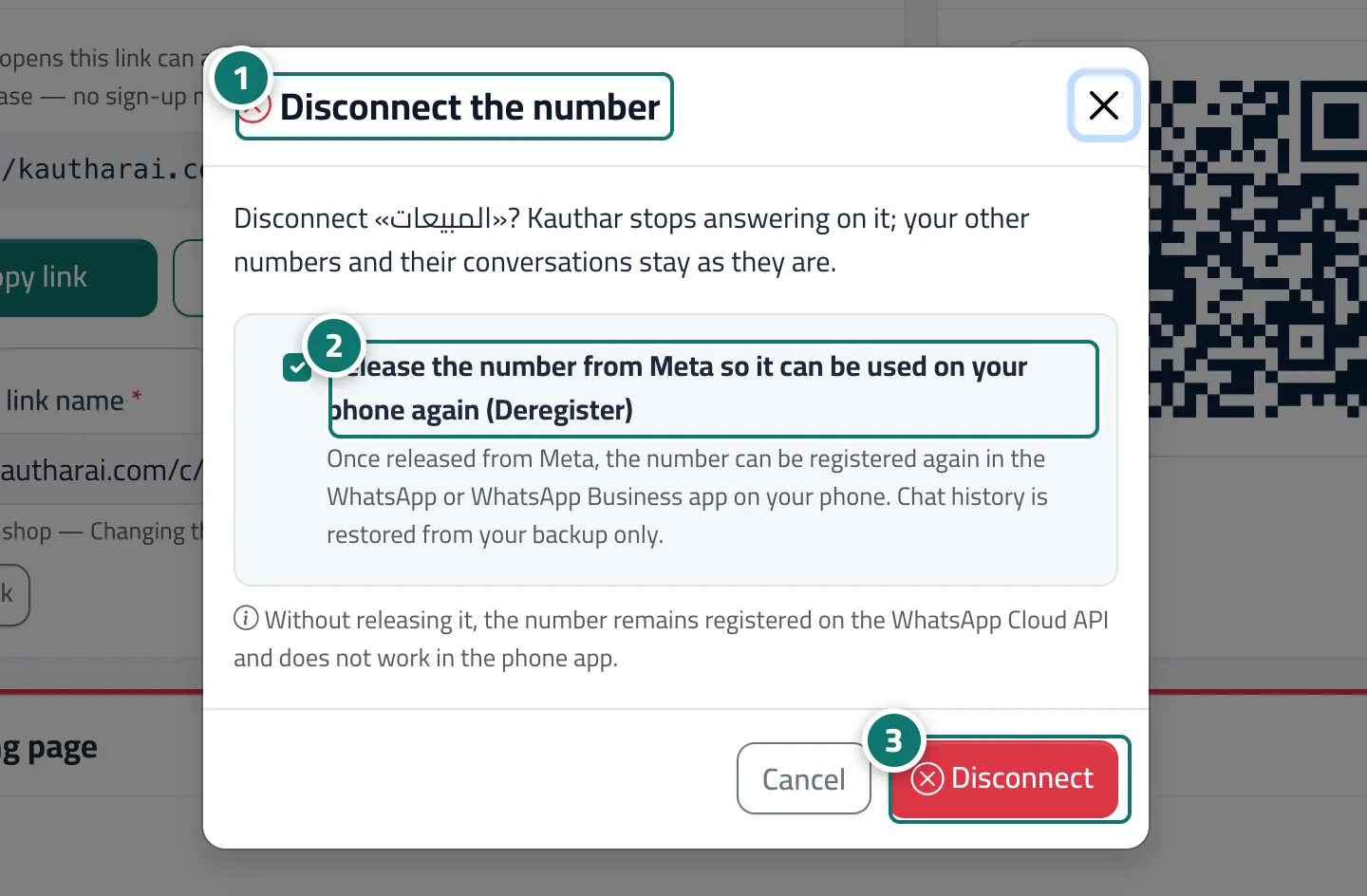
- Click «Disconnect number» on the number's card; the «Disconnect number» window opens. Number 1 on the picture
- Keep «Release the number from Meta…» ticked if you want to use the number in the WhatsApp app on your phone, or untick it to keep it registered on the Cloud API. Number 2 on the picture
- Click «Disconnect number» to confirm. Number 3 on the picture