
Business email · Support email
How do I connect my support email so messages become tickets?
Connect your support mailbox: every incoming message becomes a ticket, and your reply reaches the customer from the same address.
Who this is for: Owner & manager
Where: Sidebar → Support desk → Support email
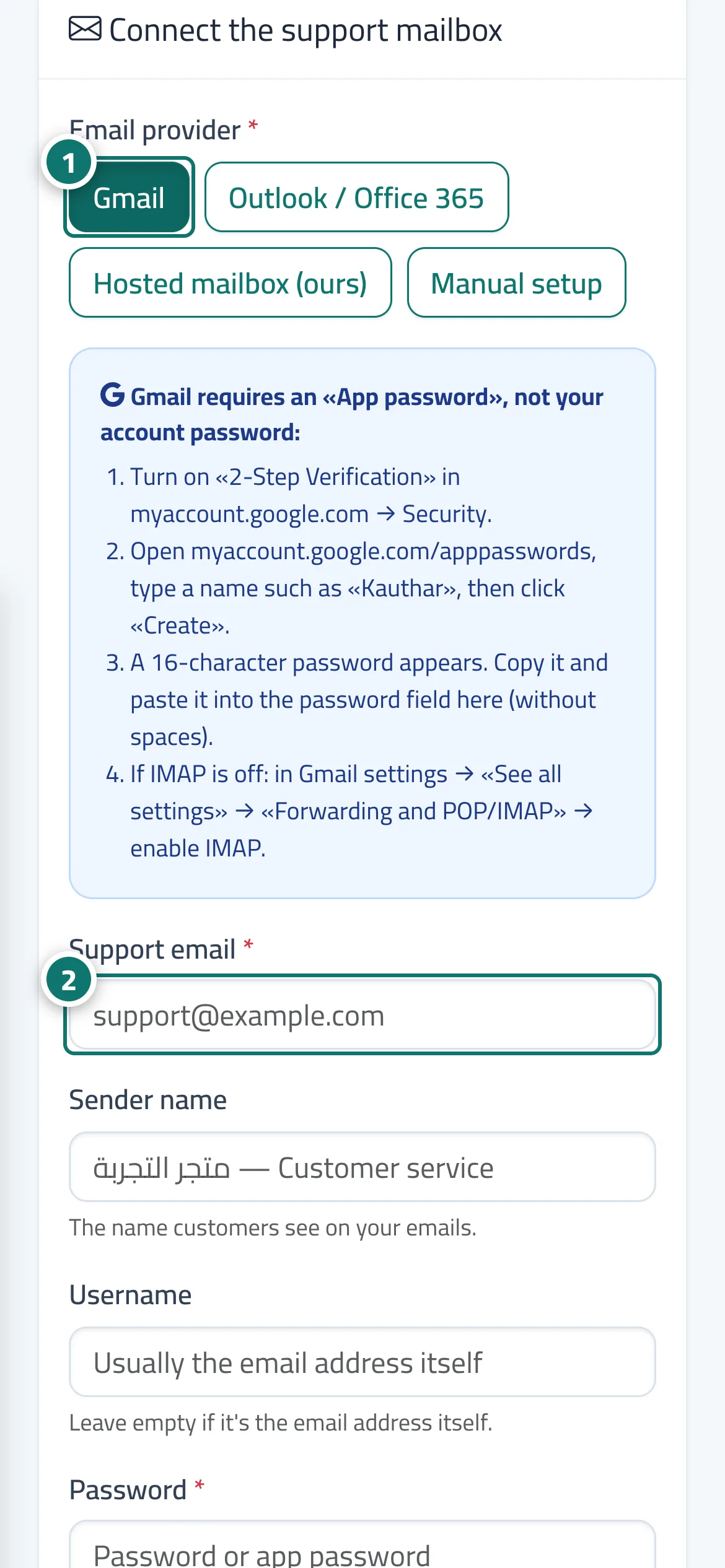
Steps
- Open «Support email» and choose the «Mail provider» (Gmail / Outlook / Office 365 / mailbox hosted with us / manual setup). Number 1 on the picture
- Enter the «Support email», the «Sender name» and the «Password» (Gmail needs a 16-character «App password»; the steps are explained on the page). Number 2 on the picture
- For manual setup, enter the «Incoming server (IMAP)» and «Outgoing server (SMTP)» with the port for each (port 465: turn SSL/TLS on; port 587: turn it off).
- Choose the «Default department for tickets», and turn on «Send an acknowledgement email with the ticket number» if you wish.
- Press «Test connection», then «Test and save». After that you can press «Fetch messages now» at any time.
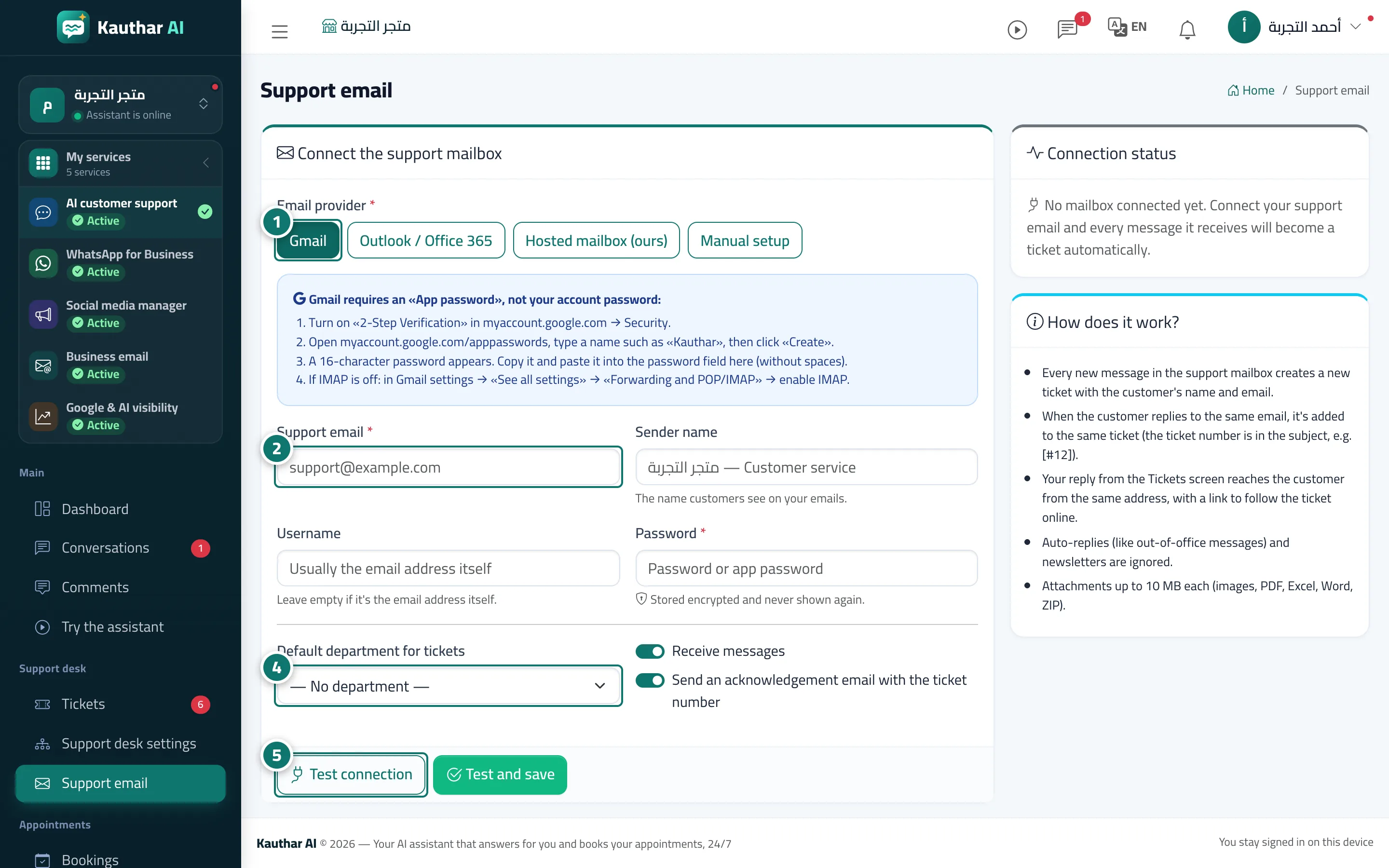
Steps
- Open «Support email» and choose the «Mail provider» (Gmail / Outlook / Office 365 / mailbox hosted with us / manual setup). Number 1 on the picture
- Enter the «Support email», the «Sender name» and the «Password» (Gmail needs a 16-character «App password»; the steps are explained on the page). Number 2 on the picture
- For manual setup, enter the «Incoming server (IMAP)» and «Outgoing server (SMTP)» with the port for each (port 465: turn SSL/TLS on; port 587: turn it off).
- Choose the «Default department for tickets», and turn on «Send an acknowledgement email with the ticket number» if you wish. Number 4 on the picture
- Press «Test connection», then «Test and save». After that you can press «Fetch messages now» at any time. Number 5 on the picture