
Business email · Mail: one shared inbox for your team
How do I connect Gmail or Outlook to Kauthar?
Connect your business mailbox, Gmail, Outlook or any IMAP account and handle every email with your team in one Gmail-style place: folders, labels, assignment to a colleague, internal notes and turning a conversation into a ticket.
Who this is for: Owner & manager · Team members
Where: Sidebar → Business email → «Mail»
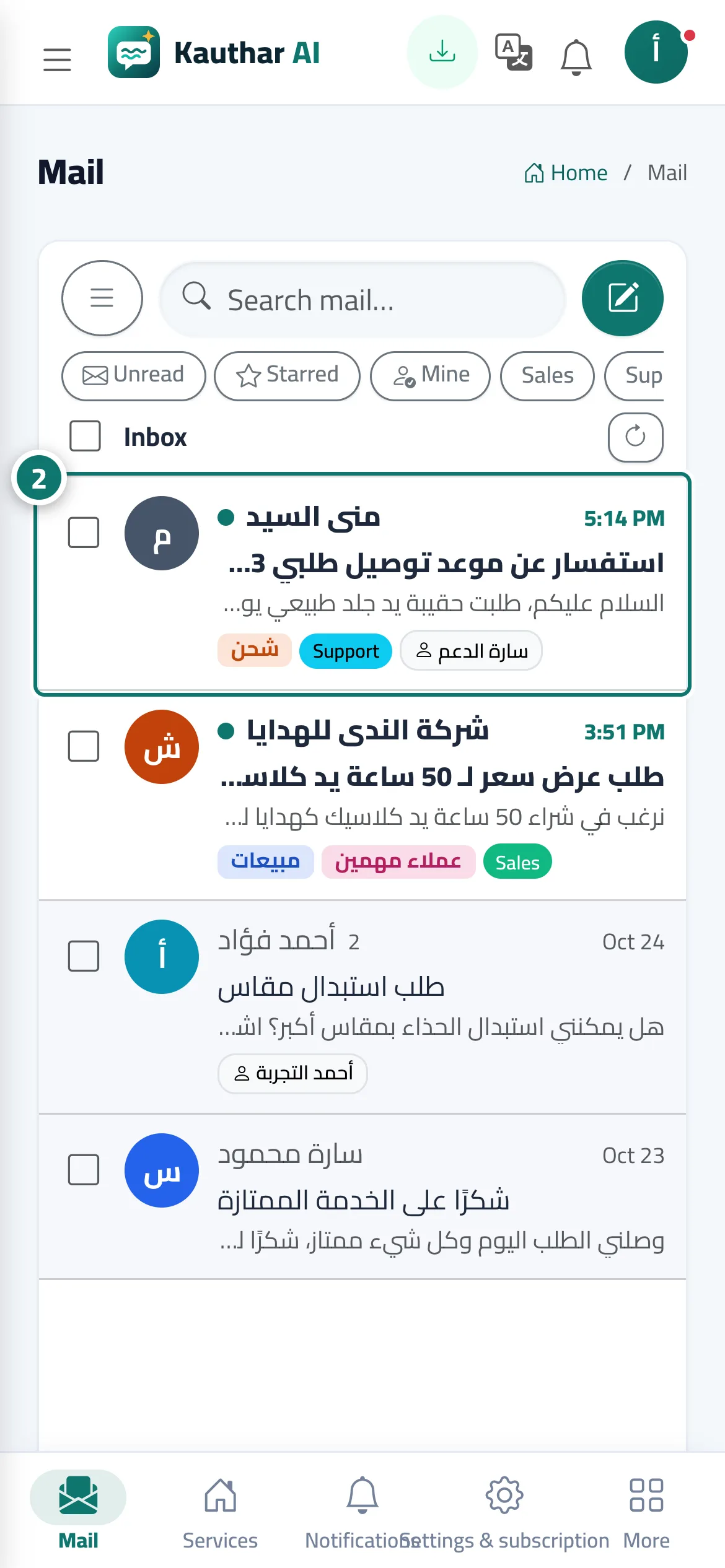
Steps
- Pick a folder in the list (such as «Inbox» or «Assigned to me») or a specific mailbox.
- Open a conversation from the list to read and answer it. Number 2 on the picture
- To connect a new mailbox, open «Mailboxes» → «Connect a mailbox», choose the provider, then «Connect and test».
- On a wide screen, click «Split view» to keep the list and the message side by side.
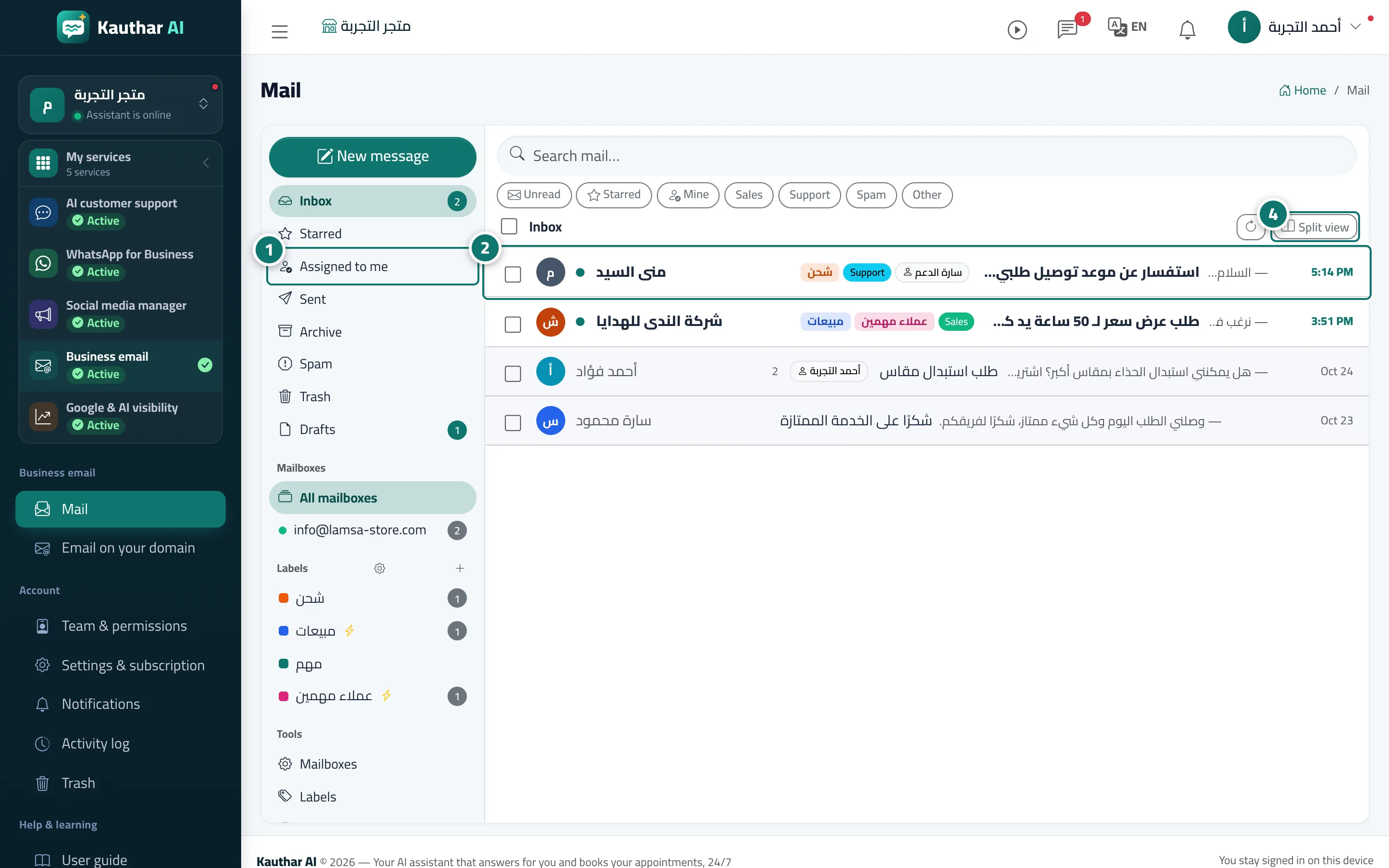
Steps
- Pick a folder in the list (such as «Inbox» or «Assigned to me») or a specific mailbox. Number 1 on the picture
- Open a conversation from the list to read and answer it. Number 2 on the picture
- To connect a new mailbox, open «Mailboxes» → «Connect a mailbox», choose the provider, then «Connect and test».
- On a wide screen, click «Split view» to keep the list and the message side by side. Number 4 on the picture