
Business email · Select several emails and act on them
How do I select several emails at once?
Select one or more conversations (or all of them) in «Mail», then mark them read or unread, archive, delete, move to spam, star or label them — in one click.
Who this is for: Owner & manager · Team members
Where: Sidebar → Business email → «Mail» → the checkboxes in the list
Steps
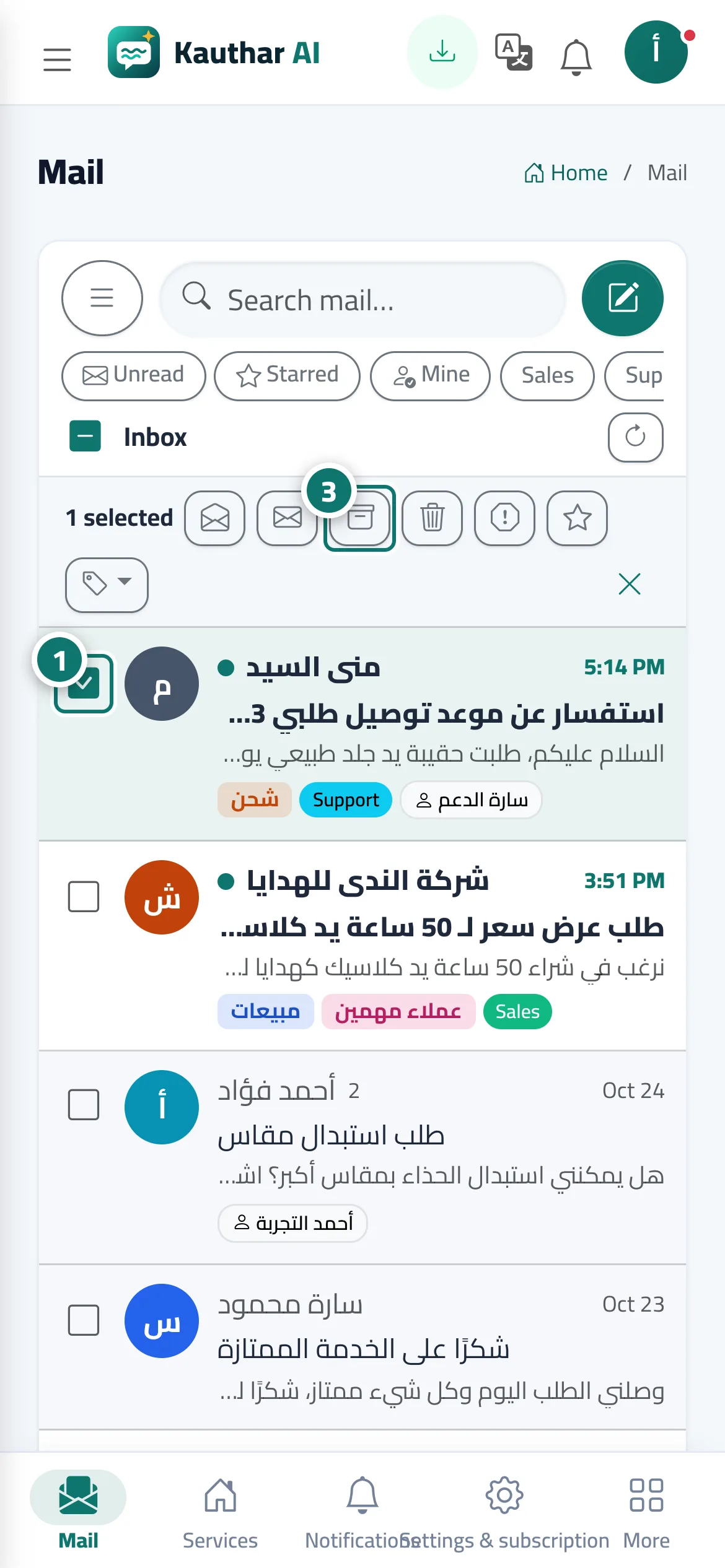
- Click the checkbox next to a conversation, and repeat for every conversation you want. Number 1 on the picture
- Or click «Select all» at the top of the list to select every conversation shown (click it again to clear).
- In the «Actions on selected» bar choose the action: «Archive», «Delete», «Spam», «Star» or mark as read / unread. Number 3 on the picture
- To label them, open the «Label» button and pick a label; then «Clear selection» when you are done.
Steps
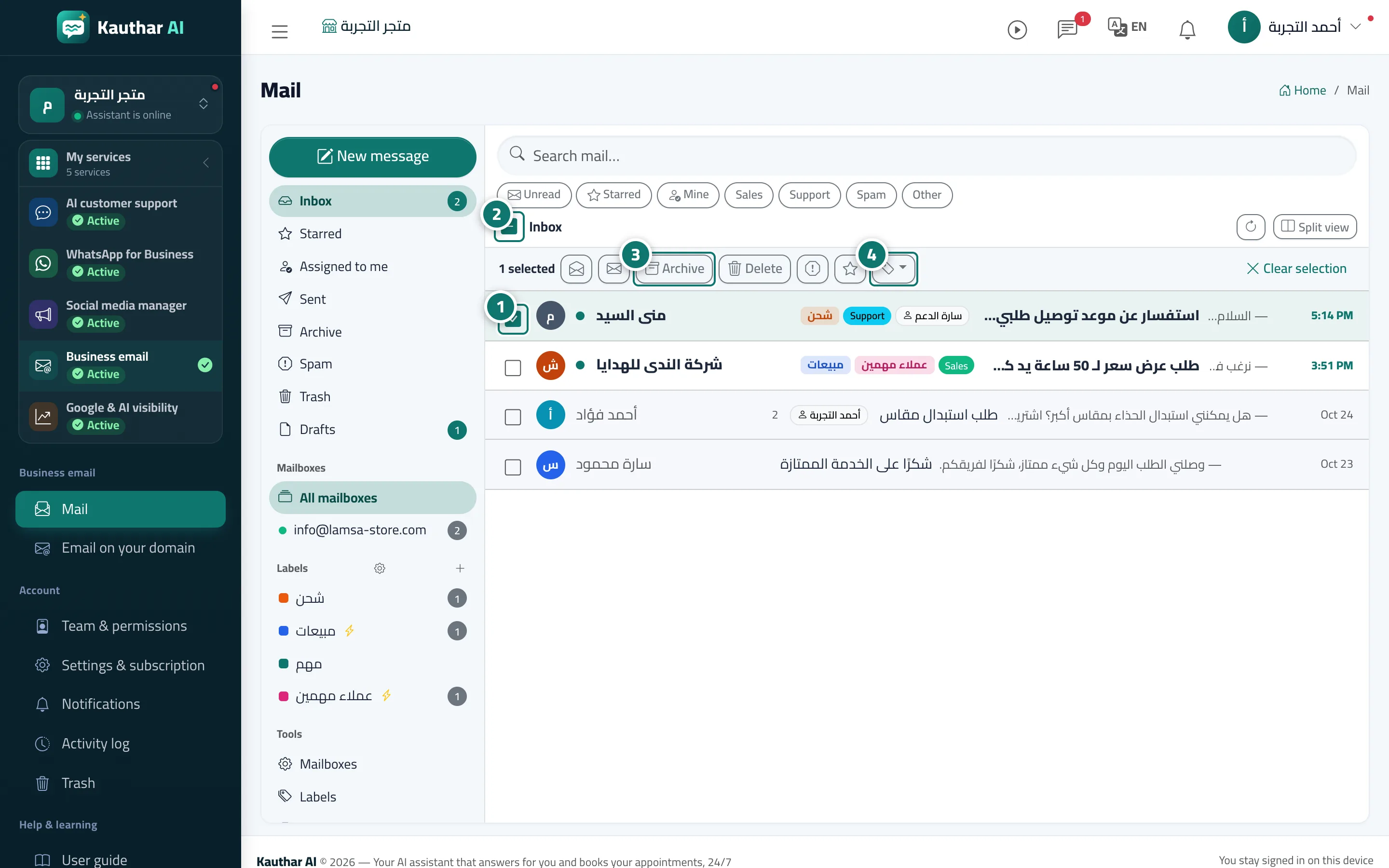
- Click the checkbox next to a conversation, and repeat for every conversation you want. Number 1 on the picture
- Or click «Select all» at the top of the list to select every conversation shown (click it again to clear). Number 2 on the picture
- In the «Actions on selected» bar choose the action: «Archive», «Delete», «Spam», «Star» or mark as read / unread. Number 3 on the picture
- To label them, open the «Label» button and pick a label; then «Clear selection» when you are done. Number 4 on the picture