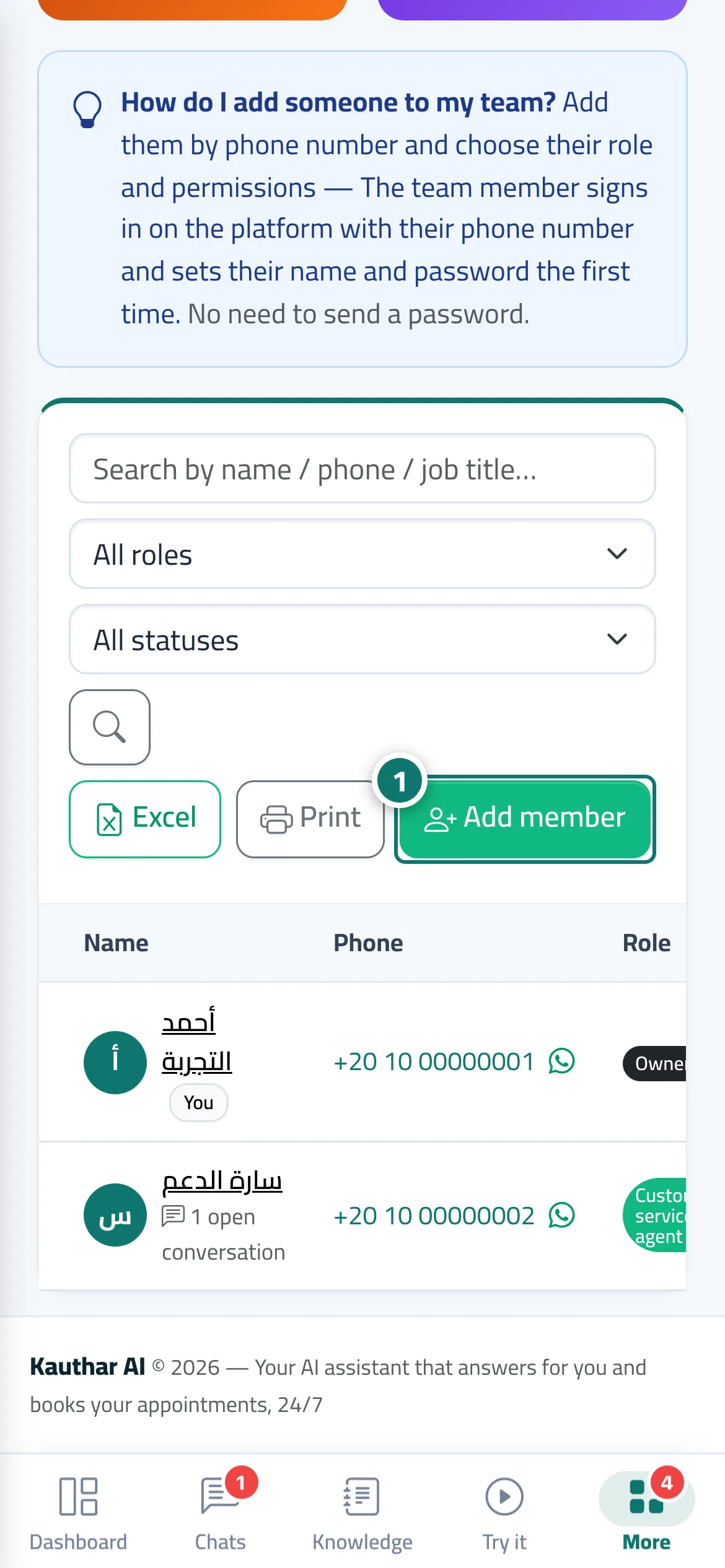
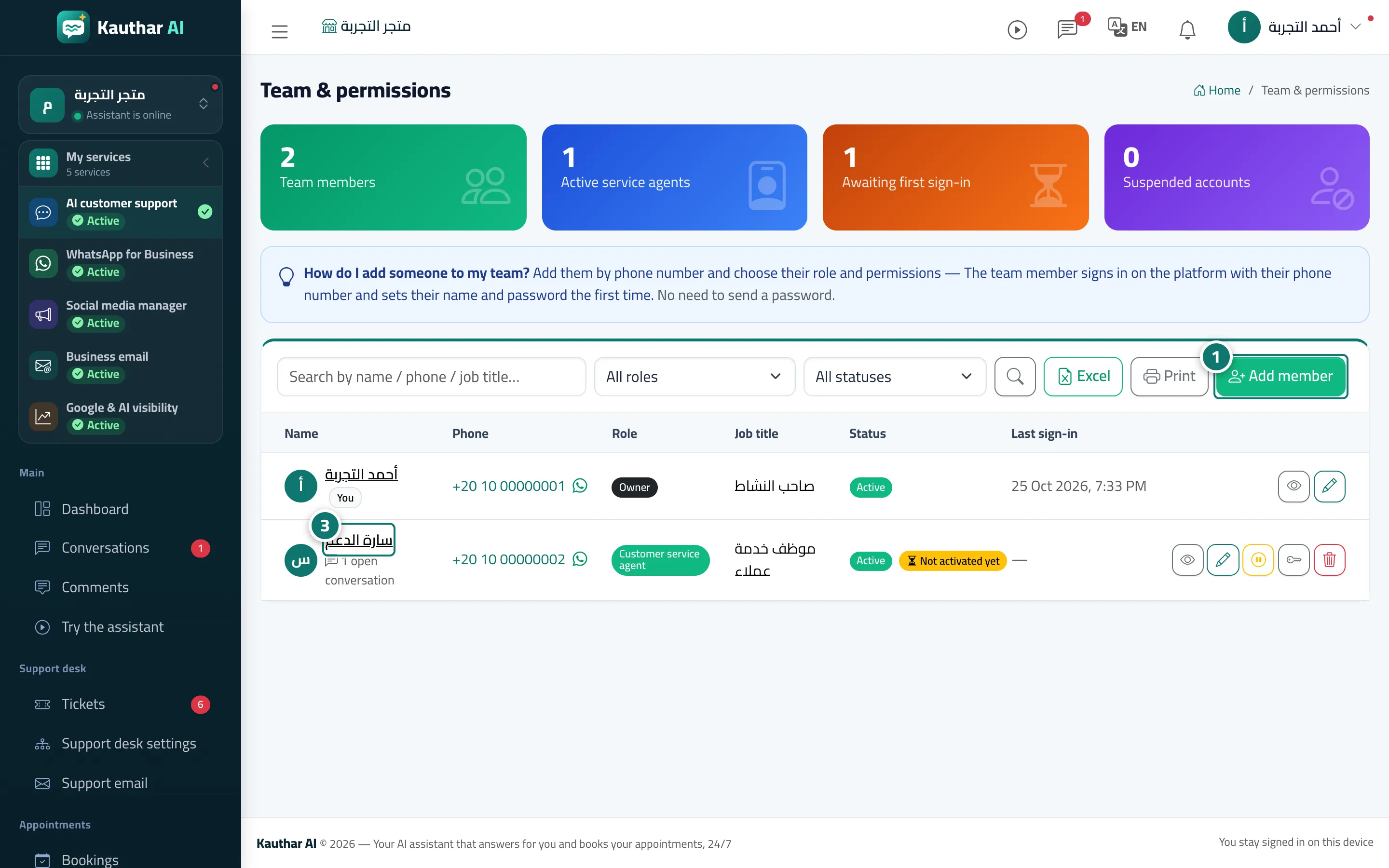
Add staff with just their phone number; each person sets their own name and password at first sign-in and works in their own language (Arabic, English or French).
Who this is for: Owner & manager
Where: Sidebar → Account → Team & permissions
Steps
1
Press «Add member». Number 1 on the picture
2
Choose the country and type the phone number, then the name, role and job title, and set the permissions.
3
Press «Save», then give the member the number and the sign-in link, or send the instructions with the «WhatsApp» button on their page.
4
The member signs in with their number, enters their name and password, and starts working.
Steps
1
Press «Add member». Number 1 on the picture
2
Choose the country and type the phone number, then the name, role and job title, and set the permissions.
3
Press «Save», then give the member the number and the sign-in link, or send the instructions with the «WhatsApp» button on their page. Number 3 on the picture
4
The member signs in with their number, enters their name and password, and starts working.