
Rendez-vous · Confirming, cancelling and rescheduling an appointment
How do I confirm a booking that is awaiting confirmation?
From the appointment details: confirm it, mark it «Done» or «No-show», move it, cancel it, or send the customer a confirmation on WhatsApp.
Pour qui : Propriétaire et responsable · Membres de l'équipe
Où : Sidebar → Appointments → Bookings → click any appointment
Étapes
- Open the appointment from the bookings schedule.
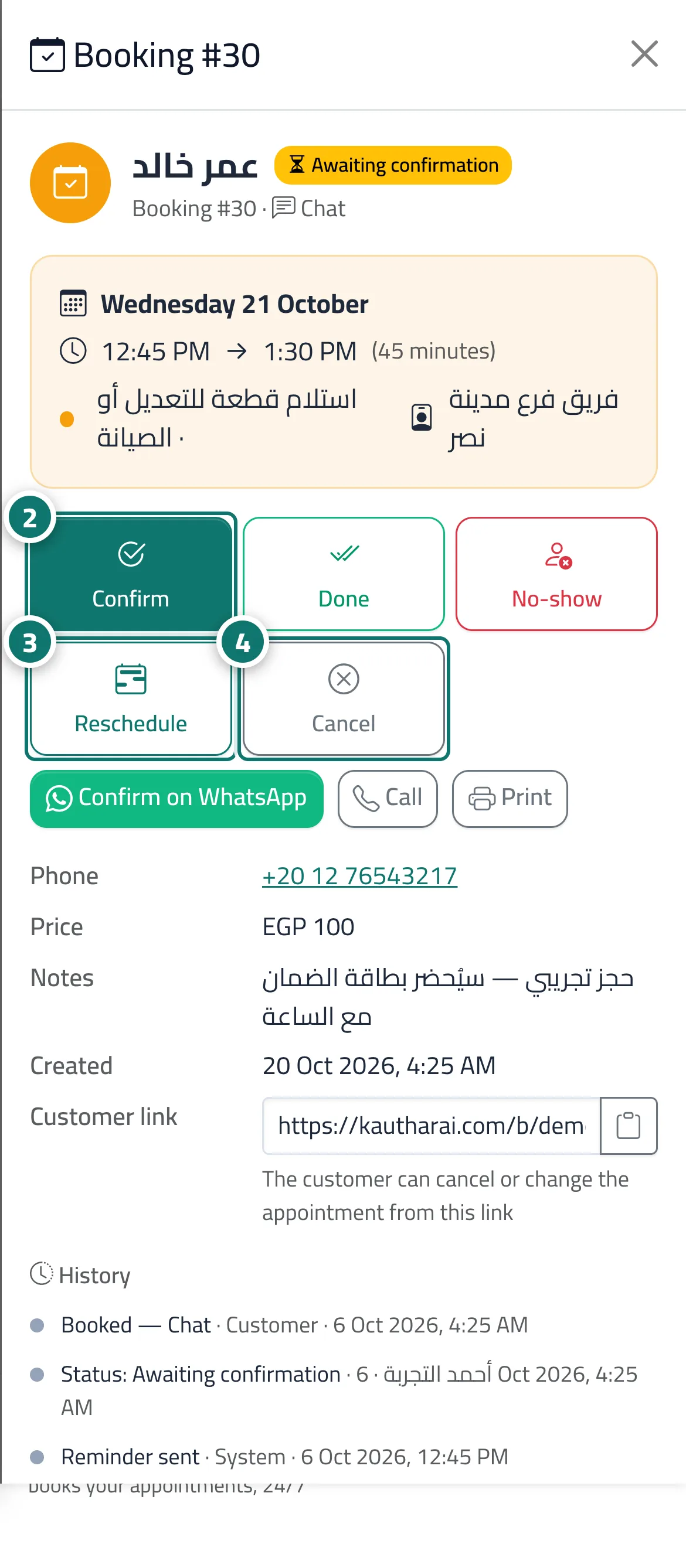
- For a booking awaiting confirmation, press «Confirm»; once the appointment has started, mark it «Done» or «No-show». Numéro 2 sur l’image
- To change the time: «Reschedule» → choose the provider, day and time → press «Move booking to …». Numéro 3 sur l’image
- To cancel: «Cancel» → enter a «Cancellation reason» (optional) → «Confirm cancellation». Numéro 4 sur l’image
Étapes
- Open the appointment from the bookings schedule.
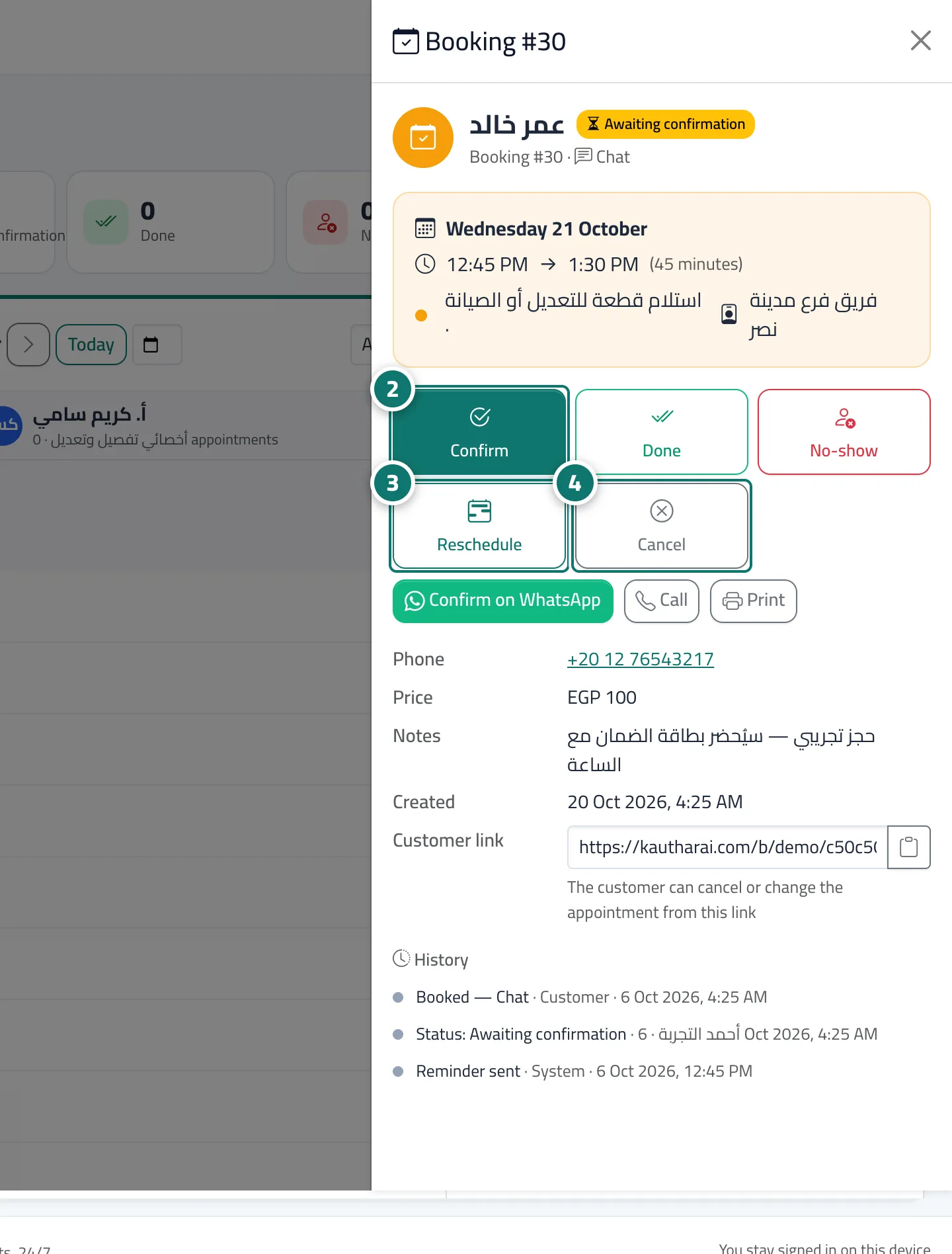
- For a booking awaiting confirmation, press «Confirm»; once the appointment has started, mark it «Done» or «No-show». Numéro 2 sur l’image
- To change the time: «Reschedule» → choose the provider, day and time → press «Move booking to …». Numéro 3 sur l’image
- To cancel: «Cancel» → enter a «Cancellation reason» (optional) → «Confirm cancellation». Numéro 4 sur l’image