
E-mail professionnel · Mail drafts: autosave and continue on any device
How do I save an email to finish later?
Whatever you type in a new message or a reply is saved as a draft every few seconds, and appears in «Drafts» on all your devices and in the mailbox's own Drafts — finish it later or discard it.
Pour qui : Propriétaire et responsable · Membres de l'équipe
Où : Mail → «New message» or «Reply» · the «Drafts» folder
Étapes
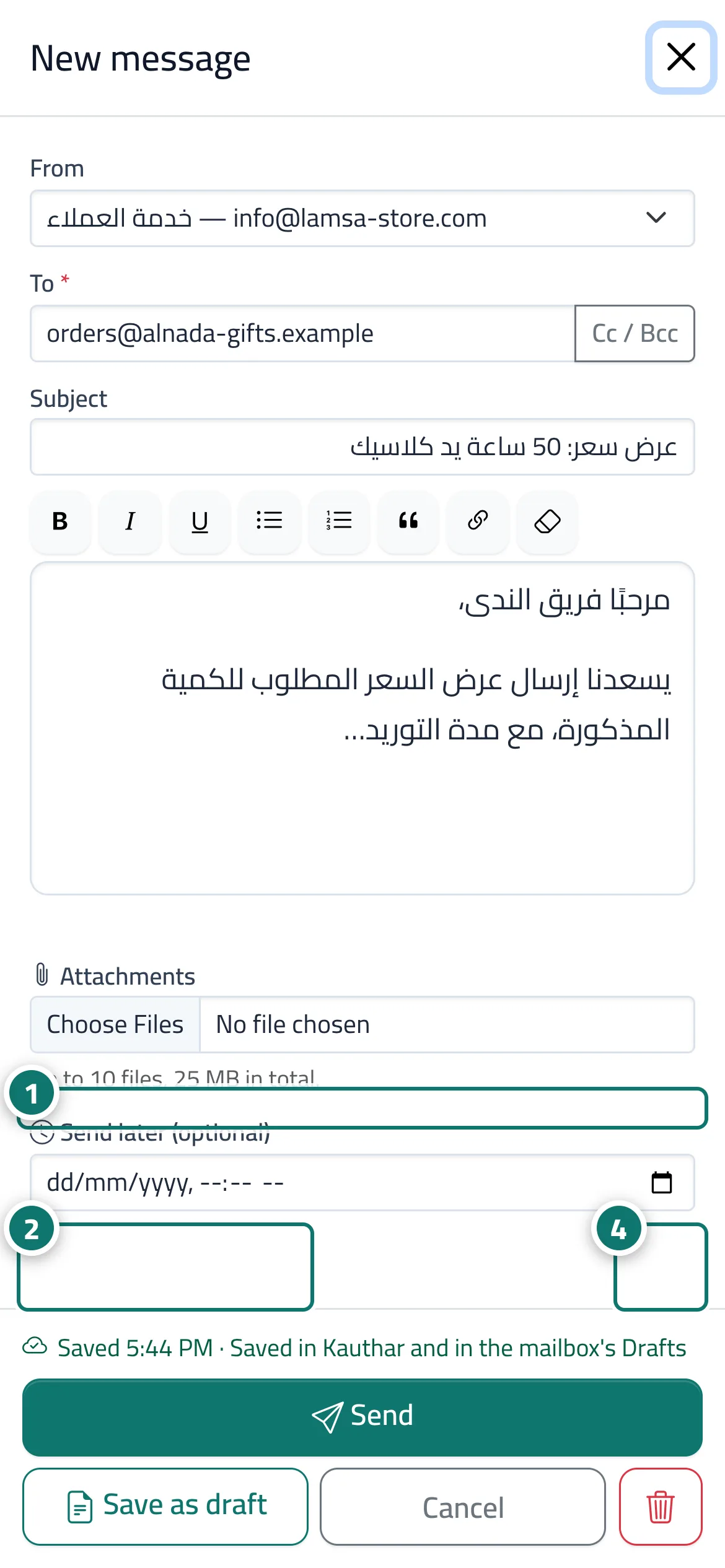
- Write your email in «New message» or in a reply; it saves by itself and the save state shows under the editor. Numéro 1 sur l’image
- Click «Save as draft» to save and close the window — or simply close it, which saves as well. Numéro 2 sur l’image
- Later, open the «Drafts» folder and click the draft to finish it on any device, then «Send».
- To delete it, open it, click «Discard draft» and confirm. Numéro 4 sur l’image
Étapes
- Write your email in «New message» or in a reply; it saves by itself and the save state shows under the editor.
- Click «Save as draft» to save and close the window — or simply close it, which saves as well.
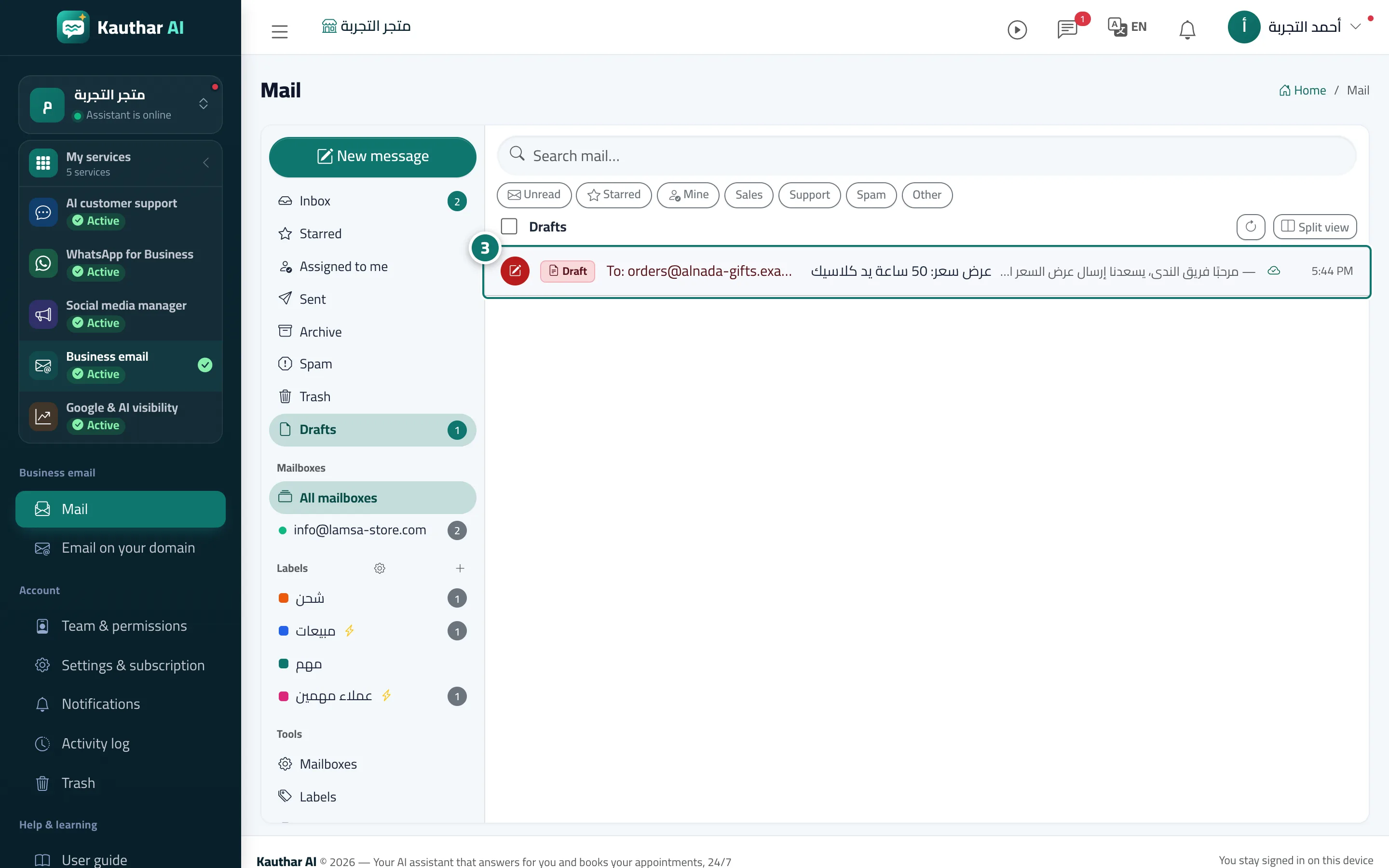
- Later, open the «Drafts» folder and click the draft to finish it on any device, then «Send». Numéro 3 sur l’image
- To delete it, open it, click «Discard draft» and confirm.