
E-mail professionnel · Mail labels and their automatic rules
How do I keep the emails of one client or supplier together?
Create coloured labels (such as «Key clients» or «Suppliers») to group each set of conversations, and add a rule so Kauthar puts the label on every new email that matches.
Pour qui : Propriétaire et responsable · Membres de l'équipe
Où : Mail → the «Labels» section of the mail side menu → the gear (Manage labels), or «Tools» → «Labels»
Étapes
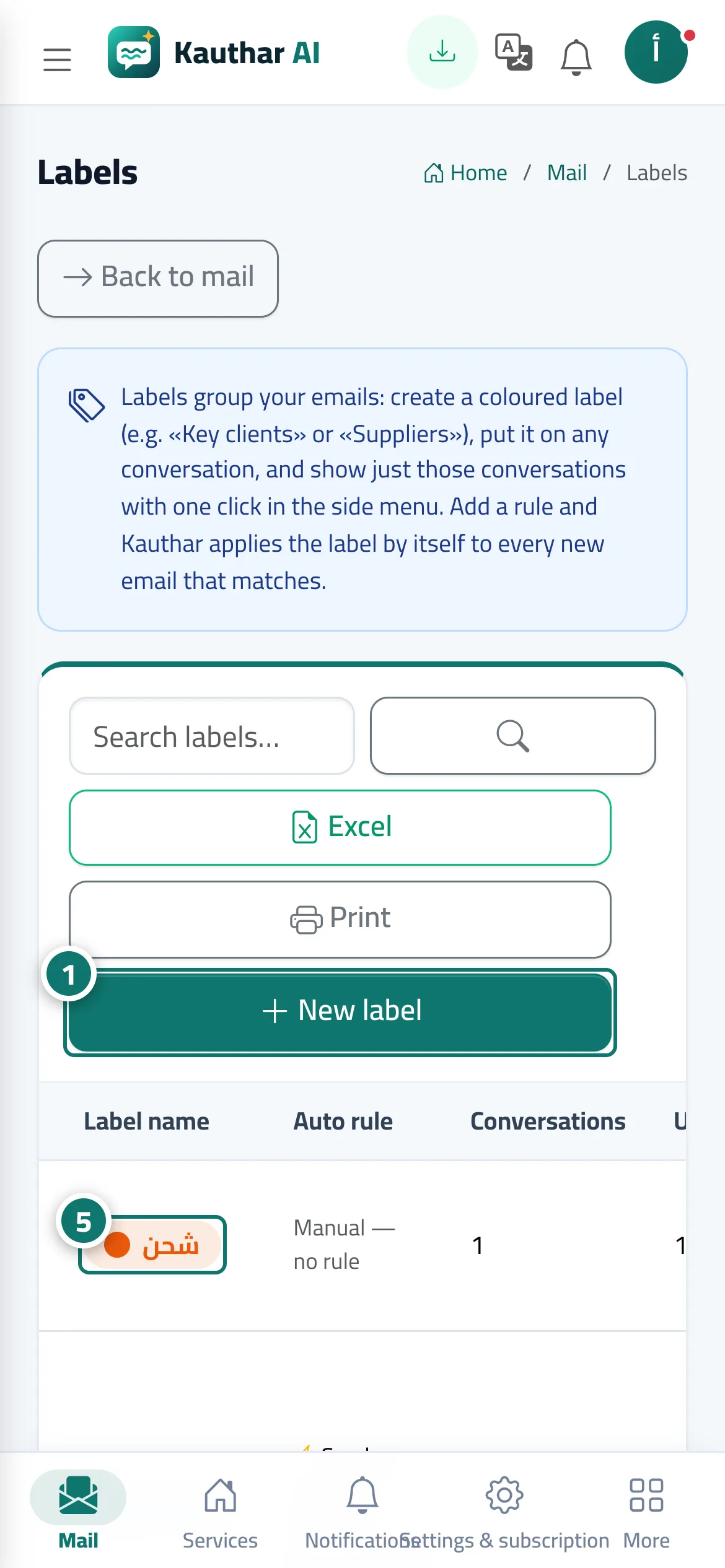
- Open «Labels» and click «New label». Numéro 1 sur l’image
- Type the label name and pick its colour.
- For automatic labelling, enter an address or domain in «Sender address or domain contains» and/or pick a mailbox in «Arrived in mailbox» (leave both empty for a manual label).
- Keep «Also apply the rule to the emails already here» ticked if you want current emails labelled too, then click «Save».
- Click the label name (in the list or in the mail side menu) to show only its conversations. Numéro 5 sur l’image
Étapes
- Open «Labels» and click «New label».
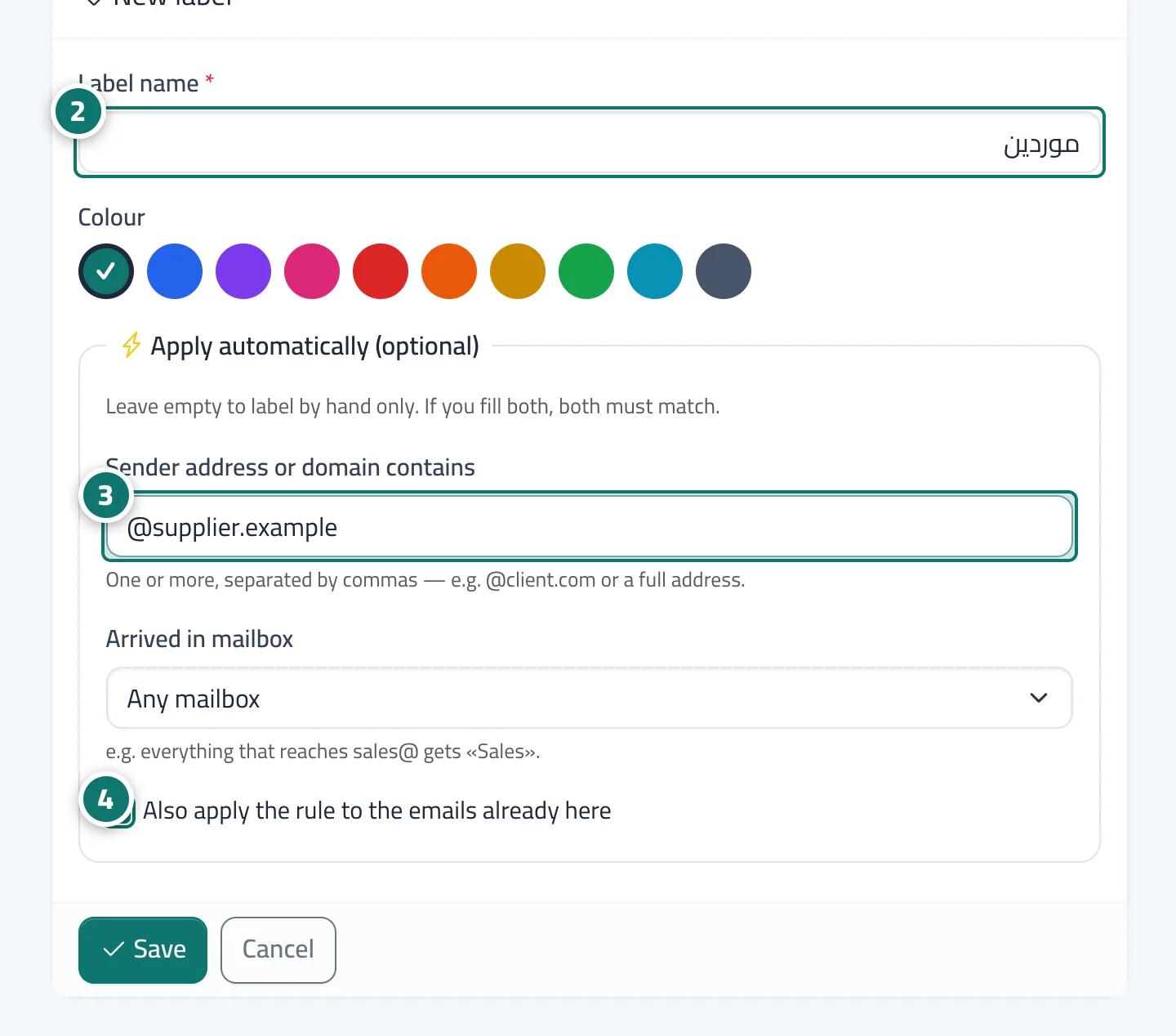
- Type the label name and pick its colour. Numéro 2 sur l’image
- For automatic labelling, enter an address or domain in «Sender address or domain contains» and/or pick a mailbox in «Arrived in mailbox» (leave both empty for a manual label). Numéro 3 sur l’image
- Keep «Also apply the rule to the emails already here» ticked if you want current emails labelled too, then click «Save». Numéro 4 sur l’image
- Click the label name (in the list or in the mail side menu) to show only its conversations.