
Réseaux sociaux · Publishing to Pinterest and Threads
How do I connect Pinterest and choose the board?
Connect Pinterest and Threads in the “Accounts” tab, pick your default Pinterest board, and Kauthar posts your design as a tall Pin linking to your website or product, and to Threads as text, an image or an album — only after you approve.
Pour qui : Propriétaire et responsable
Où : Sidebar → Social media publishing → Post studio → “Accounts”
Étapes
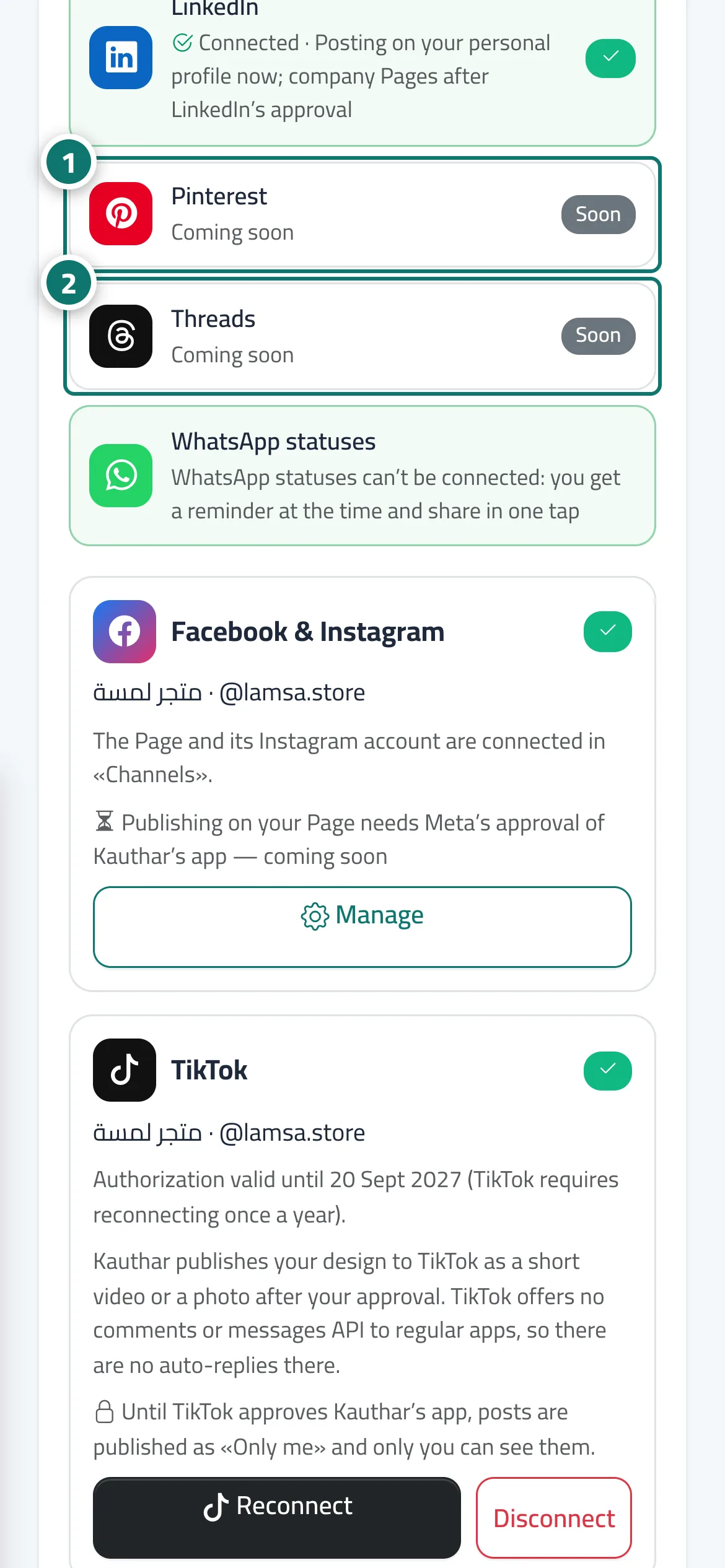
- Open the “Accounts” tab and press “Connect” on the Pinterest or Threads line, sign in and accept the permissions. Numéro 1 sur l’image
- On the Pinterest card choose the “Default board” and press “Save”. Numéro 2 sur l’image
- Create a new post and pick Pinterest or Threads among the channels.
- For a different board or link on one post, change them on the post page, then “Save”.
- Approve or schedule the post — Kauthar publishes it on time and retries by itself if the platform is busy.
Étapes
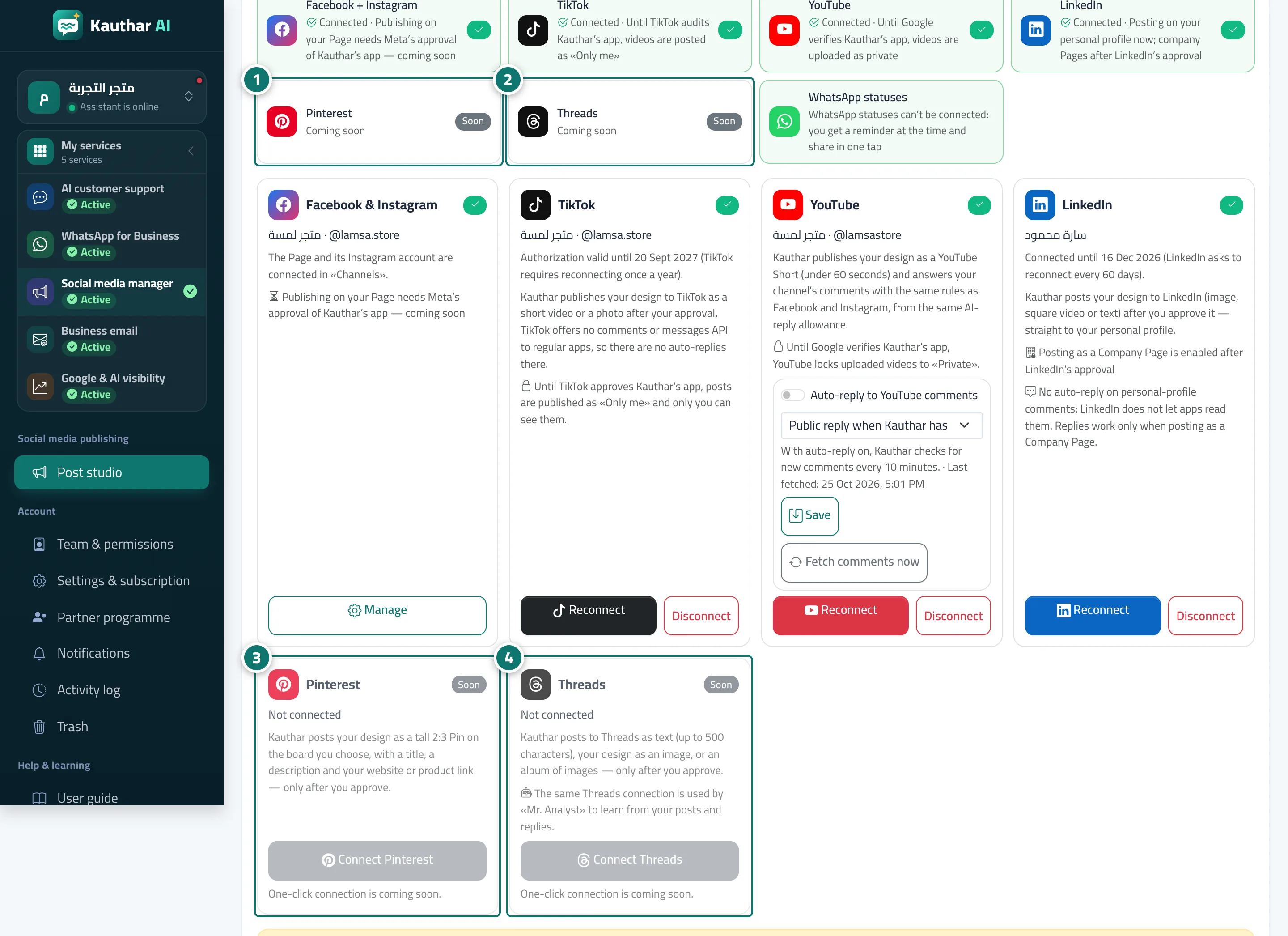
- Open the “Accounts” tab and press “Connect” on the Pinterest or Threads line, sign in and accept the permissions. Numéro 1 sur l’image
- On the Pinterest card choose the “Default board” and press “Save”. Numéro 2 sur l’image
- Create a new post and pick Pinterest or Threads among the channels. Numéro 3 sur l’image
- For a different board or link on one post, change them on the post page, then “Save”. Numéro 4 sur l’image
- Approve or schedule the post — Kauthar publishes it on time and retries by itself if the platform is busy.