
Bookings · The customer's manage-booking link
How does a customer change or cancel their appointment themselves?
Customers change or cancel their own appointment from their link, within the deadline you set.
Who this is for: Team members · Your customers
Where: A public link ending in /b/<link-name>/<private-code> — the customer gets it after booking and in emails
Steps
- The customer opens the booking link.
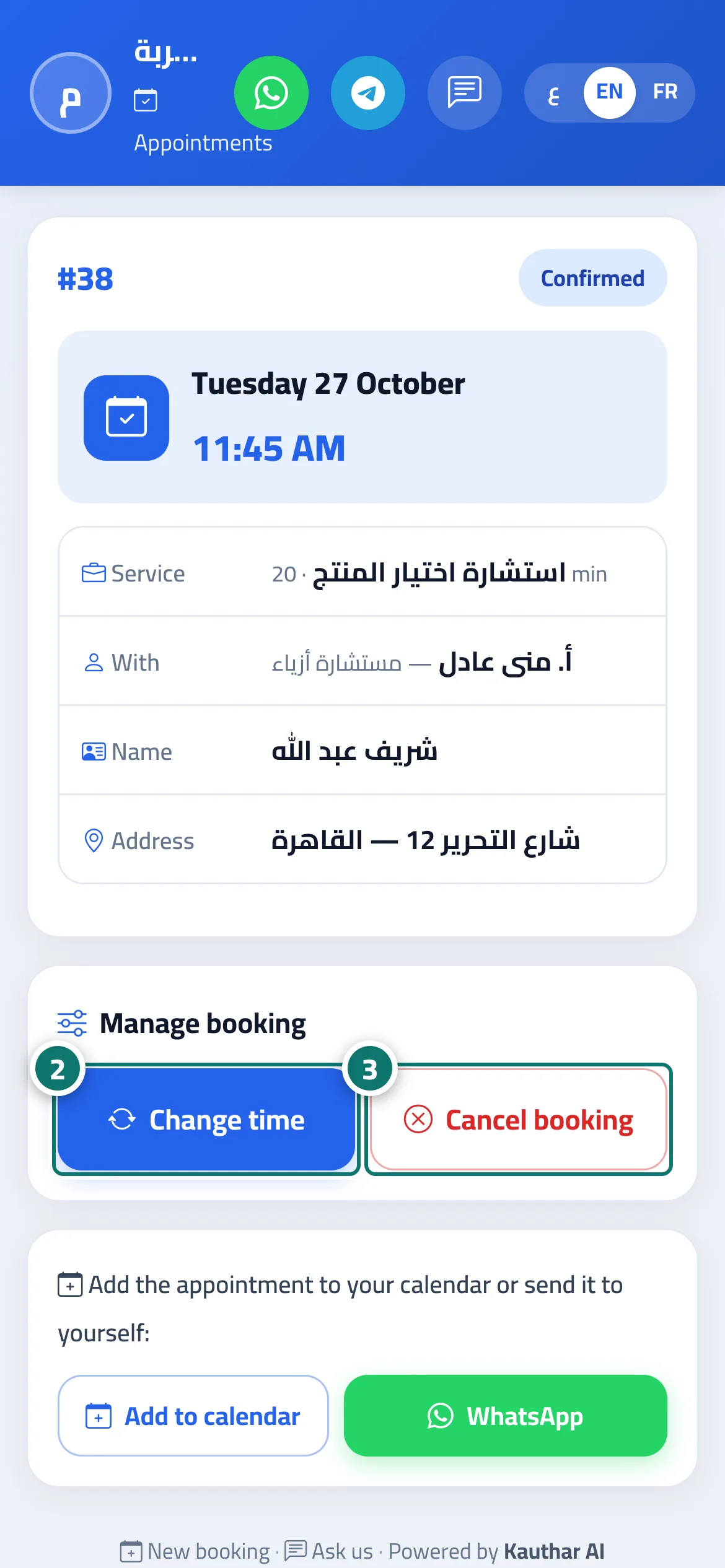
- They tap “Change time”, pick a new day and time, then “Confirm new time”. Number 2 on the picture
- Or they tap “Cancel booking”, add a reason if they wish, then “Confirm cancellation”. Number 3 on the picture
Steps
- The customer opens the booking link.
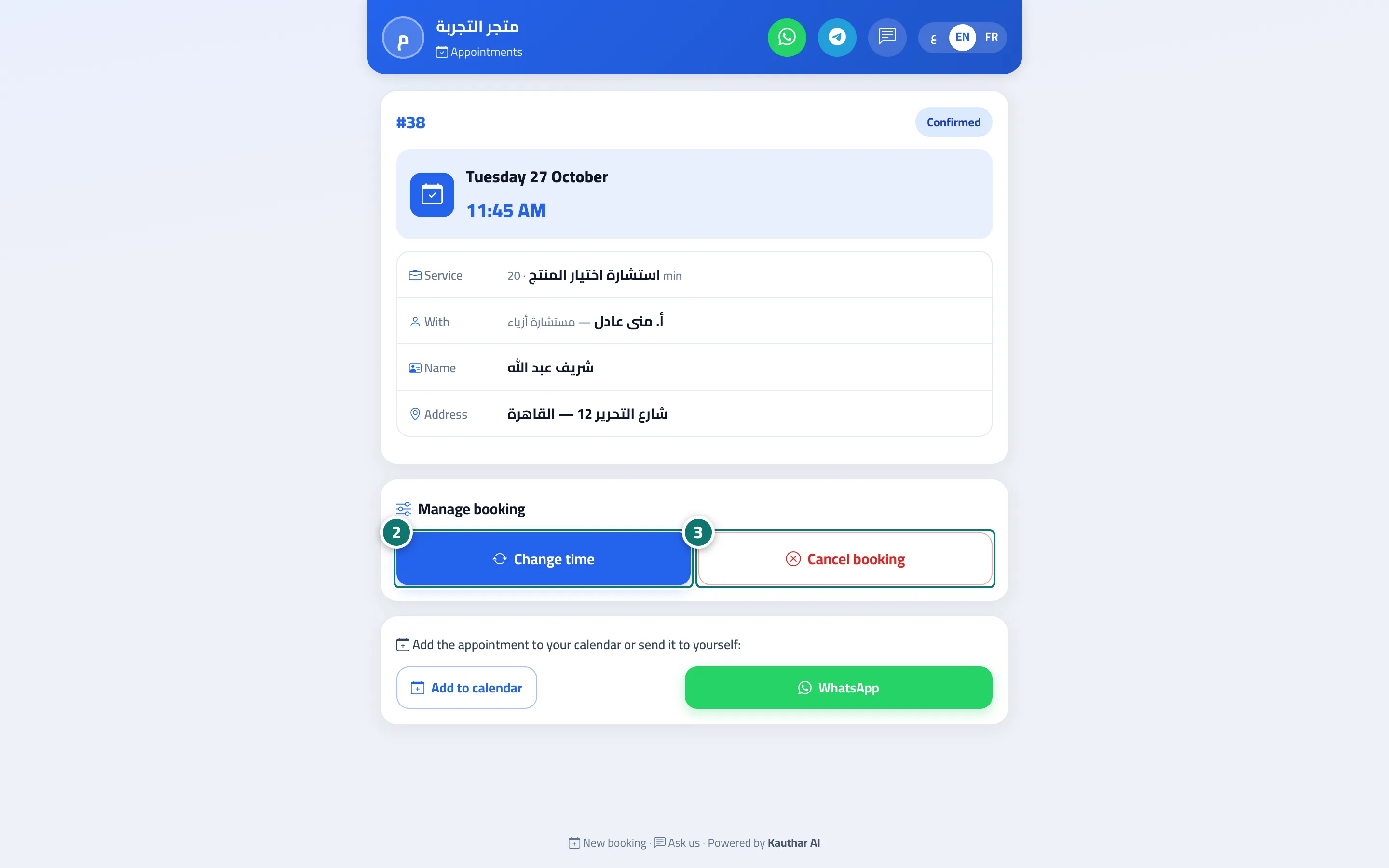
- They tap “Change time”, pick a new day and time, then “Confirm new time”. Number 2 on the picture
- Or they tap “Cancel booking”, add a reason if they wish, then “Confirm cancellation”. Number 3 on the picture