
Conversations & helpdesk · Unified customer profile
How do I see all of one customer's conversations and bookings?
One page per customer: their details, tags and your notes, their channels, and all their conversations, bookings, tickets and orders — with merging of duplicate profiles and channel confirmation.
Who this is for: Owner & manager · Team members
Where: Sidebar → Channels & customers → Customers → «Profile»
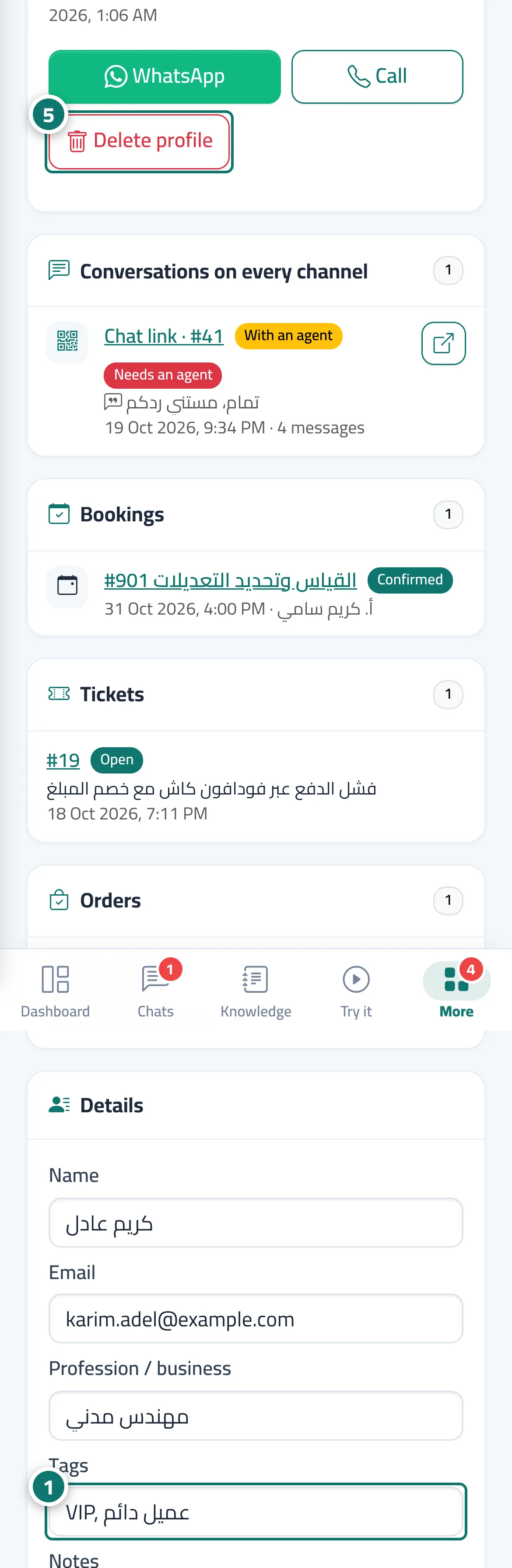
Steps
- In the «Details» card, edit the name, email or profession, add tags (such as «VIP, wholesale customer») and notes for your team, then click «Save». Number 1 on the picture
- In «Channels & identities», review the channels; an «Unconfirmed» channel was linked because the customer typed a number you already have — once you're sure, click «Confirm it's the same customer».
- If the customer has another profile, find it in «Merge with another profile» by name or number and click «Merge here».
- Review «Conversations on every channel», «Bookings», «Tickets» and «Orders», and click any item to open it.
- If the customer asks for their data to be deleted, click «Delete profile». Number 5 on the picture
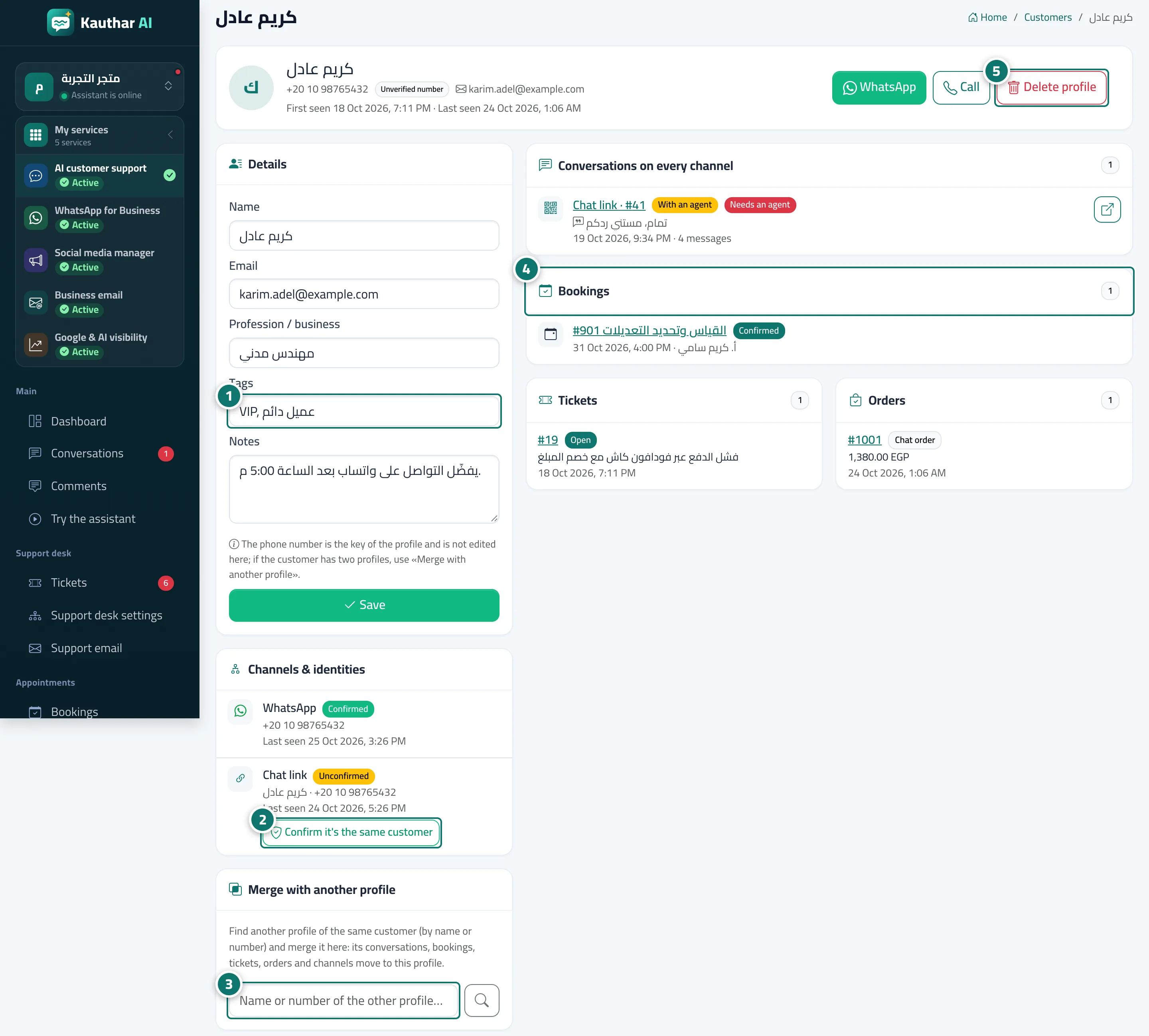
Steps
- In the «Details» card, edit the name, email or profession, add tags (such as «VIP, wholesale customer») and notes for your team, then click «Save». Number 1 on the picture
- In «Channels & identities», review the channels; an «Unconfirmed» channel was linked because the customer typed a number you already have — once you're sure, click «Confirm it's the same customer». Number 2 on the picture
- If the customer has another profile, find it in «Merge with another profile» by name or number and click «Merge here». Number 3 on the picture
- Review «Conversations on every channel», «Bookings», «Tickets» and «Orders», and click any item to open it. Number 4 on the picture
- If the customer asks for their data to be deleted, click «Delete profile». Number 5 on the picture