
Stores & integrations · Connect your restaurant on Foodics: menu, branches and orders
How do I connect my Foodics restaurant to Kauthar?
Connect your restaurant's Foodics account and Kauthar answers your customers from your real menu, branches and opening hours, takes their orders in the chat and sends them straight to Foodics, then keeps them updated on the order status.
Who this is for: Owner & manager
Where: Sidebar → Train your assistant → «Connect your store» → Foodics
Steps
- Open «Connect your store» and click «Foodics».
- Click «Connect in one click», sign in with the restaurant owner's Foodics account and approve (or paste an access token if you have one).
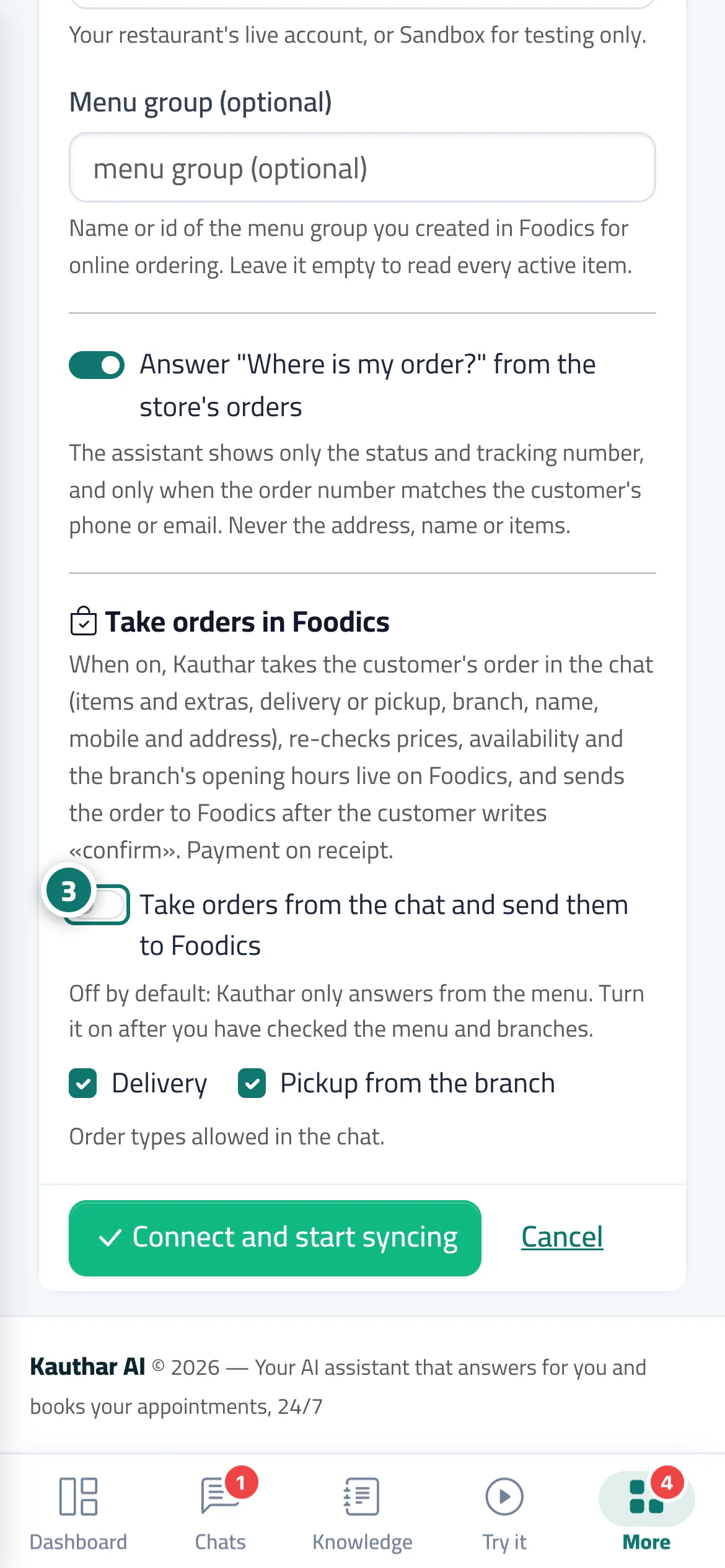
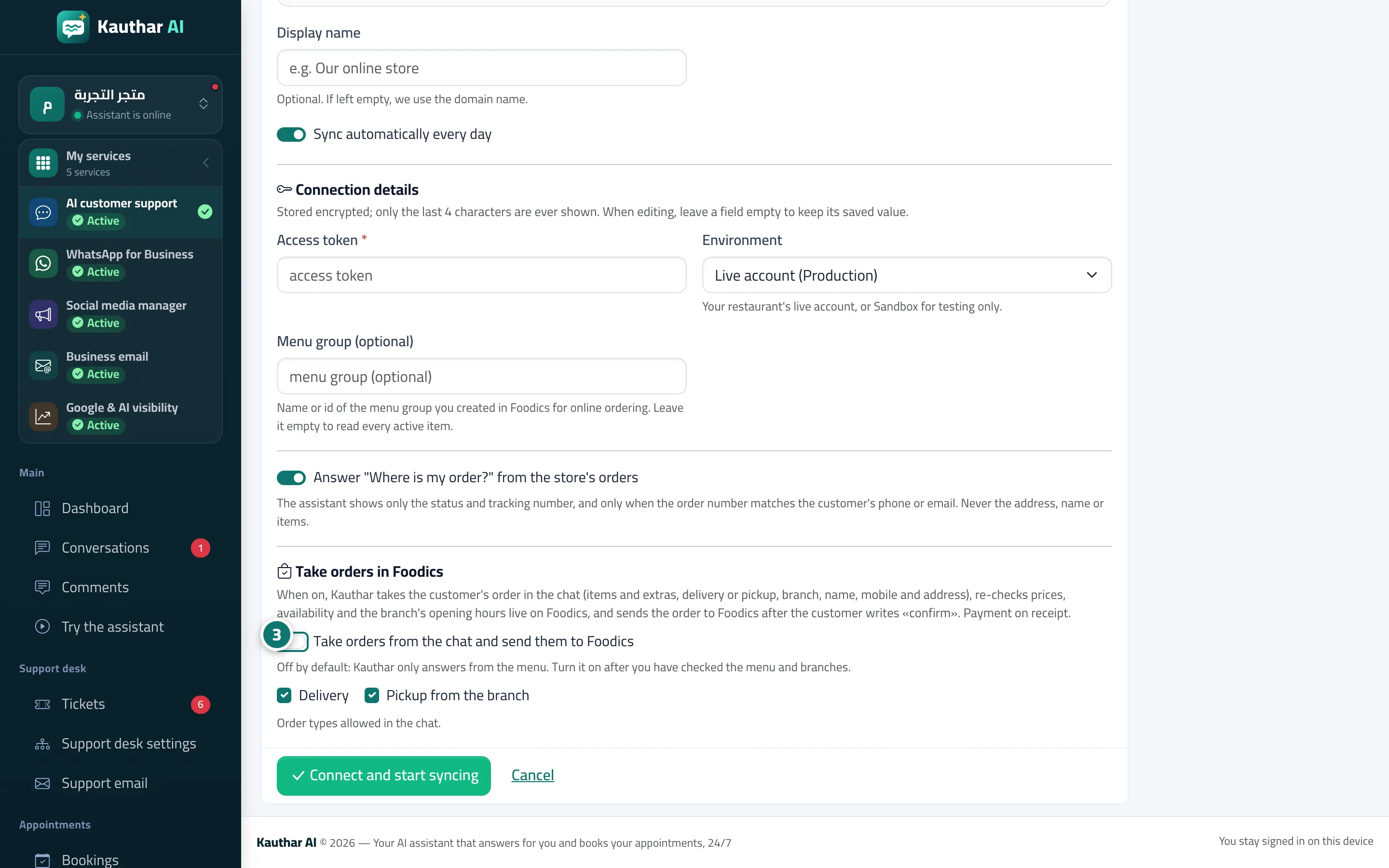
- Once «Connected» appears, test the assistant, then open «Edit», turn on «Take orders from the chat and send them to Foodics» and choose delivery and/or pickup. Number 3 on the picture
Steps
- Open «Connect your store» and click «Foodics».
- Click «Connect in one click», sign in with the restaurant owner's Foodics account and approve (or paste an access token if you have one).
- Once «Connected» appears, test the assistant, then open «Edit», turn on «Take orders from the chat and send them to Foodics» and choose delivery and/or pickup. Number 3 on the picture