
Stores & integrations · Kauthar plugin for WordPress and WooCommerce
How do I add Kauthar to a WordPress site?
The free Kauthar AI plugin for WordPress adds Kauthar's chat bubble to your site and, with WooCommerce, syncs your products and order status — connected in one click or with a connection code, no keys to copy.
Who this is for: Owner & manager
Where: Connect your store → «WordPress plugin»
Steps
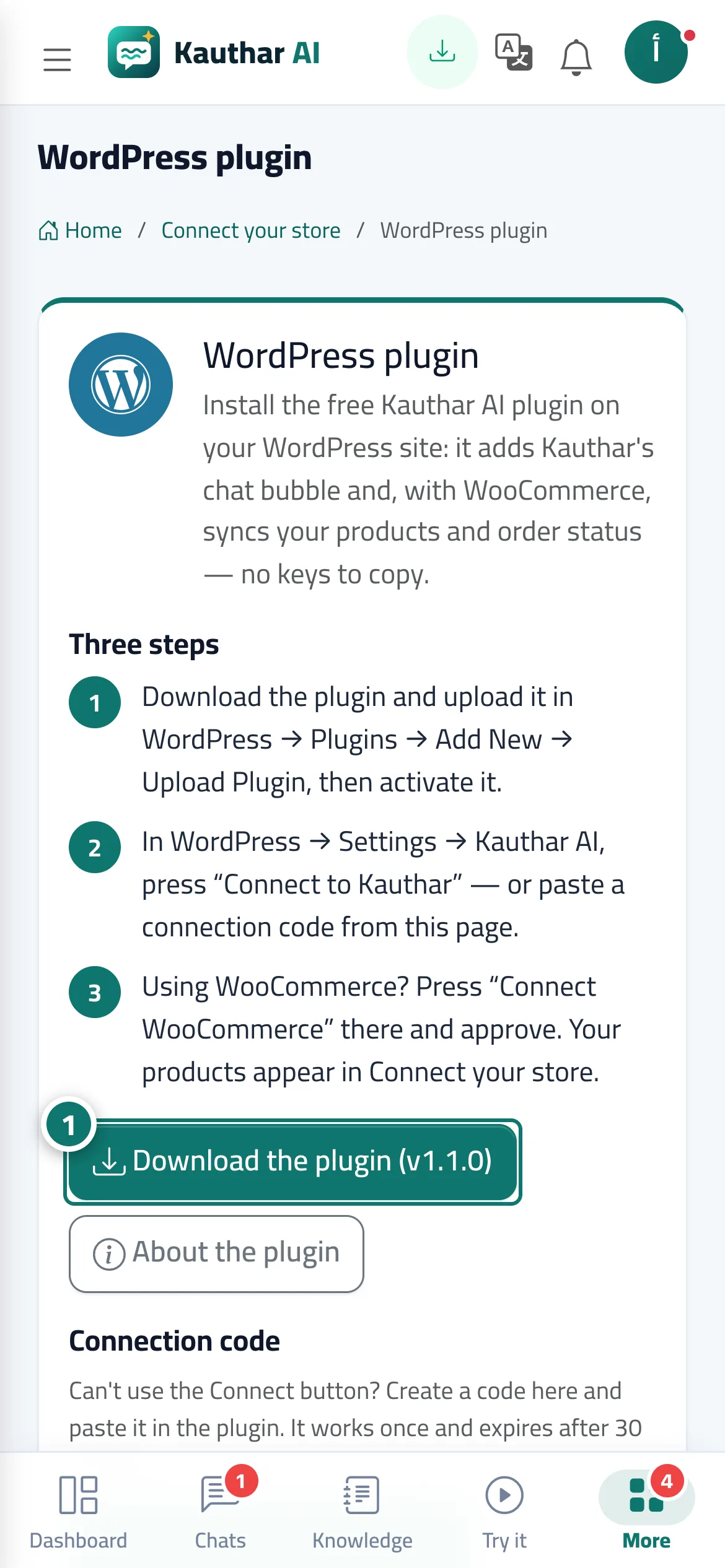
- Click «Download the plugin», upload it in WordPress and activate it. Number 1 on the picture
- In WordPress → Settings → Kauthar AI click «Connect to Kauthar» and approve in Kauthar (or create a connection code here and paste it into the plugin).
- For WooCommerce stores, click «WooCommerce sync» in the plugin and approve; the products appear in «Connect your store».
Steps
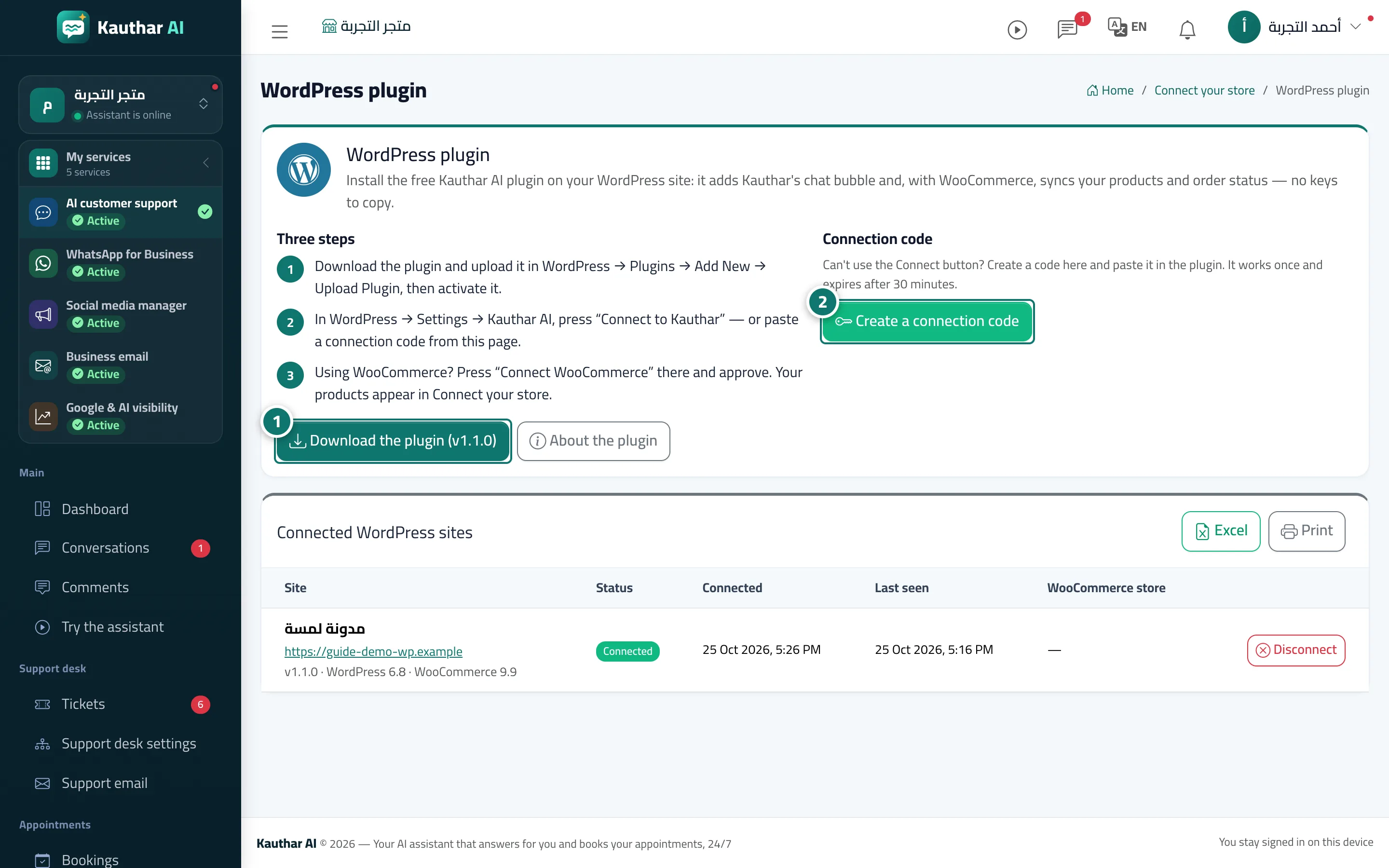
- Click «Download the plugin», upload it in WordPress and activate it. Number 1 on the picture
- In WordPress → Settings → Kauthar AI click «Connect to Kauthar» and approve in Kauthar (or create a connection code here and paste it into the plugin). Number 2 on the picture
- For WooCommerce stores, click «WooCommerce sync» in the plugin and approve; the products appear in «Connect your store».