
Stores & integrations · Kauthar AI extension for OpenCart, PrestaShop and Odoo
How do I connect my OpenCart store to Kauthar?
Install the free Kauthar AI extension in your OpenCart, PrestaShop or Odoo store: it shares your products with Kauthar and adds the chat bubble to your store — connected with a button or a code, no keys to copy.
Who this is for: Owner & manager · Team members
Where: Sidebar → Train your assistant → Connect your store → OpenCart, PrestaShop or Odoo
Steps
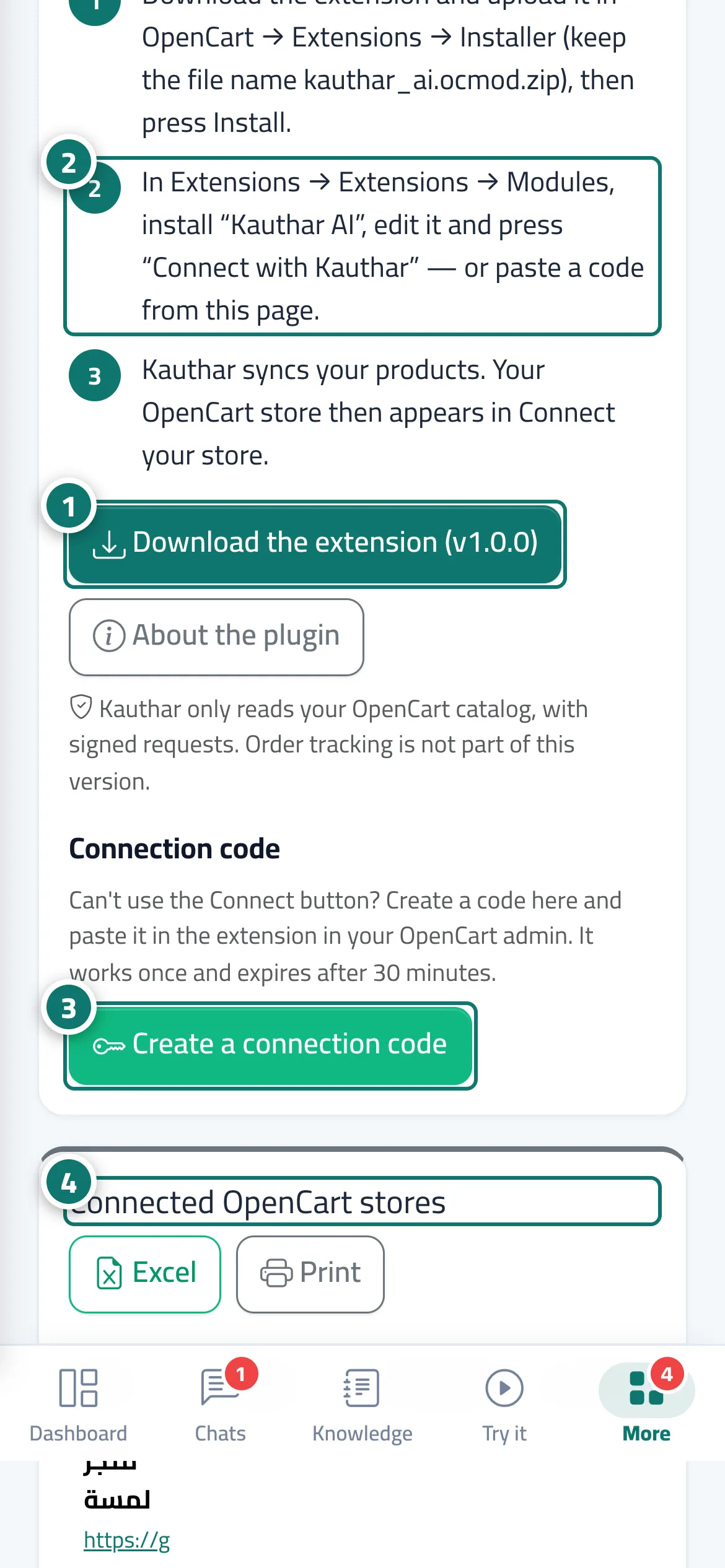
- On the “Kauthar AI for <platform>” page press “Download the extension”. Number 1 on the picture
- Install it in your store: OpenCart in Extensions → Installer and then Modules; PrestaShop in Modules → Module Manager → Upload a module; Odoo by adding the module to your addons and installing “Kauthar AI”. Number 2 on the picture
- Inside the extension press “Connect with Kauthar”, then “Connect” on Kauthar's confirmation page — or press “Create a connection code” here and paste the code into the extension. Number 3 on the picture
- Your store appears under “Connected <platform> stores” and in “Connect your store”, and the product sync starts. Number 4 on the picture
Steps
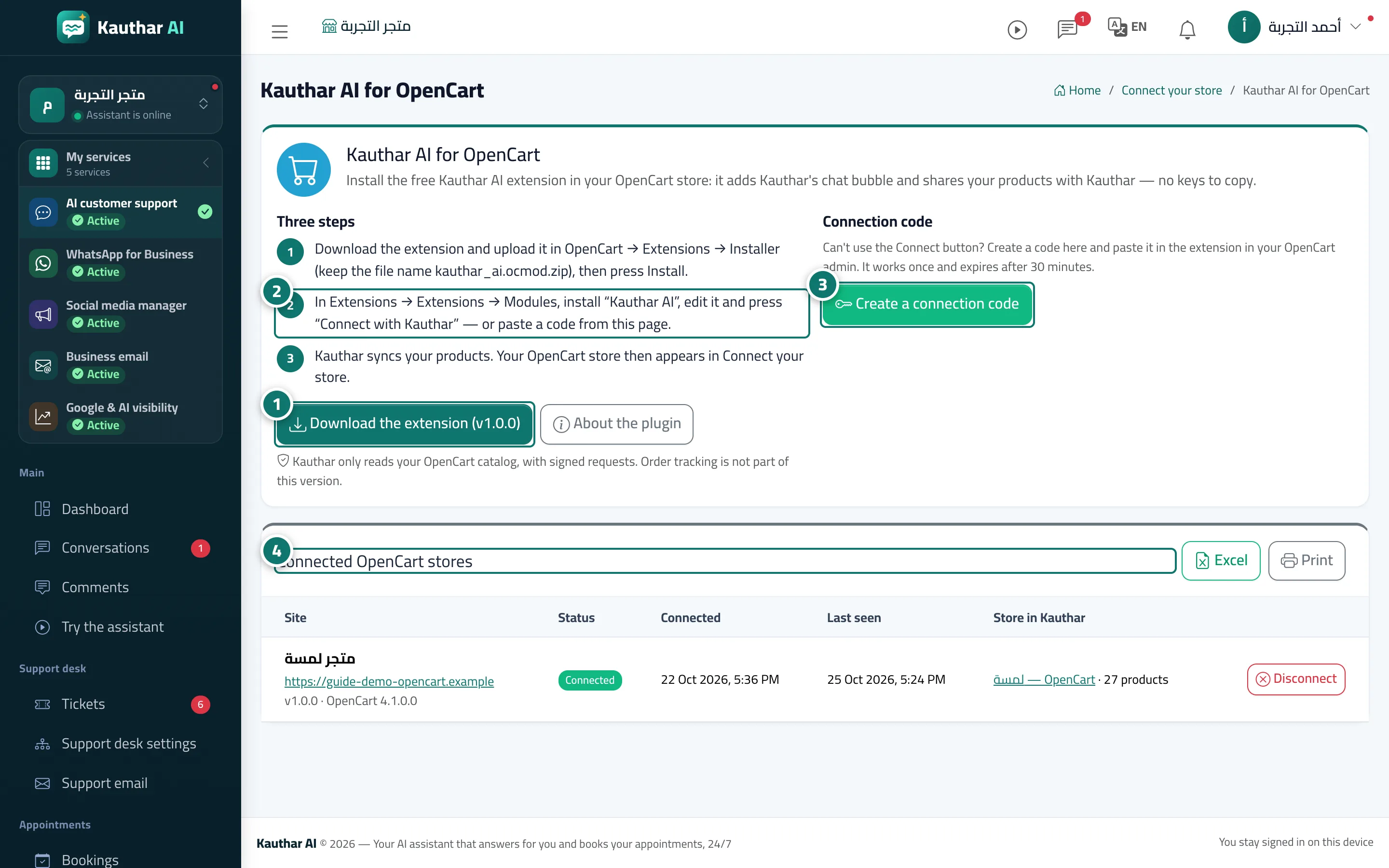
- On the “Kauthar AI for <platform>” page press “Download the extension”. Number 1 on the picture
- Install it in your store: OpenCart in Extensions → Installer and then Modules; PrestaShop in Modules → Module Manager → Upload a module; Odoo by adding the module to your addons and installing “Kauthar AI”. Number 2 on the picture
- Inside the extension press “Connect with Kauthar”, then “Connect” on Kauthar's confirmation page — or press “Create a connection code” here and paste the code into the extension. Number 3 on the picture
- Your store appears under “Connected <platform> stores” and in “Connect your store”, and the product sync starts. Number 4 on the picture