
Stores & integrations · Connect your store in one click: Kauthar apps on Shopify, Salla, Zid and YouCan
How do I connect my Salla or Zid store to Kauthar in one click?
Install the Kauthar app from your platform's app store and approve: Kauthar receives the connection directly and starts syncing your products — no key to copy.
Who this is for: Owner & manager
Where: Sidebar → Train your assistant → “Connect your store” → choose your platform
Steps
- Open “Connect your store” and press your platform (for example Salla).
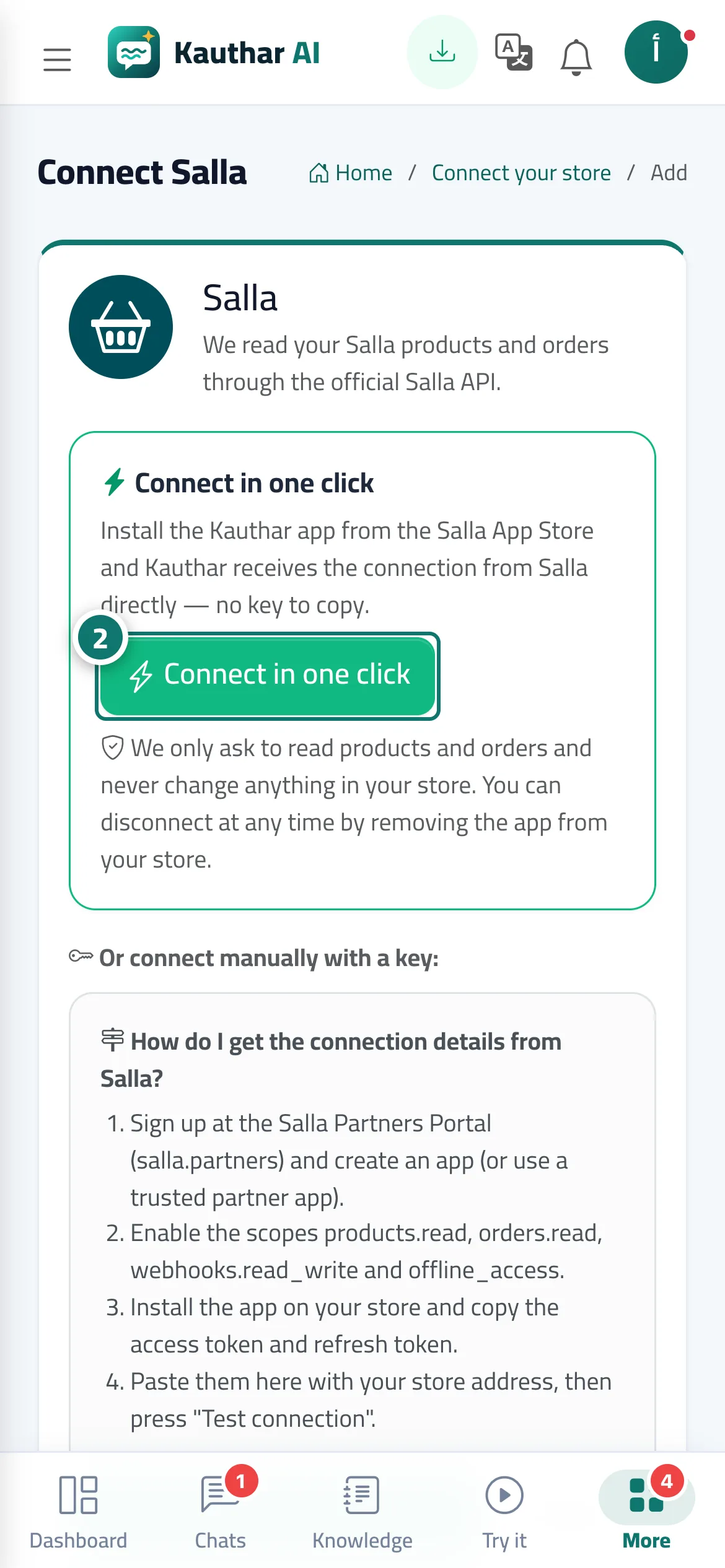
- In the “Connect in one click” card press the install or connect button, and approve on the platform's page. Number 2 on the picture
- Come back to Kauthar: the store card shows “Connected” with the “one-click” badge, and the sync starts.
Steps
- Open “Connect your store” and press your platform (for example Salla).
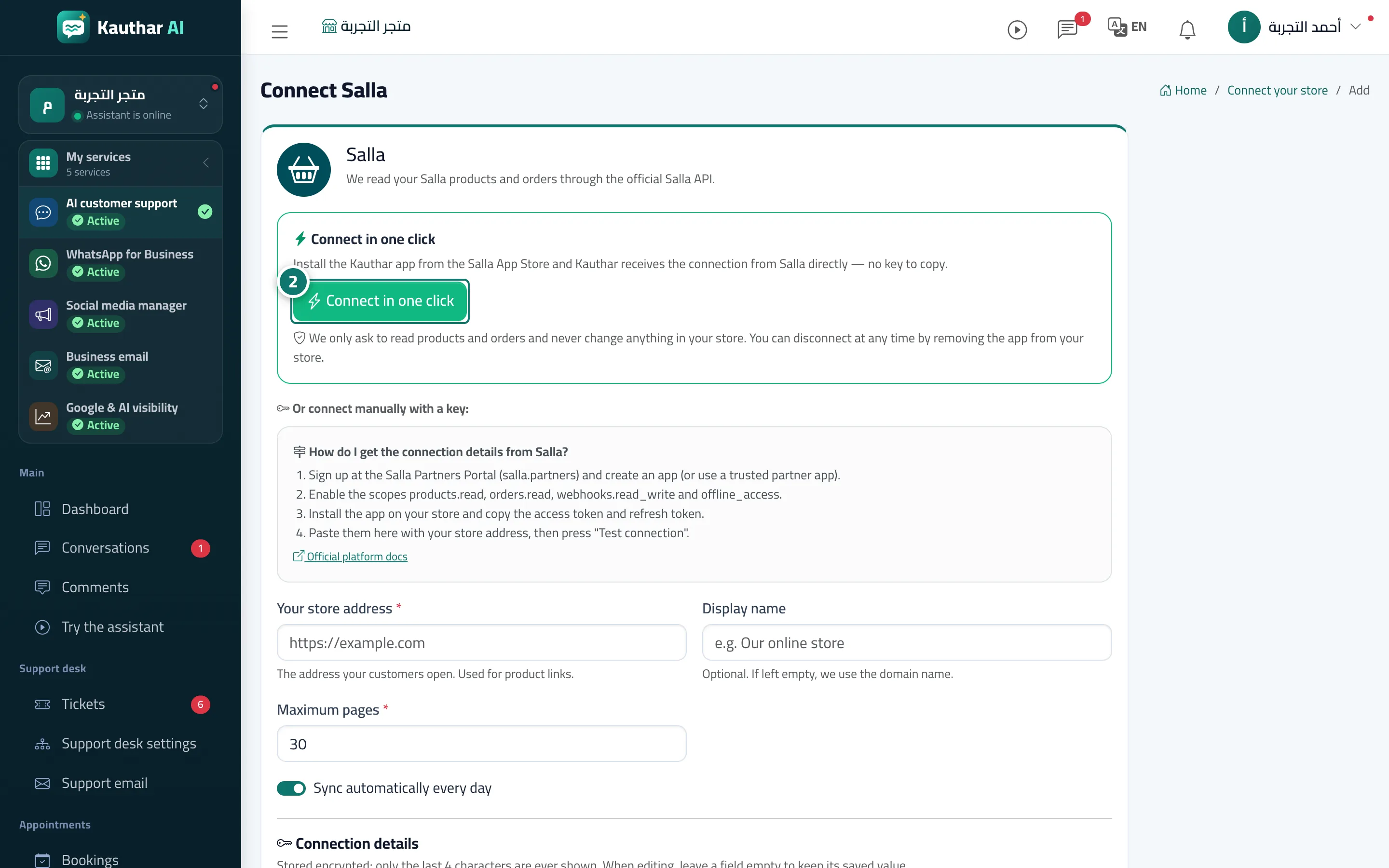
- In the “Connect in one click” card press the install or connect button, and approve on the platform's page. Number 2 on the picture
- Come back to Kauthar: the store card shows “Connected” with the “one-click” badge, and the sync starts.