
Social media · Comments: replying to Facebook, Instagram and YouTube comments
How do I see all the comments on my page and accounts in one place?
All the comments on your posts on one screen: reply publicly or privately, or hide or delete a comment, while Kauthar sets spam aside automatically.
Who this is for: Owner & manager · Team members
Where: Sidebar → Main → Comments
Steps
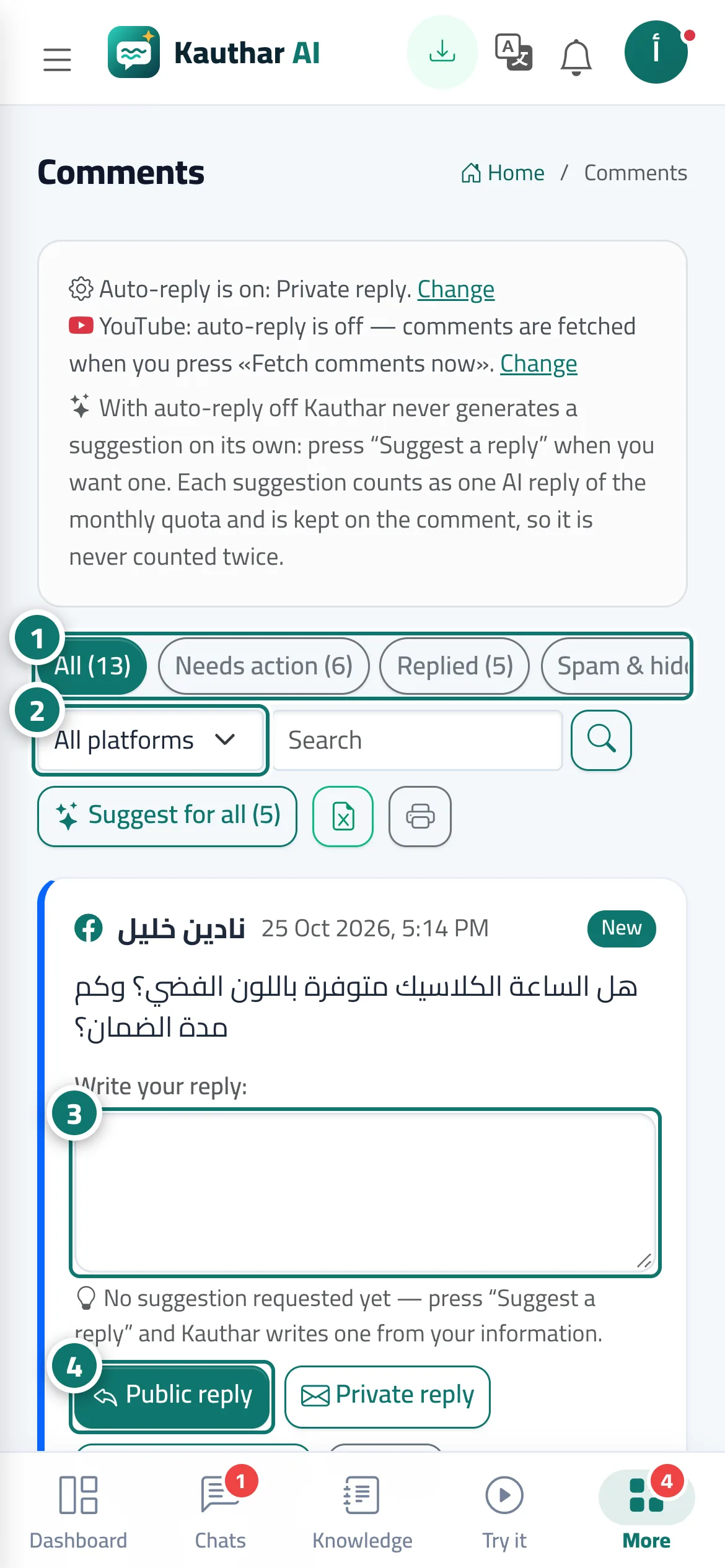
- Choose a filter (such as “Needs action”) to see the comments waiting for your reply. Number 1 on the picture
- Pick a platform from “All platforms” or search for a word, then click the search button. Number 2 on the picture
- Type your reply in the comment's box (or edit the suggested reply). Number 3 on the picture
- Click “Public reply” to post your reply under the comment, or “Private reply” to send it as a Messenger or Instagram message. Number 4 on the picture
- Use “Hide”, “Done — no reply” or “Delete comment” as needed.
- Export the list to Excel or print it on A4 from the two buttons above the list.
Steps
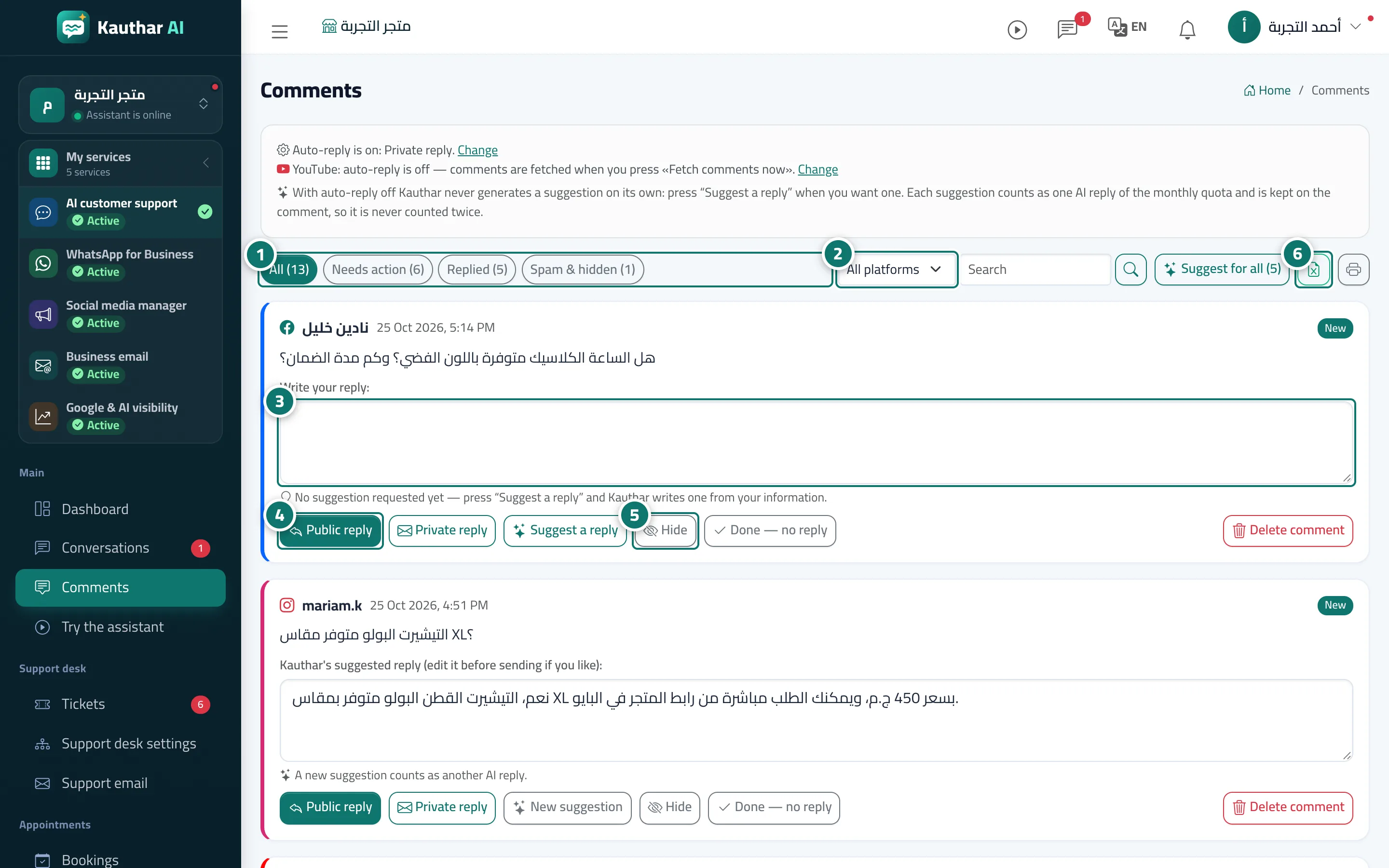
- Choose a filter (such as “Needs action”) to see the comments waiting for your reply. Number 1 on the picture
- Pick a platform from “All platforms” or search for a word, then click the search button. Number 2 on the picture
- Type your reply in the comment's box (or edit the suggested reply). Number 3 on the picture
- Click “Public reply” to post your reply under the comment, or “Private reply” to send it as a Messenger or Instagram message. Number 4 on the picture
- Use “Hide”, “Done — no reply” or “Delete comment” as needed. Number 5 on the picture
- Export the list to Excel or print it on A4 from the two buttons above the list. Number 6 on the picture