
Social media · Connecting Facebook, Instagram, TikTok, YouTube and LinkedIn
How do I connect my Facebook Page and Instagram to the studio?
In the “Accounts” tab, connect each account once with “Connect”, follow each platform’s status in one clear line, set up replies to YouTube comments, and disconnect any account whenever you like.
Who this is for: Owner & manager
Where: Sidebar → Social media publishing → Post studio → “Accounts”
Steps
- Open the “Accounts” tab.
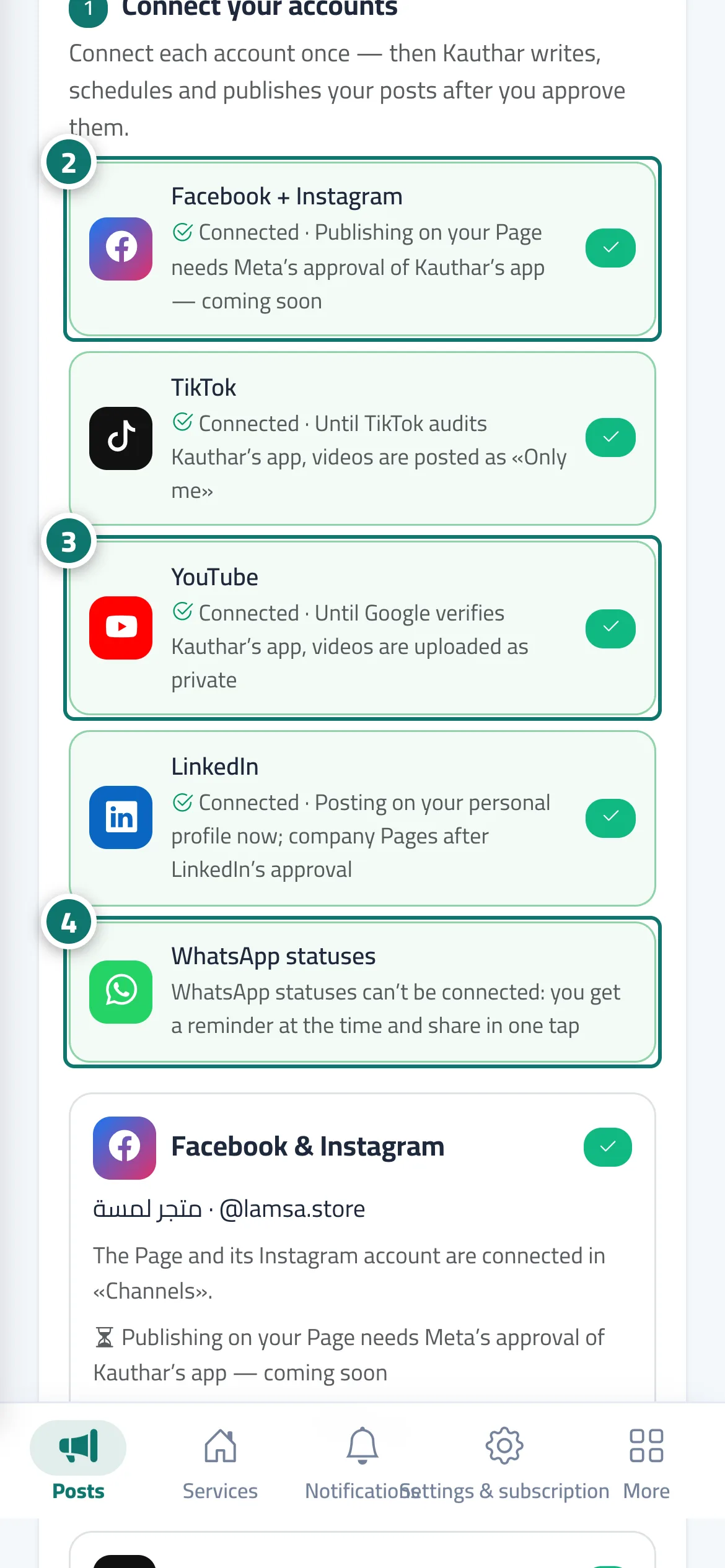
- For Facebook and Instagram, press “Connect” on the “Facebook + Instagram” line and finish in Meta’s window. Number 2 on the picture
- For TikTok, YouTube or LinkedIn, press “Connect” on its line, sign in and accept the permissions. Number 3 on the picture
- WhatsApp statuses need no connection: at the status’s time you get a reminder and share it in one tap. Number 4 on the picture
- For YouTube, turn on “Auto-reply to YouTube comments”, choose the mode, then “Save”.
- To disconnect an account, press “Disconnect” on its card and confirm; anything already published stays as it is.
Steps
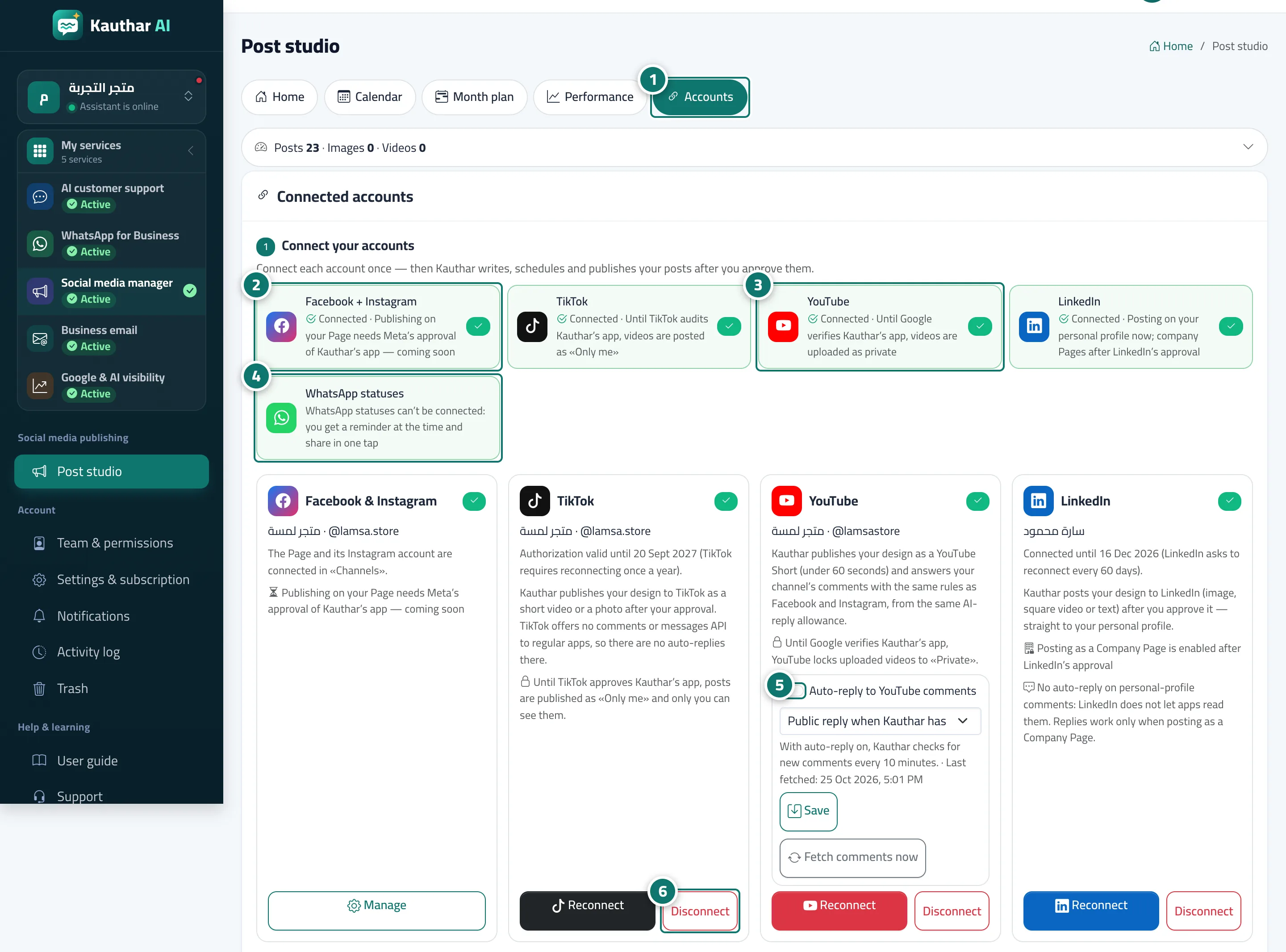
- Open the “Accounts” tab. Number 1 on the picture
- For Facebook and Instagram, press “Connect” on the “Facebook + Instagram” line and finish in Meta’s window. Number 2 on the picture
- For TikTok, YouTube or LinkedIn, press “Connect” on its line, sign in and accept the permissions. Number 3 on the picture
- WhatsApp statuses need no connection: at the status’s time you get a reminder and share it in one tap. Number 4 on the picture
- For YouTube, turn on “Auto-reply to YouTube comments”, choose the mode, then “Save”. Number 5 on the picture
- To disconnect an account, press “Disconnect” on its card and confirm; anything already published stays as it is. Number 6 on the picture