
WhatsApp Business & OTP · OTP apps: create an app and choose the sending number
How do I create an app to send verification codes on WhatsApp?
Each app, website or store that sends verification codes gets its own app in Kauthar with its default language, sender mode, and live and sandbox keys.
Who this is for: Owner & manager · Team members
Where: Sidebar → WhatsApp Business → OTP verification codes → Apps & API keys
Steps
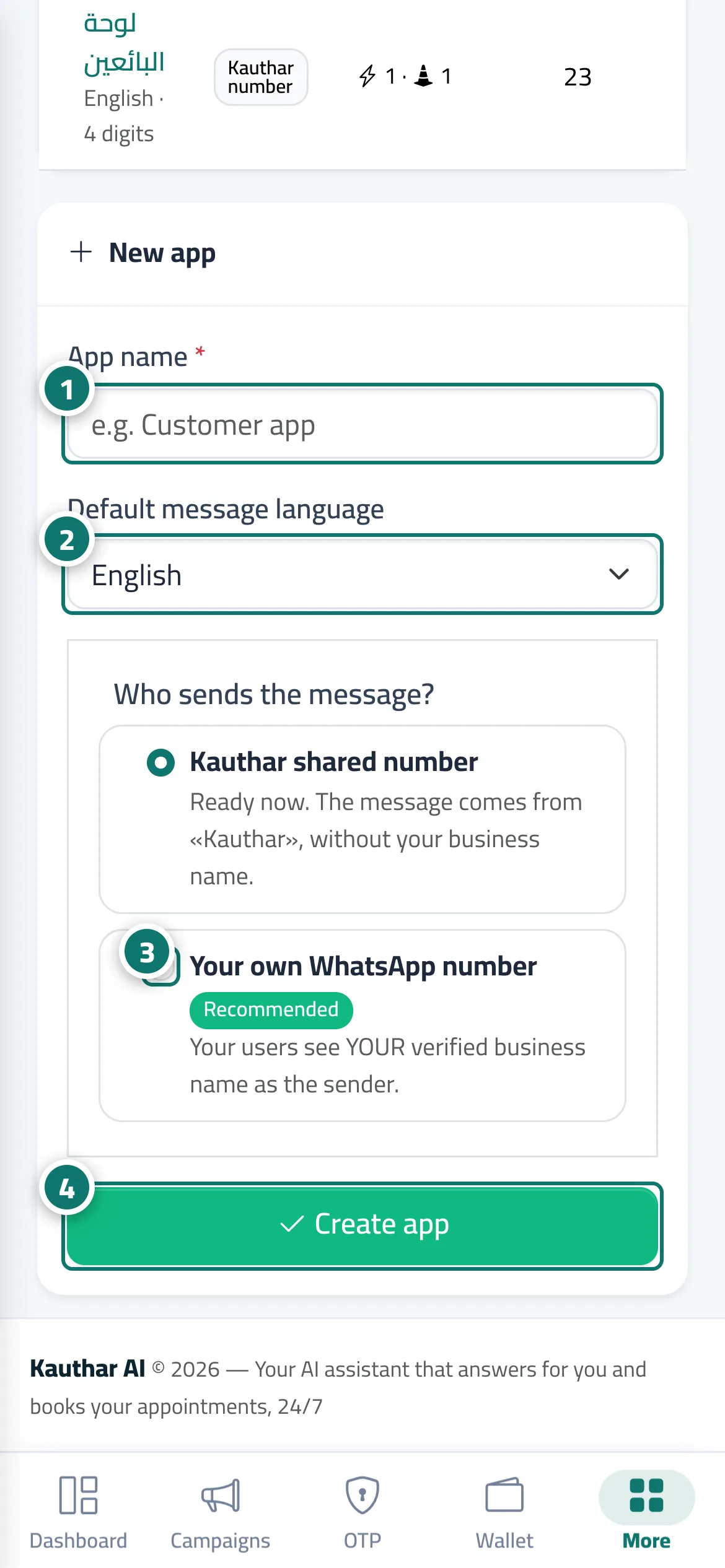
- Enter the "App name" (for example "Customer app"). Number 1 on the picture
- Choose the "Default message language". Number 2 on the picture
- The message is sent from "Your own WhatsApp number" — connect it from Channels if it is not connected yet. Number 3 on the picture
- Click "Create app", then open it from the table to create its keys. Number 4 on the picture
Steps
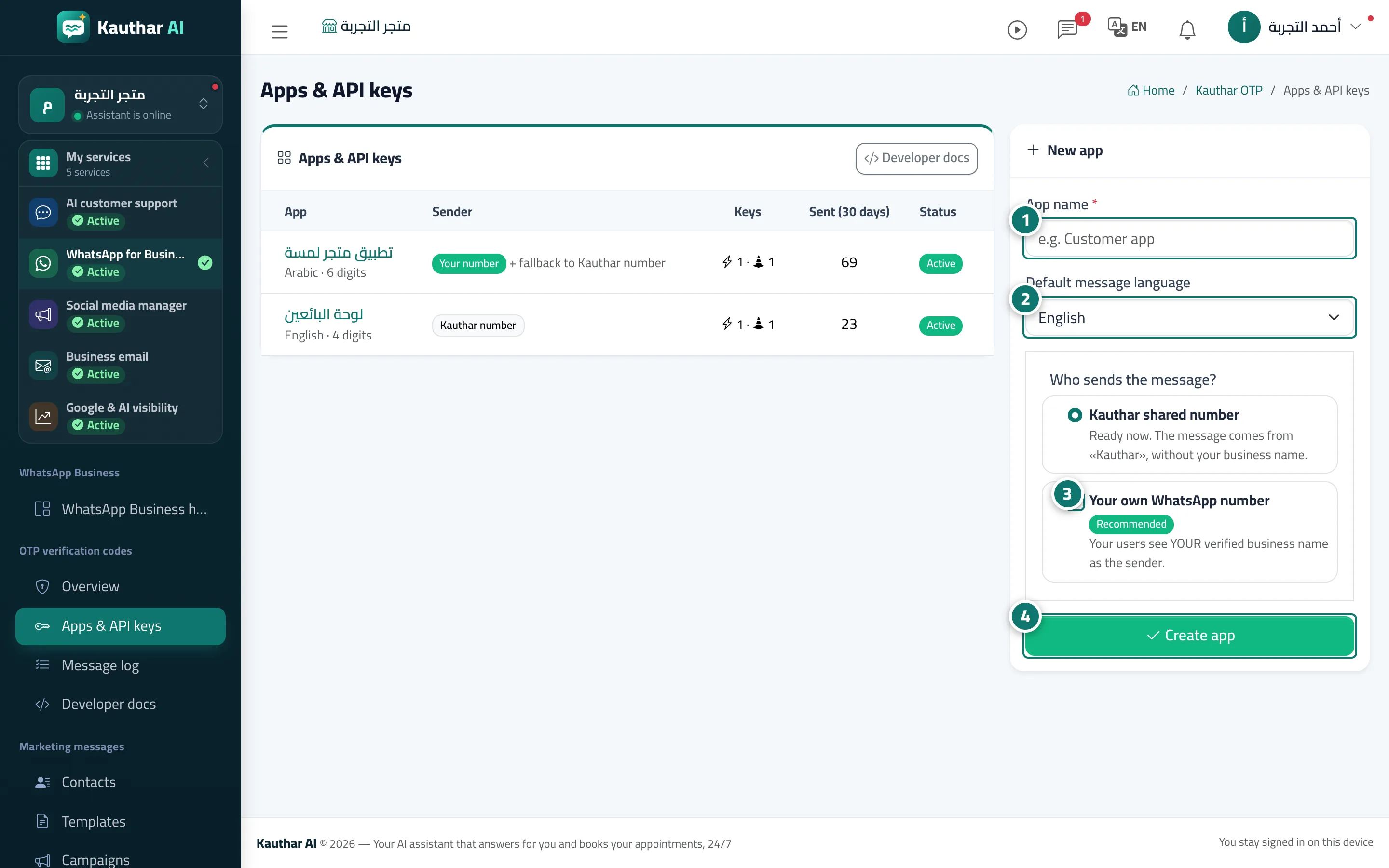
- Enter the "App name" (for example "Customer app"). Number 1 on the picture
- Choose the "Default message language". Number 2 on the picture
- The message is sent from "Your own WhatsApp number" — connect it from Channels if it is not connected yet. Number 3 on the picture
- Click "Create app", then open it from the table to create its keys. Number 4 on the picture