
Rendez-vous · Booking confirmation and adding it to the calendar
What does the customer see after confirming a booking?
After booking, the customer gets the booking number and time, and adds it to their phone calendar or sends it to themselves on WhatsApp.
Pour qui : Vos clients
Où : Shown after booking from the booking page (a link ending in /b/<link-name>/<private-code>/done)
Étapes
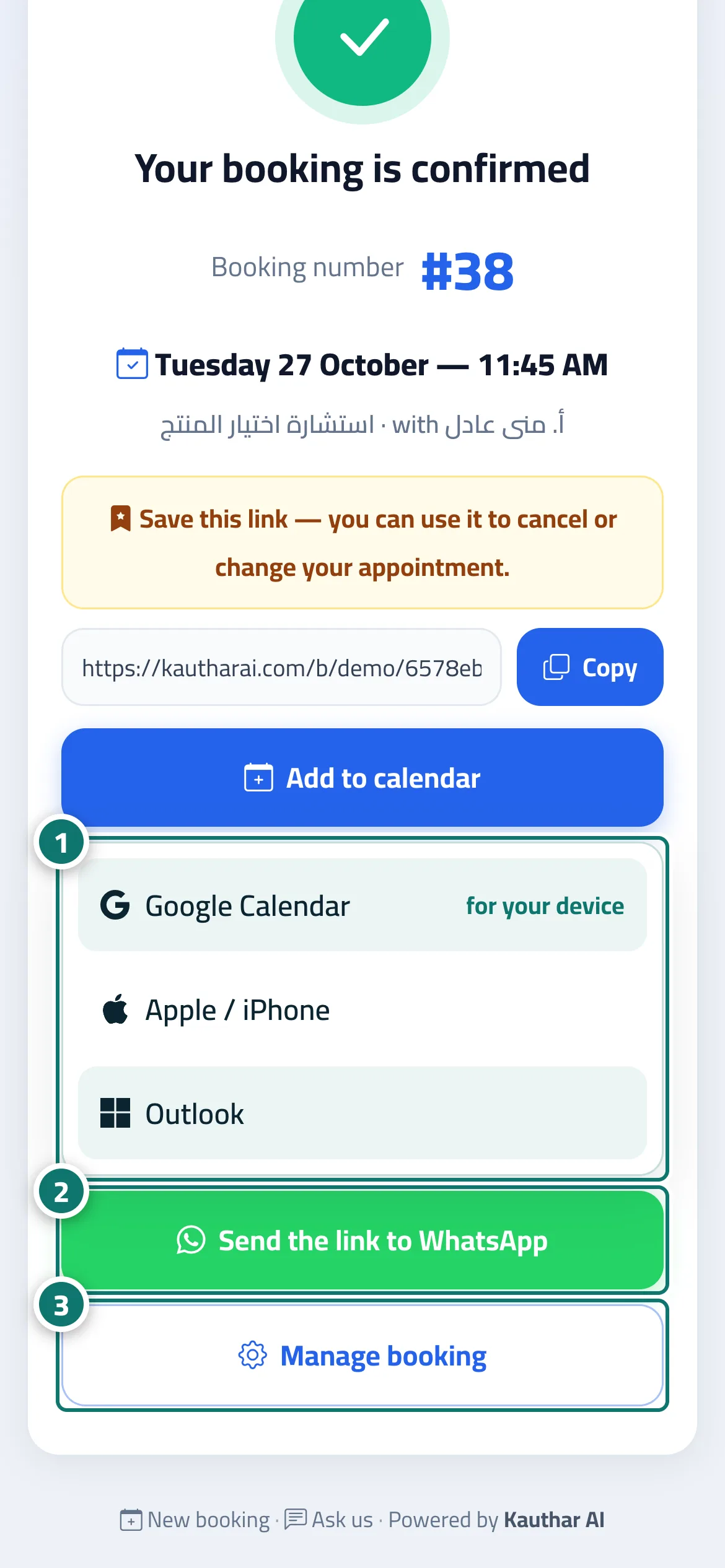
- The customer taps “Add to calendar” and chooses their calendar (Google, Apple / iPhone or Outlook) to be reminded of the appointment. Numéro 1 sur l’image
- Or “Send the link to WhatsApp” to keep the details. Numéro 2 sur l’image
- Or “Manage booking” to change or cancel the appointment later. Numéro 3 sur l’image
Étapes
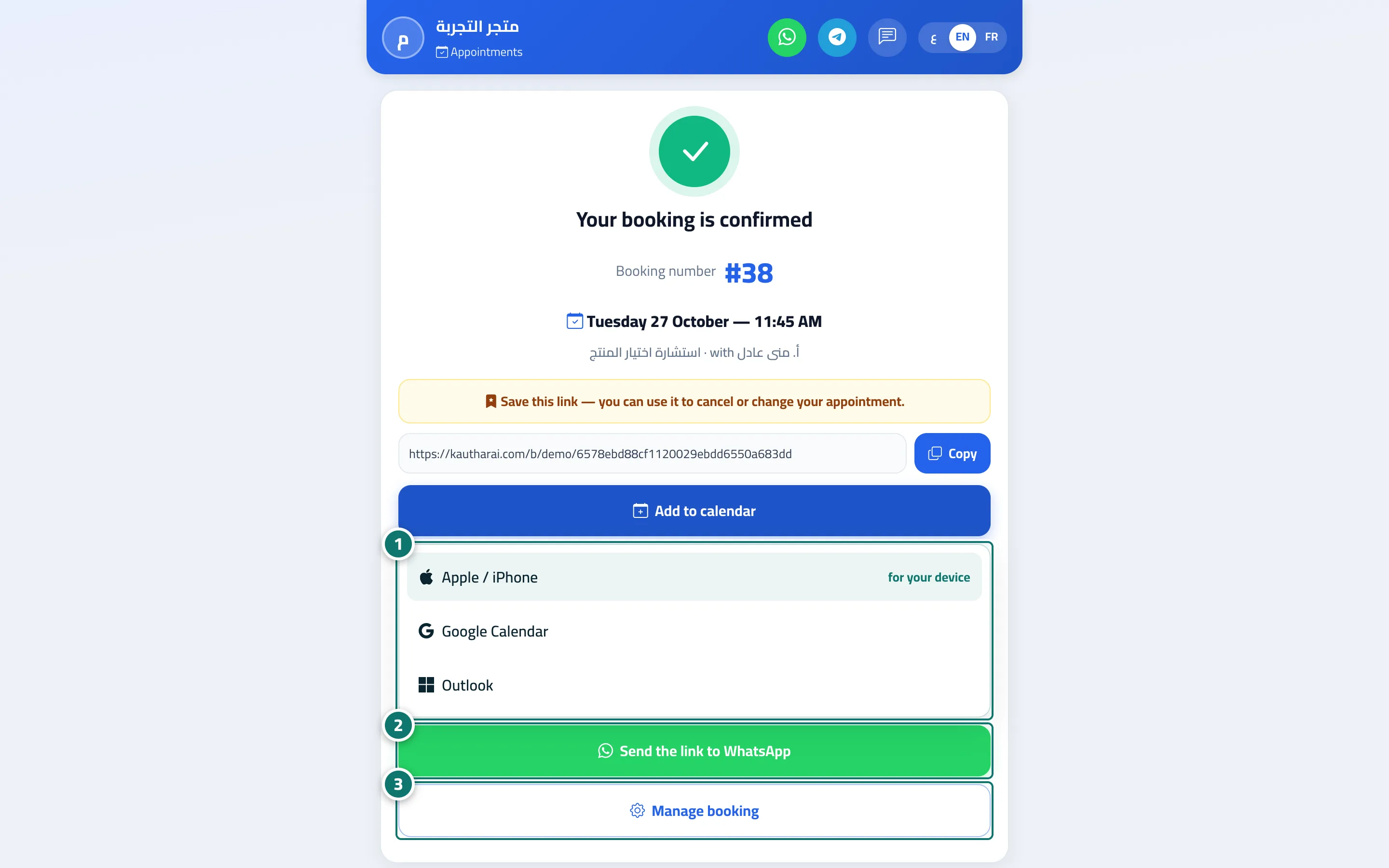
- The customer taps “Add to calendar” and chooses their calendar (Google, Apple / iPhone or Outlook) to be reminded of the appointment. Numéro 1 sur l’image
- Or “Send the link to WhatsApp” to keep the details. Numéro 2 sur l’image
- Or “Manage booking” to change or cancel the appointment later. Numéro 3 sur l’image