
Canaux · Connect Facebook Messenger and Instagram
How do I connect a Facebook page and Instagram account to Kauthar?
Connect your business's Facebook page and the Instagram professional account linked to it in one click, and Kauthar answers Messenger and Instagram messages — and comments, as you set.
Pour qui : Propriétaire et responsable · Membres de l'équipe
Où : Sidebar → Channels & customers → Channels → «Facebook Messenger & Instagram» card
Étapes
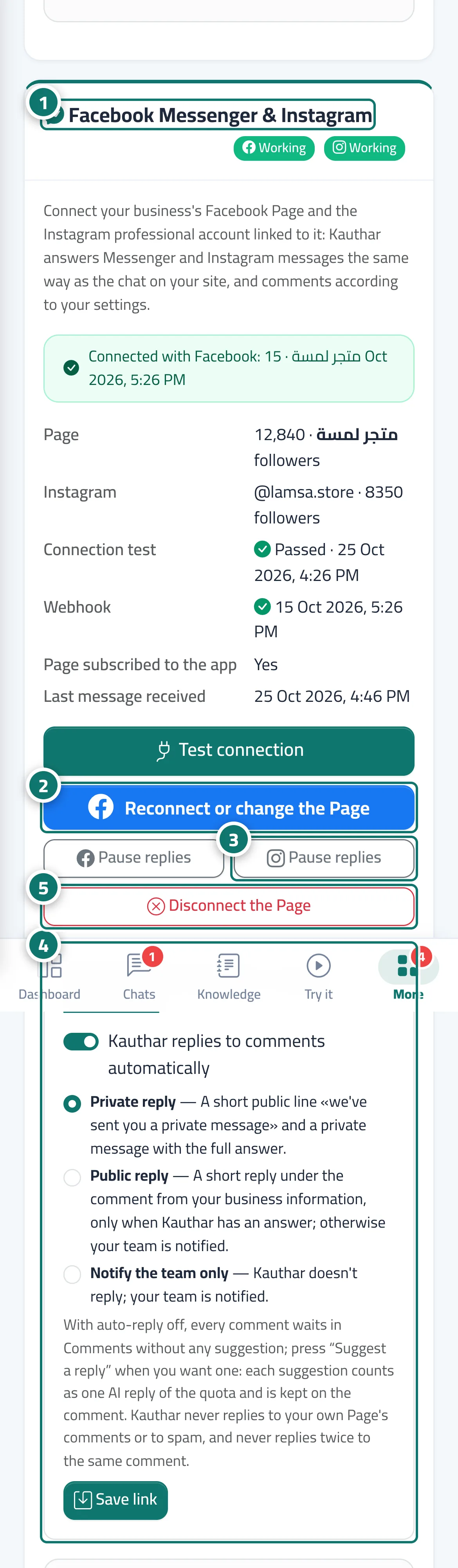
- Open the «Facebook Messenger & Instagram» card in «Channels». Numéro 1 sur l’image
- Click «Connect with Facebook» (or «Reconnect or change the Page» once connected), choose your page, then «Connect this Page». Numéro 2 sur l’image
- To pause replies on Facebook or Instagram, click that channel's «Pause replies» button. Numéro 3 sur l’image
- In «Comment replies», choose automatic replies and the mode, then click save. Numéro 4 sur l’image
- To end the connection completely, click «Disconnect the Page». Numéro 5 sur l’image
Étapes
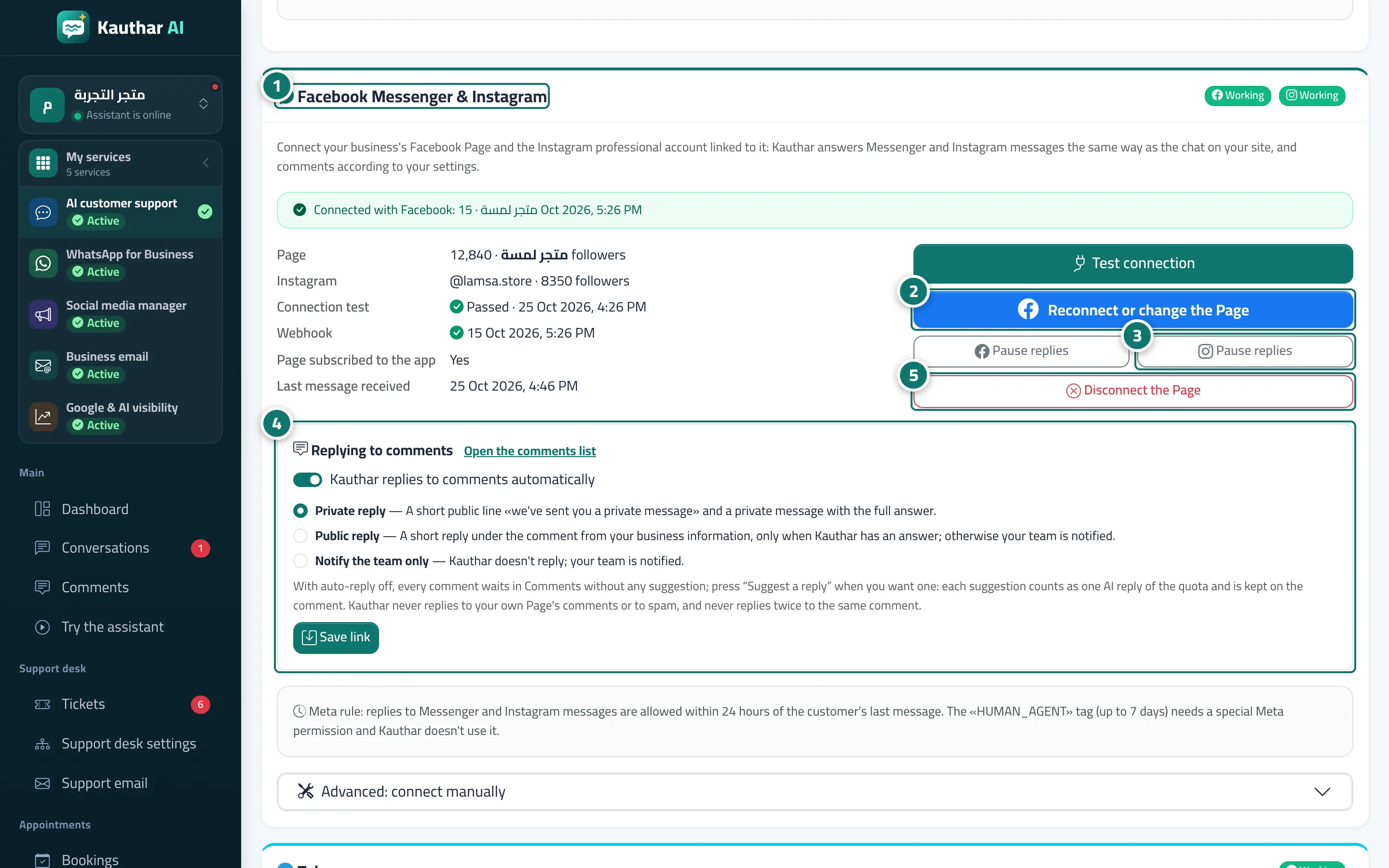
- Open the «Facebook Messenger & Instagram» card in «Channels». Numéro 1 sur l’image
- Click «Connect with Facebook» (or «Reconnect or change the Page» once connected), choose your page, then «Connect this Page». Numéro 2 sur l’image
- To pause replies on Facebook or Instagram, click that channel's «Pause replies» button. Numéro 3 sur l’image
- In «Comment replies», choose automatic replies and the mode, then click save. Numéro 4 sur l’image
- To end the connection completely, click «Disconnect the Page». Numéro 5 sur l’image